An automation you never created sitting in your Shortcuts app is unsettling, but it is almost always harmless and quick to remove. This guide shows you how to find it, delete or disable it safely, and make sure it does not return, with a clear picture of every screen you will touch.
| The short version: Open the Shortcuts app, tap the Automation tab, swipe left on anything you did not create, and tap Delete. If you are not sure whether it is safe to remove, disable it first. No reset and no extra apps are needed. |
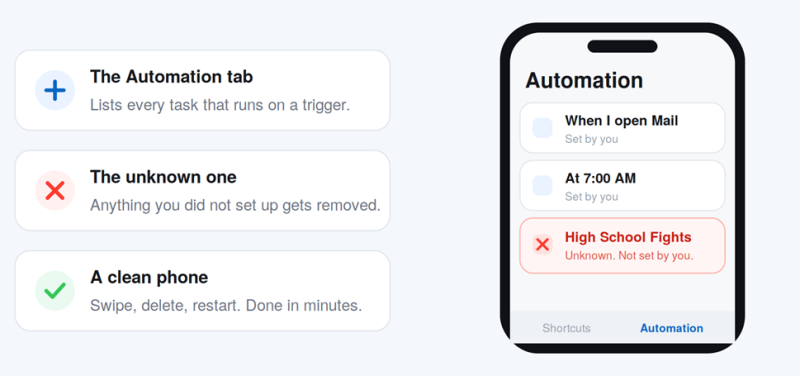
The Automation tab is where triggered tasks live, and where an unfamiliar one stands out.
What an Automation Actually Is
Shortcuts is Apple’s built in tool for running small tasks with a single tap or trigger. A shortcut is the task itself. An automation is a shortcut that runs on its own when something specific happens.
That trigger can be a time of day, arriving at or leaving a place, connecting to a charger or a Bluetooth device, or opening a certain app. When you build one yourself, it saves you effort. The trouble starts when an automation you do not recognize runs on its own and changes things you never agreed to.
A normal automation has three parts you can read at a glance: a trigger that starts it, one or more actions it performs, and a setting that decides whether it asks you first or runs silently. An unknown automation is suspicious for one reason above all: a silent trigger you did not set. That is what lets it act without your say so.
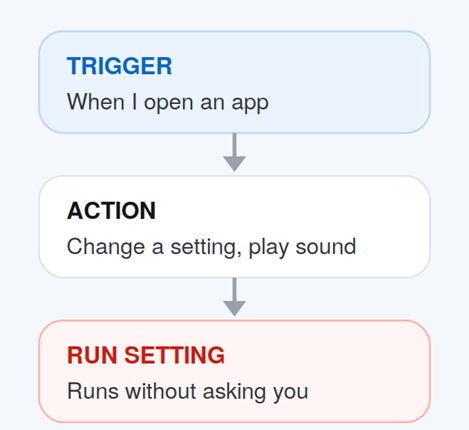
The three parts of any automation. A silent run setting is what makes an unknown one act on its own.
| New to the Shortcuts app? Apple’s Shortcuts User Guide explains how shortcuts and automations are built and how they run. |
How Unknown Automations End Up on Your iPhone
An automation does not appear by magic. In nearly every case it arrived through one of a few ordinary routes, and knowing which one applies helps you judge how careful to be afterward.
COMMON WAYS AN UNFAMILIAR AUTOMATION GETS ADDED
| How it got there | What usually happened |
|---|---|
| A tapped link | You opened a shared shortcut link that installed itself and set up a trigger without you noticing. |
| Someone else’s hands | A friend or family member added it as a prank while your phone was unlocked. |
| A forgotten setup | You created it months ago, or accepted a suggested automation, and no longer remember it. |
| An installed app | An app you added offered a shortcut or automation during setup and it stayed behind. |
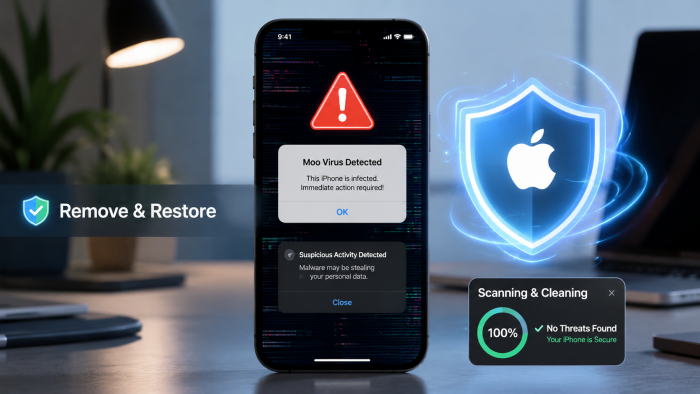
One well known example is the so called Moo Virus, a prank shortcut that flips accessibility settings and loops a mooing sound. It is not a real virus at all, just an automation doing exactly what iOS allows. If that sounds like what you are dealing with, our full walkthrough on how to fix the Moo Virus on iPhone covers that specific case step by step.
| A quick gut check. Before you delete anything, ask one question: did I install this myself and forget, or did it get here another way? If the answer is another way, the cleanup below is only half the job. Read the security section too. |
Find It in the Automation Tab
The Automation tab is separate from your regular shortcuts, which is why people often miss it. Everything that runs on a trigger lives here, so this is the one screen that matters.
| 1 | Open the Shortcuts app It comes preinstalled on iOS. If you cannot see it, swipe down on the home screen and search for the word Shortcuts. |
| 2 | Tap the Automation tab Look along the bottom of the screen and tap Automation. This shows every automation currently set up on the phone, not just the ones you use. |
| 3 | Read down the whole list Anything you did not create, or cannot account for, deserves a second look. Do not stop at the first suspicious entry, since pranks sometimes add more than one. |
| 4 | Tap in to see what it does Open the automation to read its trigger and its actions. This confirms you have the right one before you remove anything. |
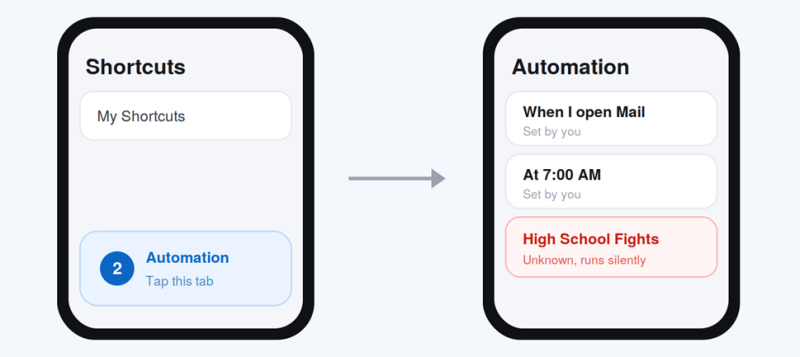
Tap Automation to open the list, then read each row. Unfamiliar names stand out fast.
Remove the Unknown Automation in Four Steps
Once you have found it, deleting it takes only a moment. Work through these in order so you remove the right thing and confirm it stayed gone.
| 1 | Open the Automation tab In the Shortcuts app, tap Automation at the bottom so the full list is in front of you. |
| 2 | Confirm what it does Open the suspicious automation and read its trigger and actions. This makes sure you are not removing a legitimate one you rely on. |
| 3 | Swipe left and delete Back on the list, swipe left across the automation and tap Delete. Apple documents this in its guide to deleting a personal automation. To remove it quickly, swipe all the way to the left edge. |
| 4 | Restart your iPhone A quick restart clears anything still running in memory and confirms the change held. Power off, wait a few seconds, then power back on. |
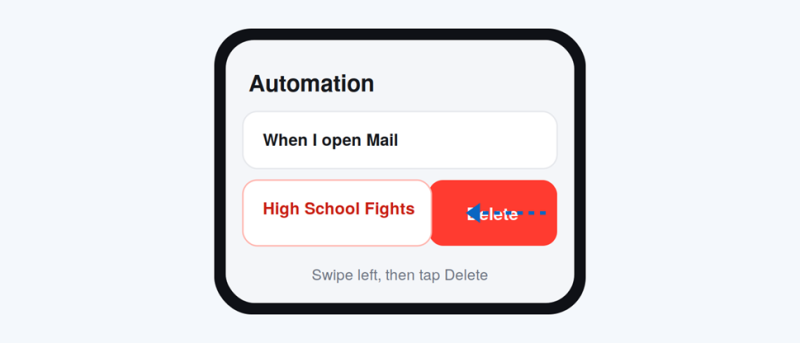
Swiping a row to the left reveals the red Delete button. A full swipe removes it in one motion.
| If deleting feels risky: you do not have to remove it right away. You can switch it off first, watch to confirm the odd behavior stops, and delete it later once you are sure. |
Delete or Disable: Which to Choose
Both options stop an automation from running. The difference is whether you keep it around. If you are confident it does not belong, delete it. If you want to be cautious, disable it first and come back later.
DELETING VERSUS DISABLING AN AUTOMATION
| Consideration | Delete it | Disable it |
|---|---|---|
| What it does | Removes the automation completely from your phone | Keeps it but stops it from running |
| Best when | You are sure it is unwanted or a prank | You are unsure and want to test first |
| Reversible | No, you would need to recreate it | Yes, flip it back on any time |
| How | Swipe left, then tap Delete | Open it, turn off Enable This Automation |
To disable rather than delete, open the automation and turn off the Enable This Automation switch at the top. The automation stays in your list but never triggers. Apple’s guide to enabling or disabling a personal automation walks through the exact taps.
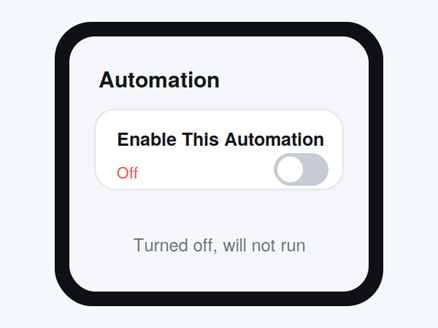
Turning off Enable This Automation keeps the automation but stops it from ever running.
Check Home Automations Too
If you use the Home app for smart lights, plugs, thermostats, or other accessories, those automations can also appear here and can be triggered by events you did not expect, like a time of day or someone arriving home.
Review them the same way you reviewed the personal ones. A home automation is removed with slightly different taps, and Apple explains them in its guide to deleting a home automation.
What to Do After You Remove It
Removing the automation solves the visible problem. The more important question is how it got there, because that decides whether you are truly done.
| If you did not install it, someone else did. That means a person had your phone unlocked, or knows your passcode. The automation is gone in a minute, but a shared passcode is a standing risk that can expose messages, photos, saved passwords, and payment methods. |
If that applies to you, change your passcode under Settings, then Face ID & Passcode. While you are there, check that no unfamiliar face or fingerprint is enrolled. Change your Apple Account password too if the person had your phone for a while.
Finally, glance through the rest of the Shortcuts app. Open My Shortcuts as well as the Automation tab and delete anything else you cannot account for. Two minutes here catches leftovers.
How to Prevent It Happening Again
Unknown automations reach your phone through two open doors: a tapped link or an unlocked device in someone else’s hands. Closing both keeps them out, along with far nastier things that use the same doors.
TREAT SHARED SHORTCUT LINKS CAREFULLY
A shortcut link can do a lot once it runs. If you did not ask for it and cannot see what it does, do not add it. When you install one on purpose, open it in the editor and skim its actions first.
KEEP YOUR PHONE LOCKED
Most prank installs happen in the gap when a phone sits unlocked on a table. Set a short Auto-Lock time under Settings, then Display & Brightness, and lock the screen when you put it down.
GUARD YOUR PASSCODE
Do not share it, and change it if the people around you already know it. A passcode known to several people is not really protecting anything.
REVIEW SHORTCUTS TWICE A YEAR
The same way you glance at a bank statement, skim My Shortcuts and the Automation tab now and then. Anything unfamiliar gets deleted on sight, and the whole check takes under a minute.
The Bottom Line
An unknown automation is a quick fix, not an emergency. Open Shortcuts, go to the Automation tab, confirm what the automation does, then swipe left and delete it, or disable it if you want to be cautious. Restart the phone to be sure it held. The part worth taking seriously is access. If you did not add the automation yourself, change your passcode today. Fix the automation, then fix the door it walked through, and the whole thing becomes a non issue. |
Post Comment
Share your thoughts about this article.
Be the first to post a comment!