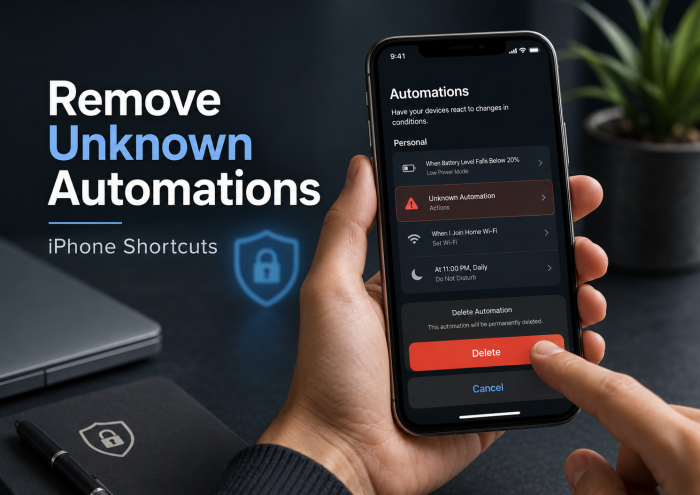
Your screen is zoomed in, the colors are inverted, and a cow will not stop mooing through the speaker. Here is what actually happened, the full fix in five steps, and the one security move most videos never mention. Good news upfront: this is not real malware, your data is fine, and the fix takes under ten minutes with no reset required. |
The so called Moo Virus swept across TikTok and Instagram Reels starting in June 2026, and the videos all look the same: a confused victim holding a phone that moos on repeat while the screen sits zoomed in at triple size with the colors flipped like a photo negative. It looks alarming. It is designed to look alarming. But once you understand what it really is, fixing it becomes a short checklist rather than an emergency.
First, Confirm It Is Actually the Moo Prank
Before touching anything, check your symptoms against the list. The prank has a very specific fingerprint, and if yours matches, everything below applies to you.
1 - The screen is heavily zoomed in, so far that you can only see a corner of the display at a time and navigation feels impossible. 2 - Colors are inverted, making the whole interface look like a film negative. 3 - A cow mooing sound plays repeatedly through the speakers, often with the volume pushed up. 4 - It started right after tapping a shared link or shortcut, or after someone else had your unlocked phone, and there may be a new app or shortcut on your phone with a name like High School Fights. |
What the Moo Virus Actually Is
The culprit, roughly speaking. The Moo Virus borrows this soundtrack, but nothing about it is an actual infection.
Despite the name, there is no virus involved. The Moo Virus is a prank built from an Apple Shortcut, a normal iOS automation file, that abuses the iPhone's own built in accessibility features. When it runs, it switches on the Zoom accessibility setting, flips color inversion on, raises the volume, and loops a mooing sound. Nothing is infected, nothing is encrypted, and nothing is stealing your data in the background. The phone is doing exactly what iOS settings allow, just all at once and against your will.
The prank first gained traction on TikTok in June 2026, when videos of victims, often bewildered parents, went viral, and it spread through the summer as copycats shared the shortcut around. Internet culture database Know Your Meme has documented the trend in a full explainer on the Moo Virus prank, and confused victims even turned to Apple's own support community for help, where other users confirmed it is a shortcut rather than an infection. The reason it fools so many people is clever staging: accessibility features like Zoom and color inversion exist for users who genuinely need them, so they are powerful, they activate instantly, and they persist across app switches. Chained together with an obnoxious sound, they produce something that looks convincingly like a compromised phone to anyone who has never seen those settings before.
THE MYTH
| My iPhone caught a virus, my files and passwords are compromised, and I need antivirus software or a factory reset to recover. |
THE FACT
| A prank shortcut toggled accessibility settings you can toggle right back. Delete the shortcut, undo three settings, restart. No reset, no antivirus, no cost. |
The prank spreads two ways: someone sends the victim a link to install the shortcut, often disguised as a game or app called High School Fights, or someone with physical access to the unlocked phone installs it directly. That second route matters, and we will come back to it in the security section, because the mooing is the least important thing that happened to your phone in that case.
The Fix: Remove the Moo Virus in Five Steps
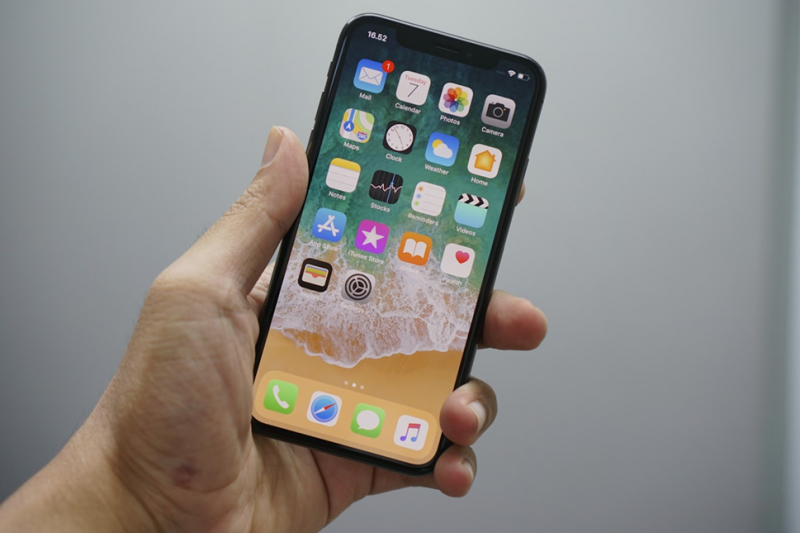
Everything you need is already on the phone: the Shortcuts app and two Accessibility settings screens.
Work through these in order. The awkward part is only the first step, because everything is easier once you can see your whole screen again. If the zoomed screen makes even that feel impossible, there is a hands free shortcut: ask Siri out loud to turn off Zoom, and it will usually toggle the setting for you before you have tapped anything at all.
1 Kill the zoom so you can navigate Double tap the screen with three fingers at the same time. This is the built in gesture that toggles accessibility Zoom off, and it instantly restores your normal view. If it re-zooms, do it again after step 2. If the gesture will not cooperate, you can also drag around the screen with three fingers to move the zoom window while you work. |
2 Delete the prank shortcut and app Open the Shortcuts app, find the shortcut you do not recognize (commonly named High School Fights or something similar), long press it, and choose Delete. If an unfamiliar app icon was added to your home screen as part of the prank, long press that too and remove it. This stops the source, and any automations it created should go with it, but scan the Automation tab in Shortcuts as well and delete anything you did not set up yourself. If the app is unfamiliar territory, Apple's Shortcuts User Guide explains how shortcuts and automations work. |
3 Turn the Zoom setting fully off Go to Settings > Accessibility > Zoom and switch Zoom off. The three finger gesture in step 1 only toggles it; turning the setting off here stops it from coming back. Apple documents this feature, including all of its gestures, on its official Zoom accessibility page. |
4 Restore your normal colors Go to Settings > Accessibility > Display & Text Size and turn off Smart Invert and Classic Invert. Your colors return to normal immediately. While you are in Accessibility, glance at anything else that looks switched on that you never use, such as Color Filters, and turn it off too. |
5 Restart the phone A restart clears any mooing audio still looping in memory and gives you a clean slate to confirm the fix held. Power the phone off, wait a few seconds, and power it back on. If everything looks and sounds normal, the prank is gone. Apple's own iPhone User Guide covers each of these accessibility settings in more depth if anything on your model looks slightly different. |
If the Standard Fix Does Not Work
A small number of victims get a stubborn version of the prank, usually because the shortcut added an automation that re-runs itself. If the symptoms come back after the five steps, work through this second layer.
A - Check the Automation tab, not just My Shortcuts Open the Shortcuts app and look at the Automation tab at the bottom. Pranksters sometimes add a personal automation that re-triggers the moo routine when you open a common app, plug in a charger, or at a set time. Delete or disable any automation you did not create. This is the single most common reason the prank appears to survive deletion. |
B - Use Siri as a remote control If the screen is too chaotic to navigate, speak instead. Asking Siri to open Shortcuts, to turn off Zoom, or to turn off Smart Invert works even while the display is misbehaving, and it turns the worst part of the cleanup into a voice command. |
C - Look for renamed or hidden copies The shortcut is not always called High School Fights. Copycats rename it to blend in, so review every shortcut on the list and delete anything you cannot account for. A shortcut you did not create has no business being there, whatever its name. |
D - Sweep the rest of Accessibility Some versions flip more switches for extra chaos. In Settings > Accessibility , also check Color Filters, Reduce White Point, Spoken Content, and Sound Recognition, and turn off anything you never enabled. Two minutes of scrolling here catches every leftover. |
Moo Virus vs Real iPhone Malware: Know the Difference
Part of why this prank works is that most people have never seen their phone misbehave before, so any misbehavior reads as an infection. The comparison below shows why this one is a prank, and what genuinely malicious behavior would look like instead.
COMPARISON: PRANK SHORTCUT VS GENUINE MALWARE
| Dimension | The Moo Virus Prank | Genuine Mobile Malware |
|---|---|---|
| What it is | A normal Apple Shortcut automation file that flips built in accessibility settings | Malicious code designed to steal data, spy, or extort, usually installed through exploits or sideloading |
| How it gets on the phone | A shared link the victim taps, or someone with the unlocked phone installs it by hand | Phishing pages, compromised profiles, or exploited software flaws, often with no visible install step |
| Goal | Embarrass the victim and get a funny video reaction | Profit, through stolen credentials, surveillance, or ransom |
| Visibility | Loud and theatrical on purpose, since the joke depends on you noticing | Silent by design, since detection ends the operation |
| Damage done | None to data or hardware, only settings changes that reverse in minutes | Potentially severe: compromised accounts, drained finances, leaked personal data |
| The fix | Delete the shortcut, undo three settings, restart | Update iOS immediately, change passwords from a clean device, and in serious cases erase and restore |
The Step Most Videos Skip: Lock the Door They Walked Through
The moo was harmless. The access might not be. If you did not tap the link and install this yourself, then someone else did it on your phone. That means they had your device unlocked, or worse, they know your passcode. The prank itself is over in ten minutes, but a known passcode is a standing problem: it can expose messages, photos, saved passwords, and payment methods to whoever has it. So finish the job. Change your passcode at Settings > Face ID & Passcode , following Apple's passcode guidance if you want the official walkthrough, check that no unfamiliar face or fingerprint is enrolled there, change your Apple Account password if the person had extended access, and stop sharing your passcode going forward, even with people you generally trust. Treat the prank as a free penetration test that you now get to learn from. |
Do You Need a Factory Reset or Antivirus App?
No, and this is worth saying plainly because panic sells both. A factory reset erases your whole phone to fix three settings that take four taps each to reverse, which is like demolishing a house to change a lightbulb. And iOS antivirus apps cannot scan other apps or the system anyway, so they would have nothing to do here. The five steps above are the complete fix. The only scenario where a reset earns its cost is if you cannot find the shortcut, cannot stop the behavior after the steps above, and want absolute certainty, and even then you should back up first and treat it as a last resort rather than a first response.
How to Make Sure It Never Happens Again
Prevention is mostly about who can unlock the phone and what links get tapped, not about extra software.
The Moo Virus needs one of two doors to be open: a tapped link or an unlocked phone in someone else's hands. Close both and the prank, along with far nastier things that use the same doors, cannot reach you. Four habits cover it.
Treat shared shortcut links like unsolicited downloads. A Shortcuts link from a friend can do anything a shortcut can do, which is a lot. If you did not ask for it and cannot see what it does, do not add it. When you do install a shared shortcut on purpose, open it in the editor first and skim its actions before running it.
Keep the phone locked around pranksters. Most Moo Virus installs happen in person, in the gap when a phone sits unlocked on a table. Set Auto-Lock to 30 seconds in Settings > Display & Brightness > Auto-Lock and get in the habit of tapping the side button when you put the phone down.
Guard the passcode itself. Do not share it, and change it now if the people around you know it. A six digit passcode known to five friends is not a passcode, it is a group membership.
Skim your Shortcuts app twice a year. The same way you check bank statements, glance at My Shortcuts and Automations occasionally. Anything unfamiliar gets deleted on sight, and the whole review takes under a minute.
The Bottom Line
The Moo Virus is a prank wearing a scary costume. It is an Apple Shortcut flipping your own accessibility settings, not an infection, and the complete fix is: three finger double tap to unzoom, delete the shortcut, turn off Zoom, turn off the color inversion settings, restart. Ten minutes, zero cost, no reset, no antivirus. The one thing to take seriously is how it got there. If someone else installed it, change your passcode today, because the friend who made your phone moo this week could be anyone with worse intentions next time. Fix the settings, then fix the access, and the whole episode becomes a story instead of a problem. |
Post Comment
Share your thoughts about this article.
Be the first to post a comment!