There is no single winner, and anyone who tells you otherwise is usually earning a commission. But there is a right answer for your situation, and it takes about five minutes to work out.
THE SHORT ANSWER Use whatever your phone already backs up to, because the one that runs automatically is the one that actually works. Then add one more copy at a different company. Two services at two companies protects you against almost everything that realistically goes wrong, including the thing most people never plan for, which is losing access to your own account. |
The difference between sync and backup
This matters more than which company you choose, and most people have it wrong.
A sync service keeps the same files on all your devices. Dropbox, iCloud Drive, Google Drive and OneDrive are all primarily sync services. That sounds like protection, and for some things it is. But sync has one dangerous property: if a file disappears on one device, it disappears everywhere.
So if you delete a folder by accident, or a family member tidies up your library, or something on your computer corrupts a batch of files, sync will faithfully copy that damage to every copy you own. It does exactly what you asked. That is the problem.
A backup keeps a separate copy that does not change when your originals change. Delete something from your laptop and the backup still has it, at least for as long as the service keeps old versions.
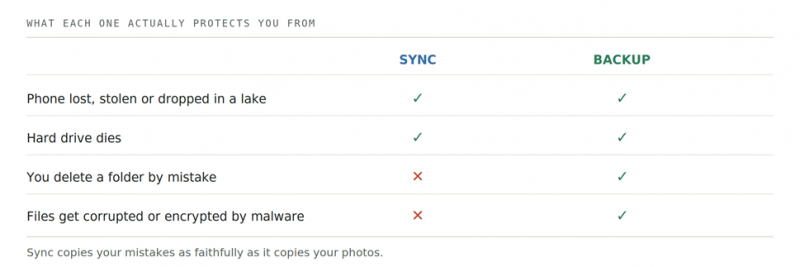
Figure 1. The distinction that decides whether your setup actually works.
THE USEFUL EXCEPTION Phone camera roll backup usually behaves like a real backup rather than sync. Google Photos and iCloud Photos both keep your uploaded photos even after you delete them from the phone, which is why they work well as a first line of defence. It is the desktop sync folders that catch people out. |
How likely you are to lose photos
One number here is genuinely trustworthy, because a company publishes its raw data every quarter and lets anyone download it.
Backblaze runs a large storage business and has published failure statistics for its own hard drives since 2013. The dataset is open and downloadable, which makes it about the only figure in this whole subject you can independently verify.1
Across roughly 341,000 drives, the lifetime failure rate sits at about 1.4% per year. In its 2025 annual report the rate for the year was 1.36%, down from 1.55% the year before.
That sounds reassuringly small, and in one sense it is. But two things make it worse for you than for them.
• It compounds. A roughly 1.4% chance each year means that over five years, something in the region of one drive in fifteen fails. Not a disaster you plan your life around, but not a rounding error either.
• Their conditions are far better than yours. Those drives sit in a climate-controlled data centre, powered continuously, monitored daily, and replaced when the warning signs appear. The drive in your desk drawer is dropped, overheated, left unpowered for years and never checked. It is a worse bet than the published number suggests.
WORTH BEING HONEST ABOUT I could not find a trustworthy figure for how often ordinary people lose photos. There are plenty quoted online, and they trace back to marketing surveys with no published method. Where I cannot check a number, I have left it out of this guide. |
The stronger argument for backing up is not statistical anyway. It is that the loss is total and permanent. A drive failure does not cost you 1.4% of your photos. It costs you all of them, and no amount of money brings them back.
Three questions that decide your answer
Work through these and the recommendation in the next section will be obvious.
1. Where do your photos come from?
If everything is shot on a phone and lives on that phone, you need a camera roll service and almost nothing else. If you shoot on a camera and edit on a computer, you have a large folder of files somewhere, and camera roll services will not touch it. That is a completely different problem needing a completely different tool.
2. How much do you have?
Check before you shop, because the answer changes the recommendation entirely. On iPhone, look in Settings under General, then iPhone Storage. On Android, look in the Files app under storage. On a computer, right click your photos folder and check its size.
Under about 100 gigabytes and almost anything works cheaply. Between roughly 100 gigabytes and 2 terabytes is where the mainstream paid plans live. Above 2 terabytes, per-gigabyte pricing gets painful and unlimited or local storage starts to win.
3. What are you actually protecting against?
Most people picture a dropped phone. That is the easiest problem to solve and the one every service handles. The harder scenarios are the ones worth thinking about, because they are the ones that defeat a single service.
THE SCENARIO PEOPLE FORGET If your account with a provider is suspended, whether through a billing problem, a security flag or a mistake, you can lose access to everything stored there at once. Nothing about that is exotic. It is the main argument for keeping one copy at a second company rather than buying more storage from the first. |
Recommendations by situation
Find the row that matches you. The second copy is the part people skip, and it is the part that matters.
| IF THIS IS YOU | START WITH | ADD AS A SECOND COPY | WHY |
|---|---|---|---|
| iPhone, photos only on the phone | iCloud Photos | Google Photos or Amazon Photos | iCloud is already built in and runs without you thinking about it. The second service breaks your dependence on one company. |
| Android, photos only on the phone | Google Photos | Amazon Photos, or OneDrive if you pay for Microsoft 365 | Same logic. Use whatever you are already paying for as the second copy rather than adding a new bill. |
| Amazon Prime member | Amazon Photos | Your phone's built in service | Prime includes unlimited full resolution photo storage. Videos are the catch, since they count against a small general allowance. |
| Camera plus computer, moderate library | Backblaze computer backup | An external drive kept at another address | Backblaze backs up the whole machine including attached external drives, with no storage limit to manage. |
| Large library, several terabytes | A drive or NAS at home | Backblaze, or B2 if you want per-gigabyte pricing | Above a few terabytes, paying monthly per gigabyte gets expensive fast. Local storage plus one cloud copy is the standard answer. |
| You hate subscriptions | A lifetime plan such as pCloud | An external drive you keep yourself | Pays for itself against a monthly plan after roughly three to four years. The risk is betting on one company staying solvent. |
ON UNLIMITED PLANS Backblaze's personal plan covers one computer with no storage cap, which is unusual and genuinely useful for large libraries. Two limits worth knowing before you buy: it does not back up network drives such as a NAS, and external drives have to be connected periodically or their files are eventually dropped. |
What each service costs
Prices here were checked in July 2026 and they move constantly.2 Treat this as a shape rather than a quote, and check the provider’s own page before paying.
| SERVICE | FREE TIER | TYPICAL PAID TIER | NOTES |
|---|---|---|---|
| iCloud+ | 5 GB | 2 TB, about $9.99/mo | Smaller tiers start around $0.99/mo. Storage is shared with backups and mail. |
| Google One | 15 GB | 2 TB, about $9.99/mo | Free tier is shared across Gmail, Drive and Photos. Entry tier is reported at both $1.99 and $2.99, so check. |
| Amazon Photos | Included with Prime | No extra charge | Unlimited full resolution photos for Prime members. Videos count against a small separate allowance. |
| Backblaze | Trial only | About $99/year per computer | Unlimited, but tied to one machine. Roughly $9 billed monthly, which is why you see both figures. |
| pCloud lifetime | Small free tier | One-off, around $399 for 2 TB | No recurring bill. Breaks even against a monthly plan after roughly three to four years. |
| External drive | None | Roughly $80 to $150 for 4 TB | Cheapest per gigabyte by a wide margin, and the only option nobody can switch off. |
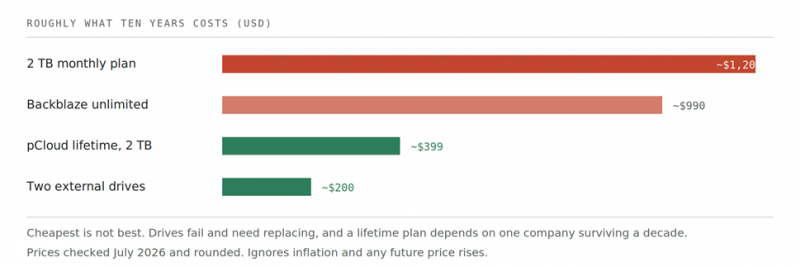
Figure 2. Ten year cost, rounded. Useful for the ranking, not for budgeting to the dollar.
How to set it up
About twenty minutes today, then roughly ten minutes twice a year.
1. Turn on your phone's built in backup and let it finish. This alone covers the most common disaster. Leave it on wifi and charging overnight, because the first upload is the slow one.
2. Find the photos that are not on your phone. Old computers, memory cards, a drive in a drawer, an account you stopped using. This is where the genuinely irreplaceable material usually hides.
3. Gather those into one folder on one computer. Messy is fine. Sorting can wait, and a backed up mess beats an organised loss.
4. Point a second service at that folder. Whole computer backup if you want it automatic, or an external drive you copy to manually if you would rather not pay.
5. Check that a restore actually works. Delete nothing. Just download one photo from each service and open it. An untested backup is a hope, not a plan.
6. Put a reminder in your calendar every six months. Check both services still run, and that the free tier has not quietly filled up.
IF YOU ONLY DO ONE THING Step five. Backups fail silently far more often than they fail loudly, and people usually find out at the exact moment they need them. Restoring one file takes two minutes and is the only way to know your setup is real. |
What can still go wrong
Four failures that a single service will not save you from.
- Your account gets locked
Suspensions happen for billing failures, security flags and simple errors, and appealing to a large company as an individual is famously slow. If everything lives with one provider, this takes all of it at once. A second copy elsewhere is the only real defence.
- The service closes down
Small photo services have shut before, and users had limited time to retrieve their libraries. Very large providers are unlikely to vanish overnight, but they do discontinue products and change terms. Anything irreplaceable should exist somewhere you control.
- The free tier fills up and uploads stop
This is the quiet one, and probably the most common of the four. The service stops accepting new photos, the notification gets dismissed, and months later you discover nothing since March was ever saved. It is worth checking your storage twice a year for this reason alone.
- The backup was never running
A setting toggled off during a phone migration, a service that needed reauthorising, a drive that stopped being plugged in. All boring, all common, and all invisible until you look. Which is the argument for step five above.
VERDICTThere is no best service. There is a best number of services, and it is two. The honest finding of this whole exercise is that the choice between iCloud, Google Photos and Amazon Photos matters far less than people think. They are all reliable, they all run automatically, and any of them will save you from the most likely disaster. Arguing about which is best is arguing about the easy part. What actually separates people who keep their photos from people who lose them is whether a second copy exists somewhere else. That is the decision worth making carefully, and it is the one most buying guides skip because there is no affiliate commission in telling you to use two things you already have. |
FOR MOST PEOPLE Phone service plus one other iCloud or Google Photos for the automatic copy, then Amazon Photos if you have Prime. Often costs nothing extra. | IF YOU SHOOT ON A CAMERA Backblaze plus a drive Unlimited backup of the whole machine at a fixed yearly price, plus an external drive kept somewhere else. | IF MONEY IS TIGHT Free tier plus a drive A 4 TB external drive costs less than one year of a 2 TB plan and nobody can switch it off. |
THE ONE HONEST WARNING Whichever you pick, the setup only counts once you have restored a file from it and opened that file. Until then you have a subscription, not a backup. Almost everyone who loses photos had something running. It just was not doing what they assumed. |
Post Comment
Share your thoughts about this article.
Be the first to post a comment!