One thumbnail-sized USB receiver can run your whole desk. Here is how to pair, manage, and fix up to six Logitech devices on a single dongle, plus when you should skip this app entirely for Logi Options+.
6× DEVICES PER RECEIVER | 10 m WIRELESS RANGE | 2.4 GHz RADIO BAND | AES-128 LINK ENCRYPTION |
READ THIS FIRST Logitech no longer maintains the standalone Unifying Software. It still works and remains downloadable, but Logitech officially recommends Logi Options+ for supported devices. Options+ can pair Unifying receivers too, with a maintained, modern interface. Use the legacy app when your device or OS is not supported by Options+, or when you want its Advanced tools such as receiver firmware update and pairing lock. |
What the software actually does
Every Unifying-badged mouse or keyboard ships already paired to the receiver in its box. The software exists for the moments that default does not cover: consolidating several devices onto one receiver to free USB ports, re-pairing a device to a replacement dongle after you lose one, or moving a keyboard between the receivers on two computers.
Under the hood, the receiver is a 2.4 GHz radio. The common retail hardware is marked CU-0007 on its metal shield, while CU-0008 is the lower-latency variant bundled with gaming gear. Each device-to-receiver link is encrypted with 128-bit AES, and the app can lock the receiver against unauthorized pairing.
Check the logo
This is where most failed pairings begin. The software only talks to hardware carrying the orange Unifying star, printed on the receiver and on the underside of compatible devices (common in the MK, MX, and K400 ranges). Two lookalikes will never pair:
• Logitech Nano and device-specific receivers: no star logo, locked to their own device.
• Logi Bolt receivers: the newer standard with a lightning-bolt logo. Bolt and Unifying are mutually incompatible. A Bolt keyboard cannot join a Unifying dongle, and vice versa.
Pair a device in 6 steps
The running example below follows one common real setup: you own an MK270 keyboard and an MX Master mouse, each shipped with its own dongle, and you want both on a single receiver so your laptop keeps a free USB port.
01 Download and install the software
Get the Unifying Software from Logitech's support downloads page for Windows or macOS. If your device is newer, install Logi Options+ instead, since it can pair Unifying receivers with an actively maintained app. On Linux, install the community tool Solaar; the receiver itself has kernel support since Linux 3.2.
Why this matters: the operating system can already read input from a pre-paired receiver, so your mouse "works" without any software. But pairing, unpairing, and firmware updates are functions of the app, not the OS. Without it, the receiver is read-only.
EXAMPLE On a Windows 11 laptop you search Logitech’s support site for "Unifying", download the ~4 MB installer, run it, and accept the defaults. Total time: about one minute. |
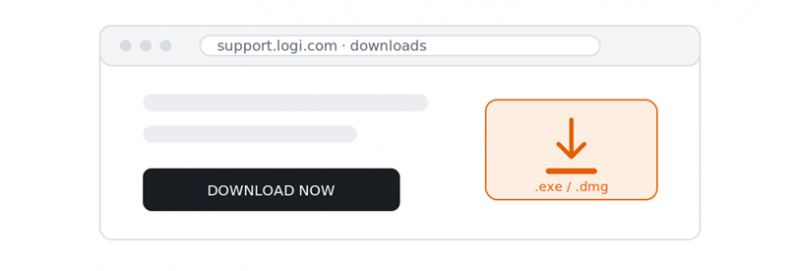
FIG. 01 · Get the installer from Logitech support downloads
02 Plug in one receiver, remove the rest
Insert a single Unifying receiver into a USB-A port, directly on the computer rather than through an unpowered hub or a monitor. Unplug the second dongle and any other wireless receivers before you start pairing.
Why this matters: during pairing, the device broadcasts a join request and connects to the first receiver that answers. With two receivers listening, the keyboard can silently pair to the wrong one, which looks exactly like a failed pairing. One receiver present means one possible answer.
EXAMPLE You keep the MX Master’s receiver in the laptop’s left USB-A port and put the MK270’s dongle in a drawer. The goal is for both devices to end up on that one receiver. |
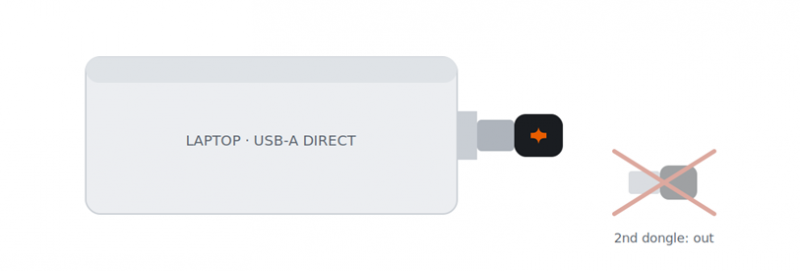
FIG. 02 · One receiver in a direct USB-A port, all others removed
03 Launch the app and start the wizard
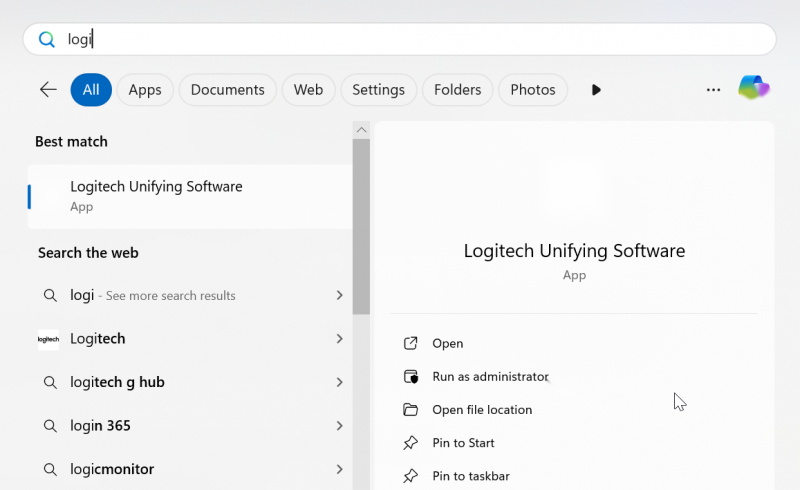
Open the software. Windows: Start → Logitech → Unifying Software. macOS: Applications → Utilities. On the welcome screen, click Next. If the main window opens instead, click Add Devices to reach the same wizard.
Why this matters: clicking Next does more than advance a screen. It puts the receiver into discovery mode, a short listening window during which it will accept a new device. Outside this window the receiver ignores join requests by design, which is what keeps a stranger’s mouse from hijacking your dongle.
EXAMPLE You open the app, see the welcome screen with the orange star, and click Next. The screen now says "Restart the device you want to add." Leave this screen open; it is waiting for step 4. |
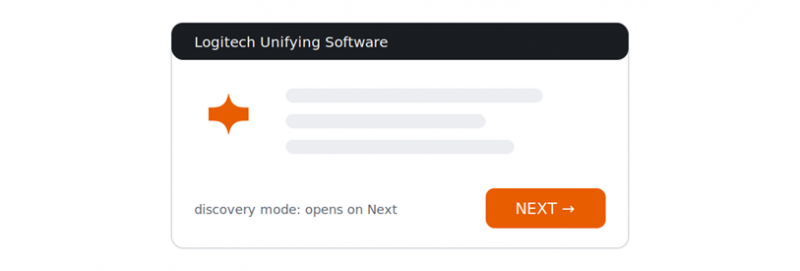
FIG. 03 · The wizard’s Next button opens the receiver’s pairing window
04 Power-cycle the device when prompted
With the wizard on its "restart your device" screen, switch the mouse or keyboard off, wait two seconds, then switch it on, keeping it within about 30 cm of the receiver. Do this only when the wizard asks for it.
Why this matters: a Unifying device only broadcasts its pairing request in the first seconds after it powers on. If it was already on when you started the wizard, it is not broadcasting anything, so the receiver hears silence. Skipping or mistiming the power-cycle is the single most common reason pairing "does not work."
EXAMPLE The MK270 keyboard has a small slider on its top edge. You slide it to Off, count two seconds, slide it back to On, and within a few seconds the wizard’s screen changes: the keyboard has been detected. |
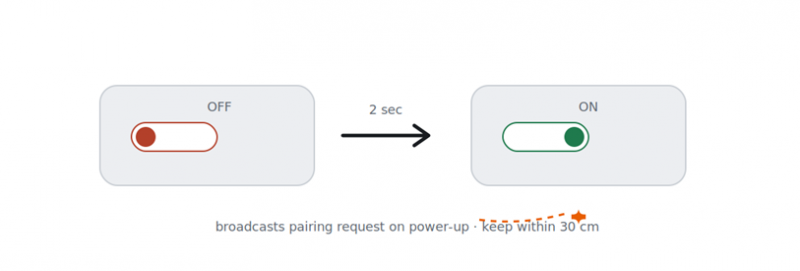
FIG. 04 · Off, two seconds, on. The power-up moment is the pairing moment
05 Confirm the device works
When the device is detected, the wizard shows a confirmation. For a keyboard it asks you to type a test line in a text field; for a mouse, just move the cursor and click. If nothing responds within about a minute, select No, then Next, and the wizard restarts from the power-cycle step.
Why this matters: detection and function are two different checks. A device can pair at the radio level yet still misbehave because of dead batteries or interference. The test line proves the full chain works: keys to radio to receiver to screen. Confirming now saves you from discovering a half-working keyboard after you have closed everything.
EXAMPLE The wizard shows a text box. You type "the quick brown fox" on the MK270 and every letter appears, so you click Yes. If only some keys registered, you would put in fresh AAA batteries and run the wizard again. |
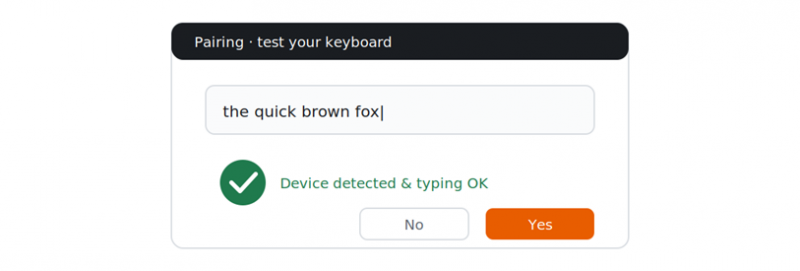
FIG. 05 · Type the test line so pairing is verified end to end
06 Finish, then repeat for each device (up to 6)
Click Finish. The device is now stored in the receiver’s memory. Pairing is one device at a time, so click Add Devices again for the next peripheral and repeat steps 3 to 5 until everything is on the one dongle, up to the six-device ceiling.
Why this matters: pairings live in the receiver, not on the computer. That is why your devices keep working after you uninstall the software, and why the same receiver brings all six devices along when you move it to another machine. It is also why a lost receiver means re-pairing everything to a replacement.
EXAMPLE With the MK270 done, you click Add Devices again, power-cycle the MX Master, and confirm it moves the cursor. Both now run on one dongle. The MK270’s original receiver goes in the drawer as a spare, and your laptop gets its USB port back. |
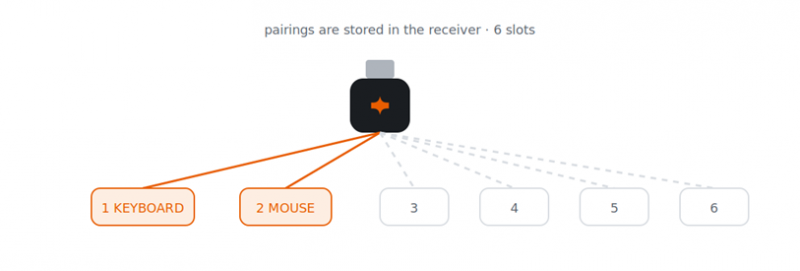
FIG. 06 · Two of six slots filled. Repeat Add Devices for each peripheral
Managing what's connected
See status and battery
The main window lists every paired device with its connection state and, on supported models, a battery indicator, so you can catch a dying keyboard before it dies mid-sentence.
Remove or re-pair a device
Select a device in the list and click Remove to unpair it. If a device drops its link, open Advanced → Pair Again and follow the same off/on wizard. Pairing is not destructive: modern Unifying devices can switch receivers an unlimited number of times.
Advanced tools
The Advanced pane also covers receiver firmware updates, factory reset, and a pairing lock that stops anyone else’s device from silently joining your receiver, which is worth enabling in shared offices.
Troubleshooting, ranked by likelihood
| SYMPTOM | MOST LIKELY CAUSE | FIX |
|---|---|---|
| Device never appears in wizard | Not Unifying-compatible | Check for the orange logo on the device. Bolt and Nano hardware will never pair. |
| Detection times out | Power-cycle missed the window | Restart the wizard, then flip the device off and on only when prompted, within about 30 cm of the receiver. |
| Receiver not detected at all | USB port or hub issue | Move the receiver to a rear or direct USB-A port; bypass hubs and monitor ports while pairing. |
| Laggy or dropping connection | 2.4 GHz interference or range | Keep the receiver in line of sight, away from USB 3.0 drives and Wi-Fi routers; use an extender cradle if needed. |
| Paired but unresponsive | Battery | Check the battery readout in the app; replace or charge, then re-pair via Advanced → Pair Again. |
| Software won't install or crashes | Legacy app on a new OS | Try Logi Options+ instead. It pairs Unifying receivers and is actively maintained. |
Unifying vs. Logi Bolt vs. Bluetooth
If you're buying new gear in 2026, know which ecosystem you're entering, because the receivers are not cross-compatible.
| UNIFYING | LOGI BOLT ⚡ | BLUETOOTH | |
|---|---|---|---|
| Devices per receiver | Up to 6 | Up to 6 | OS-dependent |
| Radio | 2.4 GHz proprietary | BLE-based, secured | Bluetooth |
| Security posture | AES-128 | Enterprise-grade (FIPS-aligned) | Varies by device |
| Still sold on new devices | Being phased out | Yes, current standard | Yes |
| Pairing app | Unifying Software (legacy) or Options+ | Logi Options+ | OS settings |
Bottom line: Unifying remains excellent for the huge installed base of MX and MK era hardware, and replacement receivers keep old devices alive. But it is a maintained-not-developed platform. For new purchases or strict IT environments, Bolt is Logitech’s path forward.
The verdict
Scores reflect the software as it stands in July 2026, judged for its actual job: pairing and managing Unifying-badged hardware.
STRENGTHS Free, tiny, and does one job well Six devices on one receiver, one USB port used Any Unifying receiver replaces any other AES-128 link plus a pairing lock Pairings live in the dongle, so they travel with it | WEAKNESSES No longer maintained by Logitech Incompatible with Logi Bolt and Bluetooth-only gear Dated wizard UI, one device at a time No official Linux client (Solaar fills the gap) 2.4 GHz band is sensitive to USB 3.0 interference |
| Bottom line: a quiet workhorse in maintenance mode. If your desk already carries the orange star, install it, consolidate to one receiver, run the firmware update once, and forget it exists. That is the highest compliment utility software can earn. | |
USE IT IF You own MK, MX, or K400 era devices with the logo, you want to free USB ports, or you need to rescue hardware after losing a dongle. | SKIP IT IF You are buying new gear (choose Logi Bolt), your device is supported by Logi Options+, or your IT policy requires actively maintained software. |
Post Comment
Share your thoughts about this article.
Be the first to post a comment!