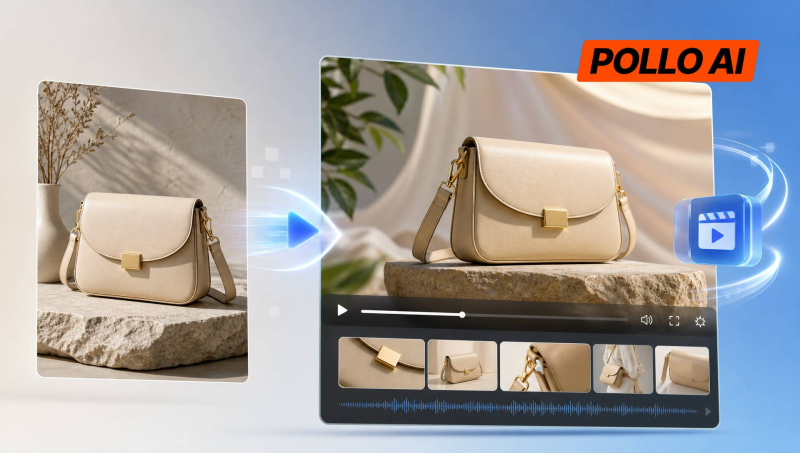
You don't always need to film a product to make a short sales video. If you already have a decent product photo, Kling 4.0 on Pollo AI can turn it into a moving clip. This works well for simple product showcases, especially when you want to highlight a design detail or give shoppers a closer look.
The tricky part is getting the video to move without changing the product itself. Here's a practical workflow, from preparing the image to checking the final result.
Step 1: Prepare a Product Image
Start with a clear photo of the actual product. If the background works for your video, use the image as it is. There's no need to edit it just for the sake of it.
Create a New Scene if Needed
If your original photo has a plain background but you want a lifestyle setting, use an image generator such as Nano Banana 2.1 on Pollo AI to create a scene first.
For example, you could place a coffee maker on a kitchen counter or a skincare bottle on a bathroom shelf. Once the image is ready, use it as the starting frame for your video.
Step 2: Decide on the Shot
Don't try to squeeze every product feature into one short clip. Pick one thing you want viewers to notice and build the shot around it.
Map Out the Camera Movement
A simple sequence is usually enough:
● Opening: Show the full product.
● Close-up: Move in to show a detail, such as the bottle cap or surface finish.
● Ending: Return to a clear view of the product.
You can use this as a guide for one continuous camera move or a sequence with several keyframes.
Step 3: Generate the Video with Kling 4.0
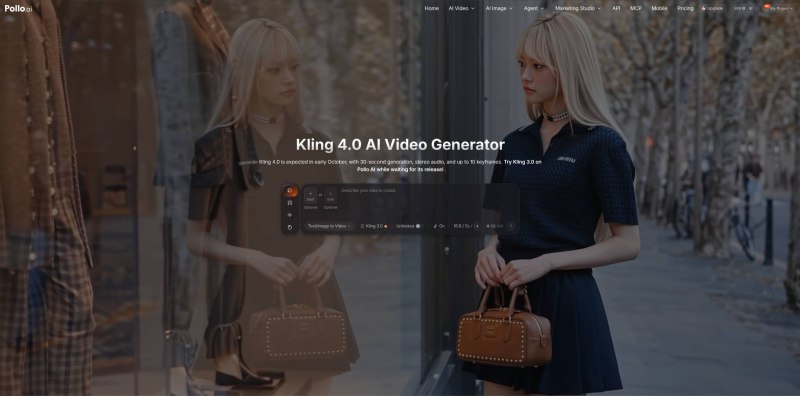
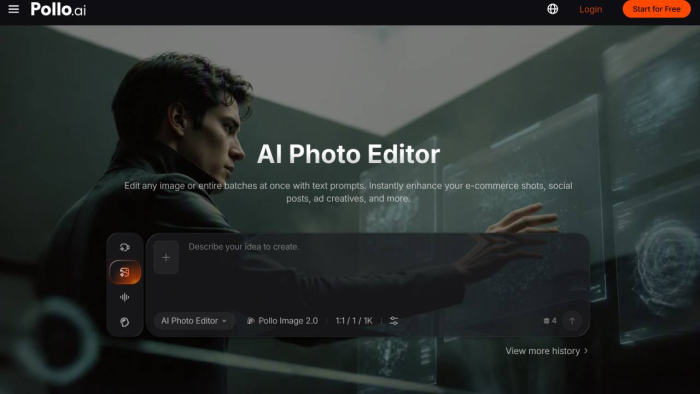
Open Kling 4.0 on Pollo AI and check the available generation settings.
Upload the Image and Write a Prompt
Choose image-to-video, upload your prepared image, and describe what should happen. Be specific about the camera movement, direction, speed, and lighting. Also state which product details must remain unchanged, such as its shape, color, logo, and packaging. Avoid asking for too many movements or effects in one clip, as this can make the result less consistent.
Use Keyframes if You Need More Control
Kling 4.0 supports up to 10 keyframes. These can help you plan how the product appears at different points in the clip.
For example, use a full-product view at the start, a closer view of the lid later, and another full-product view at the end. If you're only making a simple showcase, though, start with one image and a camera movement prompt. Check the available controls before building a more complicated sequence.
Step 4: Fix Common Generation Problems
The first result may not be usable. That's part of working with AI video, so don't assume you need to start over every time something looks off.
Adjust the Prompt to Fix the Specific Issue
Watch the whole clip and look for problems such as a warped product, a changing logo, inconsistent lighting, or unexpected objects.
If the bottle bends when the camera moves, try a slower push-in. If the background keeps changing, simplify the scene and remove unnecessary movement.
Generate another version and compare it with the previous one. If the same problem keeps appearing, simplify the camera movement or remove unnecessary effects instead of adding more instructions.
Step 5: Prepare the Video for Your Store
Once you're happy with the footage, adjust it for the platform where it'll appear.
Check the Format and Add Text
Check the platform's current requirements for aspect ratio, resolution, duration, and file size. Kling 4.0 supports output options including 4K, 1080p 10-bit HDR, and 21:9 framing, although the options available to you may vary.
If you need to add a price, product name, discount, or call to action, do it in a video editor. This also gives you more control over text placement and makes it easier to correct mistakes.
Tips for Better E-commerce Videos
Keep the Product Image Accurate
AI-generated scene images can subtly change a product. Compare the result with the original photo, especially around the logo, label, packaging, and small design details. If something looks wrong, fix the image before turning it into a video.
Plan Before You Hit Generate
AI video generation usually takes a few attempts. Decide what the shot should show and how the camera should move before you start. A specific prompt is easier to work with than a vague request to make the product look impressive.
Change One Thing at a Time
If a result is almost right, don't rewrite the entire prompt. Change the instruction related to the problem, generate again, and compare. That makes it easier to tell whether the adjustment actually helped.
Check the Video Against the Real Product
Before using the clip in a listing or ad, check that it doesn't change the product's appearance, invent accessories, or show features that haven't been verified. Also proofread any text added during editing.
Final Thoughts
Turning a product photo into a video with Kling 4.0 is fairly straightforward. Start with a good image, give the camera one clear movement, and keep the prompt focused. Add keyframes if you need more control over the sequence.
Don't expect every generation to be ready to publish. A simpler clip that shows the real product clearly is more useful for an online store than an elaborate video full of visual glitches. If you have a product photo ready, try turning it into a short video with Kling 4.0 on Pollo AI and see how it works for your product.
Post Comment
Share your thoughts about this article.
Be the first to post a comment!