Reading research papers is one of the hardest parts of student life. The writing is dense, the structure is unfamiliar, and there is always another paper waiting in the queue.
Learning to read a paper efficiently is a genuine skill, and most students are never formally taught it. That is exactly the gap AI reading tools have started to fill.
These tools condense long PDFs, answer questions in plain language, and surface the key findings, so you can spend your energy on thinking instead of decoding. This guide explains how they help, walks through five popular options in detail, and shows how they differ so you can choose well.
Why reading papers feels so slow
The sheer volume is part of it. Roughly 2.5 million new scientific papers are published every year, so no student can read everything in their field by hand.
Reading is slow work on its own, too. Surveys of scholars have found they read a dozen or more articles a month and spend around half an hour on each article, and that time adds up quickly across a full reading list.
The format is another hurdle. Most papers follow the IMRD structure of Introduction, Methods, Results, and Discussion, which is efficient for experts but confusing the first time you meet it.
Then come the specialist vocabulary, the statistics, and the citations. Put together, a single paper can easily swallow an hour before you have even decided whether it is relevant to your work.
How AI tools speed things up
AI reading tools do not replace careful reading. They remove the friction that slows it down. Here is where they help most.
• Instant summaries. A twenty-page PDF becomes a short, readable overview in seconds, so you grasp the shape of a paper before deciding to read it in full.
• Plain-language answers. Ask about a confusing section and get an explanation you can actually follow, without hunting through a textbook.
• Data extraction. Findings, sample sizes, and results get pulled into a table across several papers at once, which turns a long comparison into a quick scan.
• Citation help. References are formatted for you, with each claim traceable back to its source so your bibliography stays honest.
Five AI tools, explained in detail
These five tools take different approaches to the same problem. Each entry below covers what the tool does, how it saves you time, what stands out, and one honest limitation to keep in mind.
01. Liner AI
EDITOR'S PICK
Highlight, summarize, and organize in one workspace.
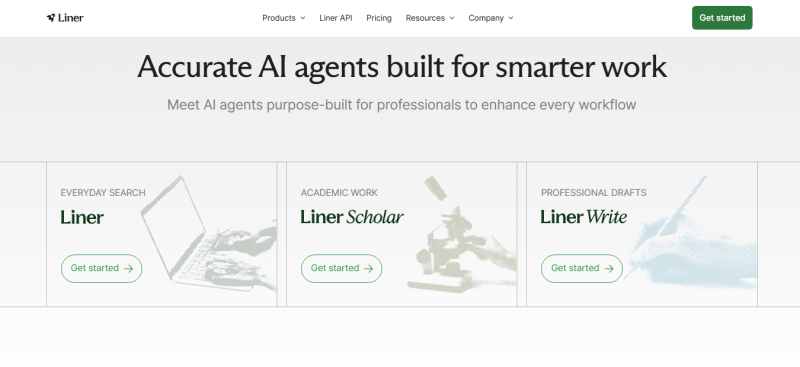
Liner AI is built around highlighting and organization. It works across web pages, PDFs, and even video, and everything you mark up syncs into a single research space, so your sources stop scattering across twenty open tabs.
For reading speed, the summarizer condenses long documents into short overviews, while Scholar Mode attaches the source behind each AI answer. You can click straight through to the original passage, which keeps the workflow fast without losing traceability. That balance is what sets it apart for academic work.
In practice, a student might drop a dozen sources into one workspace, highlight the passages that matter, and let Liner draft a short summary of each. Its citation tool then formats those references in APA, MLA, or Chicago, so the notes you gather while reading turn straight into material you can cite.
For a full walkthrough, read our detailed look at how Liner AI helps you research smarter.
• Scholar Mode links every AI claim back to its source
• Summaries work on articles, PDFs, and video talks
• A built-in citation tool formats references as you go
Keep in mind: Heavier use, such as bulk PDF uploads, sits behind the paid plan.
Best for: Students who want summaries, highlights, and cited sources in one place.
02. SciSpace
A reading copilot for the hard parts.
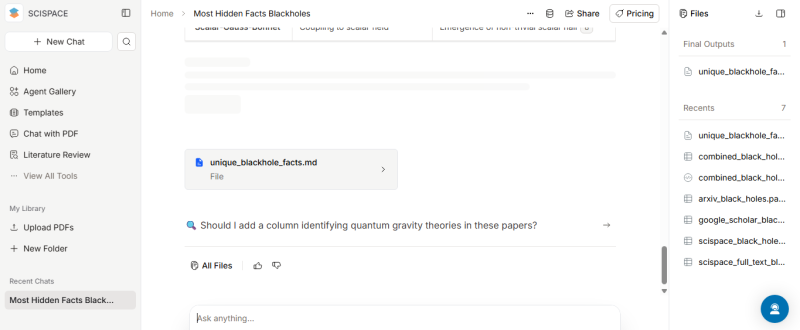
SciSpace sits beside the paper as a copilot. Highlight any sentence, equation, or table that stops you, and it explains that exact piece in simpler terms, then lets you ask follow-up questions in the same window.
Because the help is anchored to the spot where you are stuck, you spend less time searching for unfamiliar terms and more time moving through the argument. It is aimed squarely at comprehension rather than discovery, which makes it a strong companion for the papers you already know you need to read.
Say you hit a results section thick with statistical notation. Instead of stalling, you highlight the line and get a plain reading of what the numbers mean, then ask why the authors chose that test. The paper keeps moving, and you build understanding as you go rather than parking questions for later.
• Explains highlighted text, math, and tables on the spot
• Follow-up questions stay in the context of the paper
• Works directly inside the document you are reading
Keep in mind: It shines on single papers, so it is less suited to weighing many at once.
Best for: Decoding difficult passages while you read.
03. Elicit
Turns a literature review into a table.
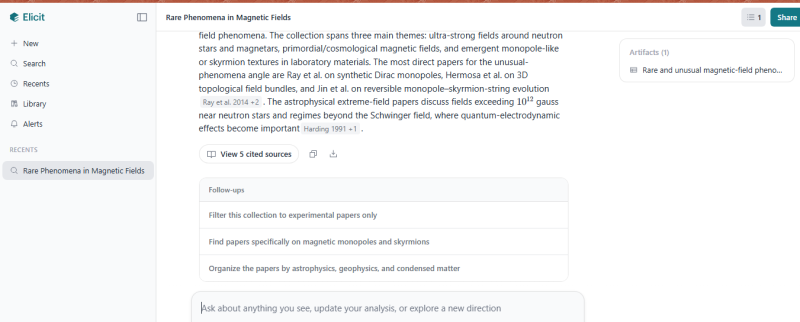
Elicit is built for the discovery and review stage. You describe your question, and it searches across a large body of papers, summarizes the relevant ones, and lays out details such as sample size, method, and outcome side by side.
That structured view is the real time saver. Instead of opening thirty papers to work out which ones matter, you scan a comparison grid first and read the full text only where it counts. For a literature review, that can turn days of sifting into an afternoon.
For a dissertation chapter, this is the difference between a wall of PDFs and a working spreadsheet. You can sort the grid by method or population, notice which findings agree and which clash, and walk into your writing with a map of the evidence already in hand.
• Searches and summarizes many papers at once
• Extracts findings into a comparison grid
• Helps you spot gaps across a body of research
Keep in mind: It draws on published literature, so it is strongest for academic questions rather than general topics.
Best for: Comparing many studies at once.
04. Scholarcy
A summary flashcard for every paper.
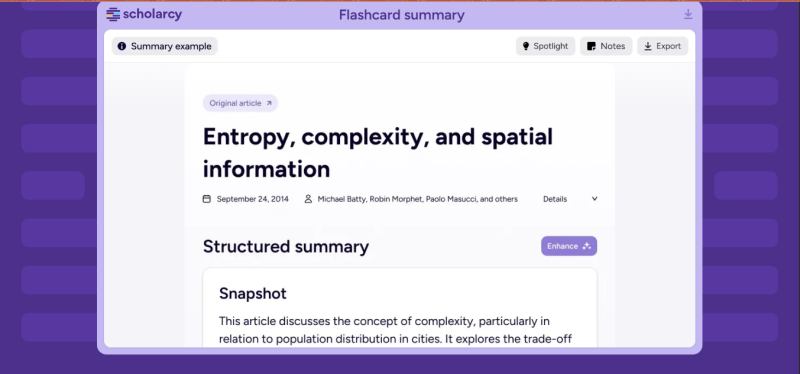
Scholarcy breaks a single paper into a compact summary card. It pulls out the main claims, the method, the key figures, and the limitations, and links to the references the paper cites so you can follow the trail further.
The card gives you a quick map of a paper before you commit to a full read, which makes it useful for triage. When you have a stack of PDFs and limited time, it helps you sort the essential from the optional in minutes.
It is especially handy at the start of a project, when you are not yet sure which papers belong in your review. A few minutes with the summary cards tells you which studies are central, which are tangential, and which you can set aside, before you have spent an evening reading the wrong ones.
• Condenses a paper into a structured summary card
• Highlights claims, methods, and limitations
• Links out to the paper's own references
Keep in mind: A card is a starting point, so important papers still deserve a full read.
Best for: Deciding whether a paper is worth reading in depth.
05. ChatPDF
A conversation with a single document.
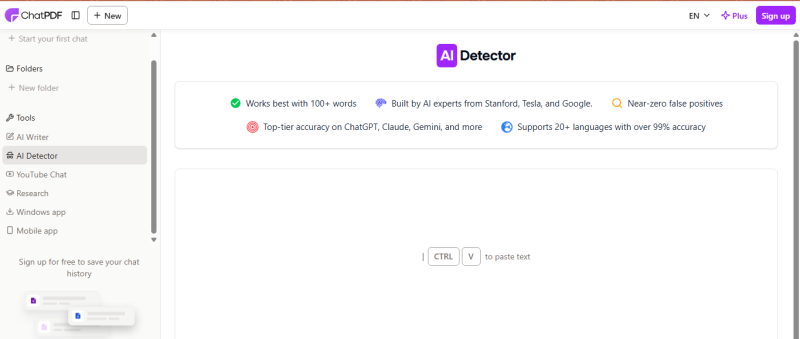
ChatPDF lets you talk to one paper at a time. Upload the file and ask questions in plain language, from the main finding to the method used, and it answers using only that document.
Keeping the AI focused on a single source makes the answers easier to trust and check, since everything it says traces back to the file in front of you. It is the simplest tool on this list to start with, which suits a quick read on a tight deadline.
It fits the moment before a seminar when you need the gist of an assigned paper fast. You can ask for the research question, the method, and the main takeaway in turn, then follow up on anything that is still unclear, all without reading every page first.
• Plain-language question and answer on one file
• Answers stay grounded in that single document
• Simple to start, with almost no setup
Keep in mind: One file at a time means it is not built for cross-paper comparison.
Best for: Quick question and answer with a single paper.
How the five tools differ
At a glance these tools look similar, but they solve different parts of the reading problem. It helps to group them by the job they actually do.
GROUP A · READ AND UNDERSTAND
Get through a paper you already have
These tools work on a document in front of you, explaining passages and answering questions so a dense paper becomes readable.
Tools: SciSpace, ChatPDF
GROUP B · FIND AND COMPARE
Decide what is worth reading
This tool works across many papers at once, searching and summarizing so you can see the landscape before committing to any single study.
Tools: Elicit
GROUP C · SUMMARIZE AND ORGANIZE
Condense and keep your sources in order
These tools shrink papers into overviews or cards and keep your notes and citations together, which is useful across an entire project.
Tools: Liner AI, Scholarcy
The clearest axis of difference is scope. Some tools go deep on one document, while others go wide across many. A single dense paper calls for a comprehension tool, while a broad literature search calls for a discovery tool.
The second axis is output. SciSpace and ChatPDF give you a conversation, Elicit gives you a table, and Liner AI and Scholarcy give you summaries plus a place to store them. Knowing which output you want makes the choice simple.
Not sure where to start? Use this quick guide.
• Stuck inside one paper? Reach for SciSpace or ChatPDF to explain and answer as you read.
• Surveying a whole field? Reach for Elicit to search and compare many papers at once.
• Want everything summarized and saved together? Reach for Liner AI or Scholarcy.
Quick comparison
A side by side view of how each tool works and what it does best, so you can match one to your next assignment.
| Tool | Core approach | Standout feature | Best for |
|---|---|---|---|
| Liner AI | Highlight, summarize, and organize across formats | Scholar Mode links answers to their sources | One organized research workspace |
| SciSpace | Explain passages as you read | Breaks down equations and tables on the spot | Decoding hard passages |
| Elicit | Search and compare many papers | Findings laid out in a grid | Literature reviews |
| Scholarcy | Condense a paper into a card | Structured summary with linked references | Screening papers fast |
| ChatPDF | Chat with one document | Focused answers from a single file | Quick question and answer |
How to read smarter, not just faster
AI works best when you still guide the process. A few simple habits keep your reading sharp.
1. Start with the abstract and the conclusion, then decide whether the full paper earns your time.
2. Read in passes rather than one straight sitting. Experts recommend a multi-step reading approach for exactly this reason.
3. Always check an AI summary against the original, since tools can over-generalize a dense argument.
4. Keep your highlights and notes in one place so you can actually find them when you write.
Clear the clutter, keep the thinking
AI tools will not do the thinking for you, but they will clear the clutter so you can focus on ideas. The goal is not to read less carefully. It is to spend your limited attention on the parts of a paper that actually reward it, the argument, the evidence, and the gaps, rather than on decoding jargon or reformatting citations.
The smartest way to start is small. Pick one tool that matches how you work, test it on a paper you already understand, and see whether its summary matches your own reading. That check builds trust and shows you where the tool is strong and where it still needs your judgment. From there, you can fold it into your routine without handing over control.
Used this way, these tools do more than save time. They lower the barrier to engaging with research at all, which matters most for students who are still finding their feet in a field. Read widely, question what you read, and let the tools carry the busywork. The thinking stays yours, and so does the credit for it.
Post Comment
Share your thoughts about this article.
Be the first to post a comment!