If you manage contracts, marketing collateral, or compliance documentation, you already know how tricky PDFs can be. Most organizations bounce between clunky desktop software, half-baked browser widgets, and expensive enterprise suites that end up under-used. In 2026, the real question isn’t “Can we edit a PDF?” – it’s “Can we edit it quickly, securely, and without drowning in surprise charges?”
Files Editor promises exactly that: a cloud-only, one-stop shop for editing, converting, signing, and compressing documents.
I spent two work weeks using Files Editor as my primary PDF tool, ran a dozen real-world tests, spoke with support twice, and compared the platform against three market veterans – Smallpdf, iLovePDF, and PDFfiller – to answer a single, reader-focused question:
Is Files Editor the right fit for me or should I look elsewhere?
Review Methodology
My approach to testing Files Editor looked like this:
1. I created an account on Chrome (MacOS Tahoe).
2. Paid the micro-fee to start the premium trial.
3. Tested functionality across six file categories – marketing decks, legal contracts, scanned receipts, CAD-heavy plans, HR forms, and Excel budgets.
4. Checked security with Qualys SSL Labs and manually reviewed the vendor's SOC-2 letter (Type I).
5. Cancelled the trial via the self-serve portal, then requested a refund.
6. Benchmarked the tool against Smallpdf, iLovePDF, PDFfiller.
Product Overview
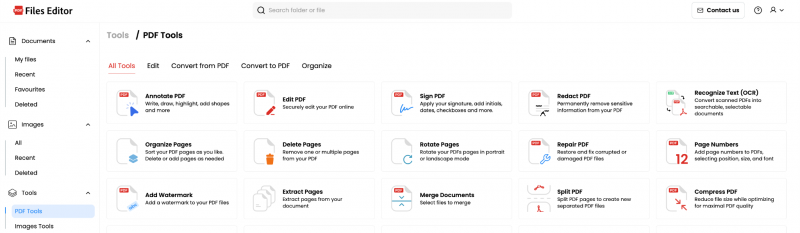
Files Editor (files-editor.com) is a lightweight alternative to heavyweight suites like Adobe Acrobat. It offers two distinct toolkits - one for PDFs, one for image editing. Here's what's actually included in each.
Files Editor has a very easy browser-based PDF UI. You upload a file (direct, or from Google Drive, Dropbox, OneDrive), pick a tool, and go. No installs, no plugins. The dashboard is organized around a left-hand sidebar (Documents, Images, Tools) and, inside the PDF Tools section, four tabs: Edit, Convert from PDF, Convert to PDF, and Organize. Here's how each actually holds up in use.
The PDF Toolkit
Edit PDF
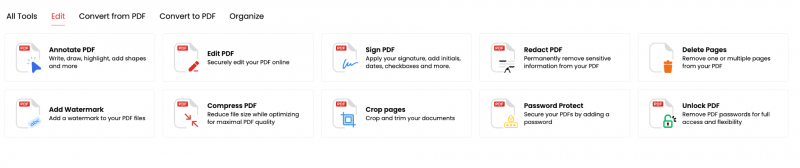
This tab is probably the most commonly used, and it's genuinely well-stocked: Annotate PDF, Edit PDF, Sign PDF, Redact PDF, Delete Pages, Add Watermark, Compress PDF, Crop Pages, Password Protect, and Unlock PDF - ten tools, all one click apart in a single grid. Icons, labels and description are clear enough that there's no guessing which tool does what.
The redaction tool deserves a closer look than others: it's described as permanently removing sensitive content rather than just painting a black box over it. It's a genuinely useful distinction - cosmetic-only redaction is a common and often embarrassing failure mode in cheaper PDF tools, where "redacted" text is still selectable or extractable underneath the overlay.
The signing tool itself implies once you're actually in the editor you can type a signature (with multiple cursive style options to choose from), draw one freehand, or upload an image, plus set a color, and it's paired with initials, a text field, a date field, and a check field, all draggable directly onto the document alongside the standard markup tools (highlight, redact, sticky notes, arrows, shapes). That's a genuinely solid signing workflow for single documents.
Convert to PDF / Convert from PDF
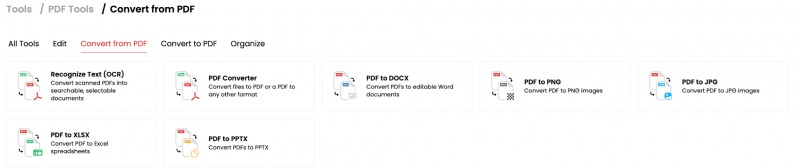
These are the strongest parts of the product. Converting to PDF covers Word, PNG, JPG, Excel, PowerPoint, TXT, and "any format." Converting from PDF covers Word, PNG, JPG, Excel, PowerPoint, and again "any format."
Converting from PDF adds a dedicated Recognize Text (OCR) tool for scanned documents - genuinely useful, and not something every free browser-based tool bothers to include. Splitting conversion into two clearly labeled tabs by direction (rather than one big "convert" dropdown) makes it fast to find the exact format pair you need without hunting.
Organize PDF
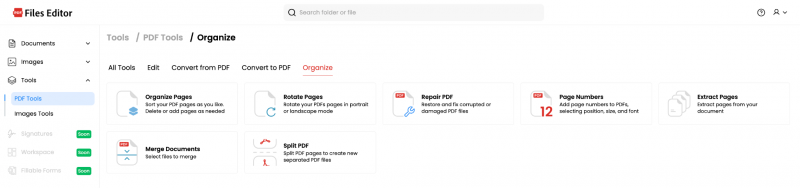
A tighter, page-level tab: Organize Pages, Rotate Pages, Repair PDF, Page Numbers, Extract Pages, Merge Documents, and Split PDF. The standout here is Repair PDF - a tool for fixing corrupted or damaged files that a lot of competitors simply don't bother building. It's a niche need, but when you actually hit a broken PDF, having this one click away is a real convenience rather than a nice-to-have. Page Numbers is similarly a small but practical addition, with control over position, size, and font rather than a one-size-fits-all stamp.
Image Toolkit
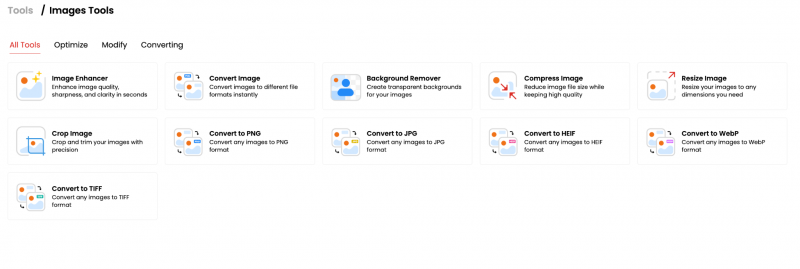
Images get their own dedicated section in the sidebar, separate from Documents and the PDF tools, organized into three tabs: Optimize, Modify, and Converting. It's a genuinely more substantial toolkit than a typical PDF site's image tab: Image Enhancer (sharpness/clarity/quality improvement), Background Remover (transparent backgrounds), Compress Image, Resize Image, and Crop Image cover the editing side, while conversion gets its own generic Convert Image tool plus dedicated one-click converters for PNG, JPG, HEIF, WebP, and TIFF.
Background removal and an AI-flavored image enhancer are a step up from what most PDF-first competitors bother building — those are the kind of tools you'd normally expect from a dedicated image editor, not a bolt-on to a document suite. The format coverage is also broader than most PDF sites' image tabs, which tend to stop at PNG/JPG — HEIF and WebP support in particular is a nice touch given how common both formats have become on phones and modern web images. It's not a full creative suite (no layers, filters, or text overlays the way Canva or Pixlr offer), but as a practical, single-purpose image toolkit sitting alongside the PDF tools, it's more capable than it needs to be.
Hands-On Testing Experience
Getting started took under one minute. I dragged a 28 MB marketing brochure, watched the progress bar zip to 100 %, and landed inside the editor.

Edit & Annotate

Files Editor’s editor feels more like Google Docs than Acrobat PDF. Text flows naturally; drag handles snap to gridlines; and font matching is automatic. Highlighting and sticky notes export as standard PDF annotations readable by other editors. Redaction uses true vector removal, not hidden layers. These small UX wins add up: I spent less time fiddling with alignment and more time focusing on content.
Page Management
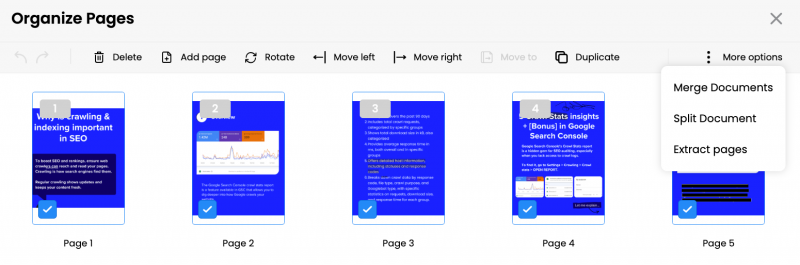
The Organize panel opens a modal window with thumbnails of pages from your PDF file. Selecting fifteen pages and dragging them to the front of a 200-page compliance manual was painless; the operation completed in under three seconds.
Compress, Watermark, and Redact
Document size can be a hidden headache when emailing slides. I uploaded a 24 MB strategy deck and ran Compress. The resulting file dropped to 2 MB with negligible image degradation, about half the size that Smallpdf achieved under its “strong” preset.
Watermarking let me place a semi-transparent “Draft Do Not Distribute” diagonally across each page. Placement presets (top-left, center, and bottom-right) streamline the process, and opacity sliders live-preview the effect.
Redaction impressed me most. Highlight text, hit Redact, and the snippet turns black. Exported PDFs contained flattened vectors, not hide-behind boxes, meaning the sensitive material stays hidden even when someone opens the file in a different editor.
Electronic Signatures in Practice
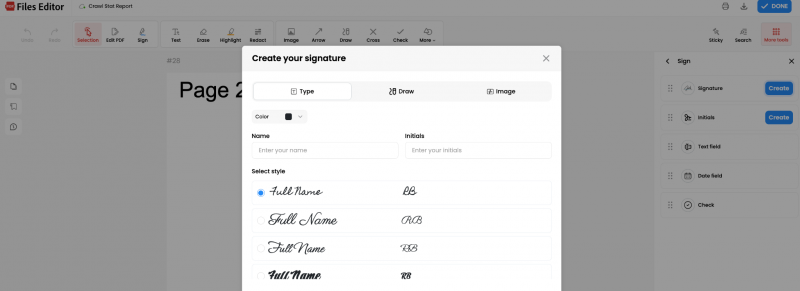
I used the Sign tool on a one-page NDA. Options include:
1. Type - pick one of six script fonts.
2. Draw - freehand in black or blue.
3. Upload - drag a scanned signature PNG.
I drew mine on a Wacom tablet. Files Editor embedded a standard x509 certificate noting my email, IP, and UTC time. Although that’s enough for ESIGN (US) and eIDAS advanced (EU), the platform does not yet support qualified signatures tied to a hardware token. Multi-sig routing is basic: invite one co-signer via link, no conditional workflows. Still, for straightforward procurement approvals, it works well.
Conversion Round-Trips
I converted a complex Excel budget to PDF, then back to XLSX:
● Excel → PDF preserved tables, borders, and tabs.
● PDF → Excel re-created sheet tabs, retained cell values, but not surprisingly lost formulas. Neither Smallpdf nor iLovePDF formulas either, so Files Editor is par for the industry.
Conversion speed beat Foxit’s desktop batch by a hair; the cloud spin finished in 9 seconds while Smallpdf took 11 seconds on my high-spec laptop.
Handling Big CAD Files
Engineering teams sometimes email monster drawings. I uploaded an 85 MB architectural plan. Zoom and pan felt smooth, though redacting two square meters of blueprint produced a noticeable three-second spinner. The service maxes out at 100 MB per PDF; one 142 MB BIM export failed. If your firm regularly pushes 200 MB+ documents, you’ll need a desktop heavyweight.
Mobile Edits on the Fly
From an airport lounge, I signed in on iPhone and quickly countersigned a sales order. Gestures felt responsive; the on-screen keyboard didn’t cover the save button (a common flaw in mobile editors). My only gripe is that dense tool panels can feel cramped in portrait mode. Rotating to landscape helps, but a native app might eventually serve power users better.
Cancellation and Refund Process
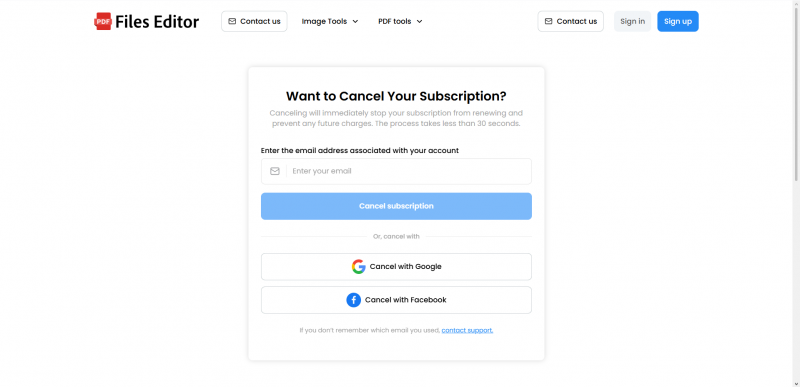
I cancelled after using the tool for two weeks. The Unsubscribe form asked only for my email; no password re-entry, no guilt-trip survey. A confirmation email arrived instantly.
Wanting the full refund experience, I emailed support: “Please refund the $49.95 renewal – I forgot to cancel within the trial.” Three hours later, a polite reply confirmed the refund, and canceled the subscription. The refund landed on my Amex statement inside five business days. Contrast that with iLovePDF, which took 48 hours to respond and seven business days to refund. Files Editor’s speed and courtesy earn big trust points.
Customer-Support Options
Support comes in several options:
● Email/ticket - 24/7, average reply 3-5 hours.
● Knowledge base – Q&A-style guides covering most common questions.
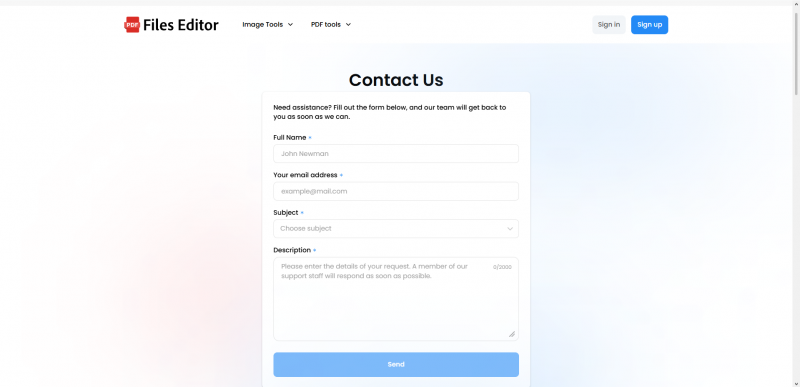
During testing, I emailed support twice and got real, direct answers both times in under five hours - no canned macros. Some people might miss having phone support, but with response times that fast, I honestly didn't.
Key Strengths
What makes Files Editor stand out is the wide range of tools combined with how easy it is to jump in and start using them.
1. Everything in one place – With 50+ tools on tap, you're not stuck juggling five different vendors just to get your document work done.
2. No installation needed – Everything runs right in the browser, so there's nothing to download, nothing to configure, and no IT approval process to wait on.
3. Works great on mobile – You can edit and sign documents on the go, no app required.
4. Generous refund policy – Makes it easy to try without worrying you'll be stuck if it's not a fit.
5. Support that actually helps – Agents give you real answers instead of running you through a script.
6. Multilingual interface – Available in 40+ languages.
Put together, these strengths make for an easy trial-to-adoption path - especially for individuals who just want to open a tool, get their document sorted, and not think about it again.
Reasonable Limitations
1. 100 MB PDF limitation - Engineering and media companies will hit it fast.
2. Cloud-only processing - Offline or air-gapped environments are excluded.
3. No advanced workflow automation - Lacks DocuSign-style routing or Zapier triggers.
Files Editor doesn't have one clear, fixed pricing page. Per its own Terms & Conditions, trial length and price "may vary depending on your country and current promotions," and subscriptions "may auto-renew unless canceled before the trial period ends." That's disclosed - technically.
Who Should Use Files Editor
Based on two weeks of real work, these groups stand to gain:
● Marketing and sales individuals or teams needing quick turnarounds on proposals and slide decks.
● Consultants and freelancers who grab the lifetime deal and want portable editing across hotel PCs and iPads.
● Legal ops and HR that require browser-first redaction and signature workflows without large IT footprints.
● Education institutions deploying Chromebooks and needing budget-friendly PDF tools for faculty.
Final Verdict
I walked into this review skeptical. The Files Editor surprised me. For the everyday grind of tweaking, signing, compressing, and converting PDFs, it is fast, polished, and refreshingly customer-friendly. The three-day micro-trial, aggressive lifetime offer, and lightning-quick refunds remove nearly all adoption risk.
Files Editor is not the mythical perfect PDF tool, but in 2026 it is arguably the most friction-free way to get 90 percent of PDF work done without breaking budgets or laptops.
Frequently Asked Questions
Is Files Editor Technically Secure?
Files Editor uses encrypted storage and offers password-protection tools, and I didn't find independent reporting of a data breach or malware tied to the platform. So in the narrow "will this leak my data or infect my device" sense, there's no red flag there.
What happens if I exceed 100 MB?
The upload is rejected with a polite message “The file exceeds the maximum allowed size of 100 MB”. There is no paid overage tier yet; you would need a desktop tool like Foxit or Adobe.
How do I cancel before being charged?
Go to files-editor.com/unsubscribe, enter your account email (or click to cancel with Google/Facebook), and click Cancel Subscription. You receive an immediate Solidgate receipt confirming the stop.
Does Files Editor store my credit-card details?
No. Solidgate handles tokenization; Files Editor’s servers never see raw card numbers.
What does it actually cost? No single published price. Independent reviewers commonly cite an initial $1–$2 charge.
Are the editing tools any good? Yes - editing, annotation, conversion, page management, and signing all work as expected.
Post Comment
Share your thoughts about this article.
Be the first to post a comment!