A product demo needs to show what the product looks like and how it works. But when there is no video footage, creating one can take time and money. With an existing product image, AI can turn a still shot into a short demo clip.
Runway Model on Pollo AI supports image-to-video generation, so a product image can be used as the starting point and a prompt can control the movement. This works well for product reveals, feature close-ups, and simple usage shots.
Why Try Runway Model on Pollo AI for Product Demos?
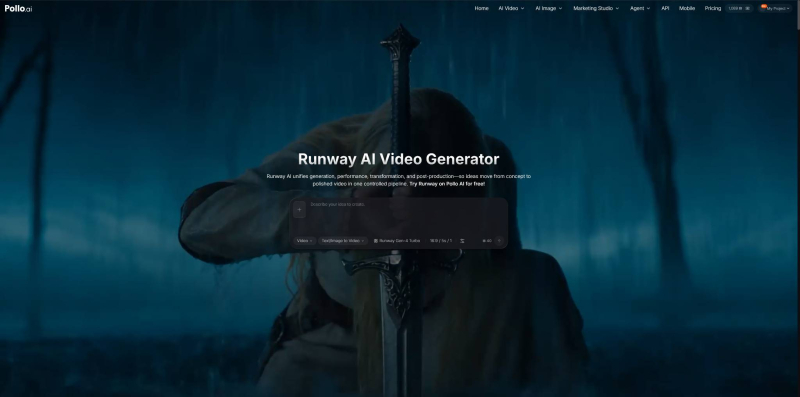
Product demos need movement without losing the product's original look. Runway's image-to-video workflow fits this use case: the uploaded image provides the product reference, while the prompt tells the model how the camera or product should move.
For example, a speaker image can become a slow product reveal, while a watch image can turn into a close-up of its screen. Motion Brush, where supported, can also help animate a specific part of an image instead of moving everything at once.
Using Runway Model on Pollo AI is also useful when a project needs a different approach. Since Pollo AI provides multiple video models and tools in one place, creators can try another option if a Runway result does not work, without switching platforms.
How to Create a Product Demo with Runway on Pollo AI
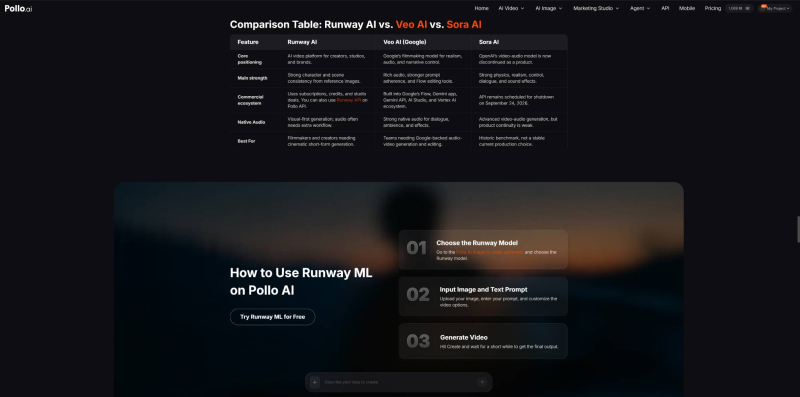
Step 1: Open Runway and Choose Image to Video
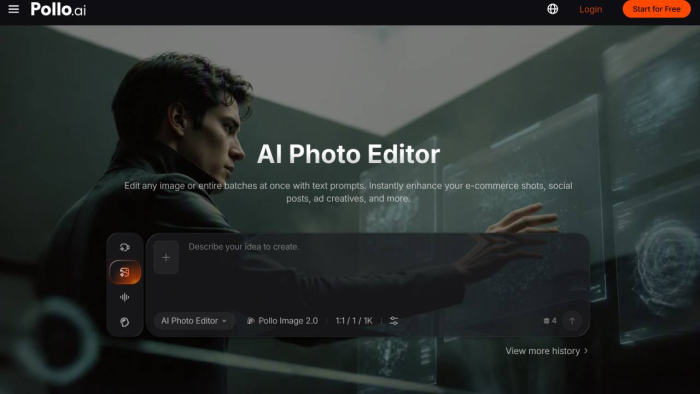
Open the Runway page on Pollo AI and select Image to Video, then upload the product image.
Use a clear image where the product is fully visible. Logos, buttons, screens, and packaging should be easy to see. Blurry or heavily edited images are more likely to produce inconsistent results.
Step 2: Write a Simple Motion Prompt
Focus on movement instead of describing the product all over again.
For example:
“The camera slowly moves toward the wireless speaker while the product stays centered. Soft studio lighting, realistic commercial footage.”
Keep the action simple. Asking for several movements at once can make the result messy.
Step 3: Match the Image to the Final Format
Use a vertical source image for TikTok or Reels and a landscape image for YouTube or website videos.
This matters because the wrong image shape can leave the product too small or force the model to fill extra areas around it.
Step 4: Generate and Check the Product
After generation, check the logo, text, shape, buttons, and other important details. If the product changes shape, simplify the prompt and reduce the movement. If it barely moves, make the camera action more specific.
For supported workflows, Motion Brush can be useful when only one area needs to move. Pollo AI lists it among the Runway features available on the platform.
Step 5: Create Separate Clips
A full demo does not have to come from one generation. Create separate shots for the product reveal, key feature, and usage scene, then combine them during editing.
This is easier to control and means one weak clip can be replaced without redoing the whole video.
Common Problems to Watch For
Small details can change during generation, especially logos, packaging text, screens, and product proportions. Important information such as prices or specifications should be added during editing rather than generated inside the video.
A simple background also helps. Too many objects can distract from the product and create unwanted movement.
For most demos, subtle camera movement is enough. A slow push-in or gentle rotation often works better than several dramatic actions in one short clip.
Final Thoughts
Runway Model on Pollo AI is useful when a creator has a good product image but no finished footage. The image provides the product reference, while the prompt controls the movement.
For better results, keep the image clean, use one clear action per shot, check product details after generation, and create separate clips when the demo needs to show different features. Pollo AI's other video models and tools also make it possible to try a different approach without leaving the platform.
Post Comment
Share your thoughts about this article.
Be the first to post a comment!