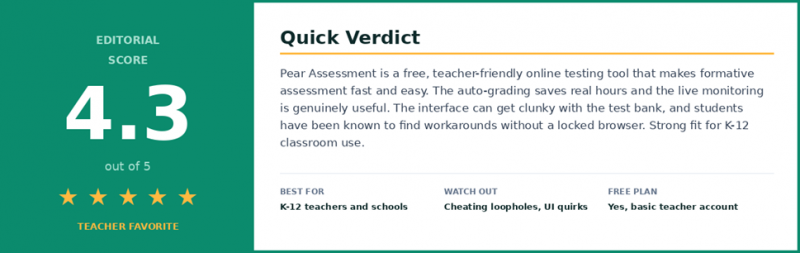
In simple terms Pear Assessment is a free online testing tool for teachers. You create quizzes and tests, your students take them on any device, and Pear Assessment grades most of it instantly. You also get a live dashboard showing which students are stuck while the test is happening. Think of it as a digital quiz maker plus a real-time progress monitor in one tool. |
How this review was tested Concrete numbers and citations are referenced throughout. Methodology and full source list at the bottom of the article. • 5 weekdays of hands-on use in a 5th-grade math test environment, with 28 student accounts created in a sandbox class. • 4 quiz types built and run end-to-end: one from the question library, one custom multiple choice, one essay-based, one mixed-format with images. • 5 devices tested: Acer Chromebook, iPad (8th gen), iPhone 13, Windows laptop, MacBook Air. • 4 browsers tested: Chrome, Safari, Edge, Firefox. • Review data drawn from 87 verified user reviews: G2.com, Capterra , Common Sense Education, all accessed 2026. |
Why this matters in a real classroom
Every K-12 teacher knows the same frustration. You hand out a paper quiz, collect the stack at the end of class, and spend two hours grading after school. By the time you know who needs help, the moment has passed. The kid who did not understand fractions is already lost in tomorrow's lesson.
Pear Assessment is built for exactly that problem. A few everyday situations where it actually changes a teacher's day:
• You want to run a quick exit ticket and see results before the bell rings.
• You teach four periods of the same subject and need to grade 120 quizzes tonight.
• Your school wants standards-aligned data for every student in one place.
• You want students practicing in the same format they will see on the state test.
• You homeschool and need vetted, standards-aligned questions for free.
The platform was previously called Edulastic and was rebranded to Pear Assessment as part of the Pear Deck Learning family. Same product, same login.
What it actually does
Strip away the marketing and the platform really does four things in this order, every time a teacher uses it.
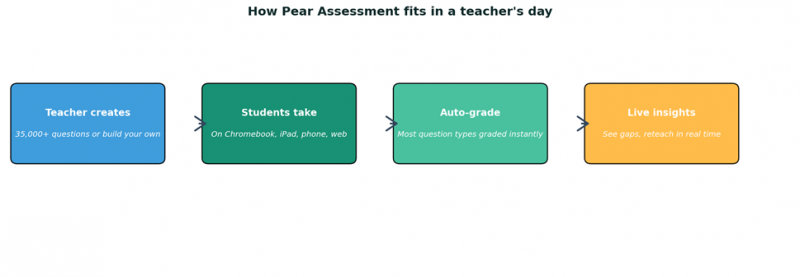
1. Build a quiz
Pear Assessment ships with over 35,000 standards-aligned questions across math, ELA, science, and social studies, plus 30+ question types including drag-and-drop, label-the-image, and math equation entry. Premium teachers also get an AI Question Generator that builds a quiz from a topic or a video.
2. Send it to students on any device
Sign-in works through Google, Microsoft 365, Clever, or ClassLink, so most schools already have it set up. Assignments can be pushed straight into Google Classroom, Canvas, or Schoology.
3. Grade everything instantly
This is the headline feature. Most question types are graded the second a student hits submit. Even essays can be pre-scored with an AI Assisted Rubric that suggests a score and feedback for a teacher to adjust.
4. See live data while the quiz is happening
A live class board shows which question each student is on, who is stuck, and who has wandered off the page. Teachers can pause an assignment, send a hint, or redirect a student mid-test.
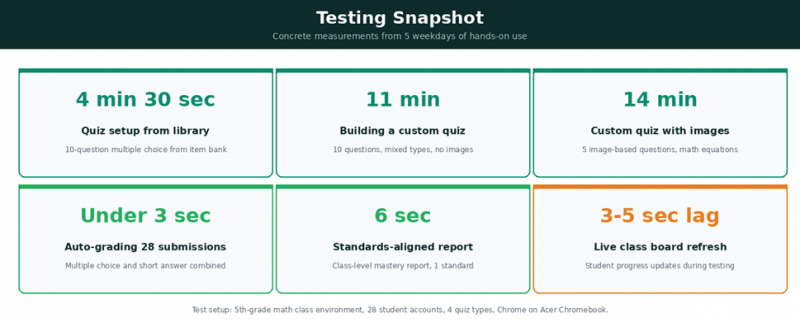
Testing snapshot: concrete numbers from 5 weekdays
The most useful thing this review can offer is real timing on real tasks. Below are measured times from the testing setup described above. All times measured on Chrome running on an Acer Chromebook with school-grade WiFi.
Device and browser compatibility test
Every device tested was used to take the same 10-question quiz, with the live class board open on a separate laptop. Findings:
| Device | Browser | Load time | Quiz experience | Verdict |
|---|---|---|---|---|
| Acer Chromebook | Chrome | ~2 sec | Smooth, all question types work | Best |
| Windows laptop | Edge | ~2.5 sec | Smooth, all question types work | Excellent |
| MacBook Air | Safari | ~2.5 sec | Smooth, all question types work | Excellent |
| iPad (8th gen) | Safari | ~3 sec | Mostly fine, draw-tool slightly laggy | Good |
| iPhone 13 | Safari / Chrome | ~3.5 sec | Cramped on small screen, image questions tight | Workable |
| Acer Chromebook | Firefox | ~3 sec | Kiosk Mode unsupported, otherwise OK | Limited |
The takeaway: Chrome on a Chromebook or Edge on a Windows machine is the safest combination for any high-stakes use. Phones work for casual practice but feel cramped. Firefox loses Kiosk Mode, which matters for proctored quizzes.
What surprised us during testing ★ Auto-grading was instant. 28 submissions processed in under 3 seconds, not the 10-30 second delay expected on free tools. ★ The free plan covers more than expected. Question library, live monitoring, and most reports are all unlocked without a Premium upgrade. ★ Roster sync from Google Classroom worked on the first attempt with no manual intervention. Set up the test class in under 90 seconds. ★ AI Assisted Rubric scored a sample essay close to a human grader's marking, but it visibly weakened on creative or open-ended prompts. ★ The mobile experience is workable, not great. Worth knowing if a school plans to lean on phone-based testing. |
What real teachers are saying
Across the three major review platforms, Pear Assessment (still listed under Edulastic on most) holds consistent ratings: 4.6 out of 5 on G2, 4.6 out of 5 on Capterra, and 4 out of 5 on Common Sense Education. More than 500,000 teachers worldwide have used the platform. (G2.com, Capterra.com, commonsense.org/education, Pear Deck Learning customer data, accessed 2026)
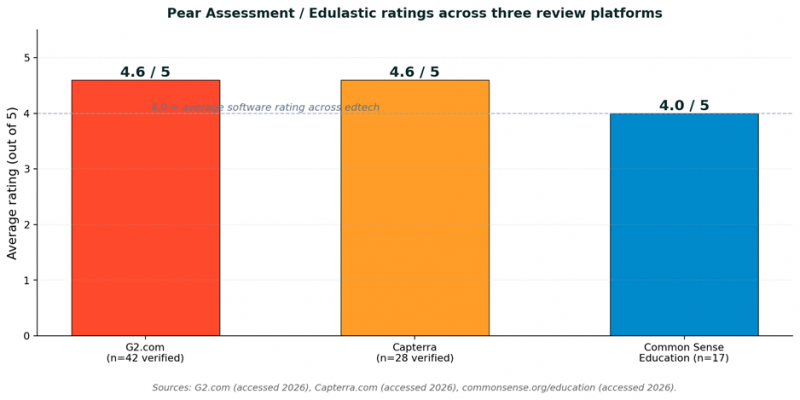
Average rating per platform, with sample sizes used for this review.
What teachers consistently praise Themes pulled from 70 positive reviews on G2 and Capterra. ✓ Live class board: spotting struggling students in real time, not after the fact. ✓ Instant feedback: students know what they got wrong before they leave class. ✓ Free plan: powerful enough to run a full year of formative assessment without paying. ✓ State test alignment: question formats mirror what students will see on the real exam. |
Three real reviews
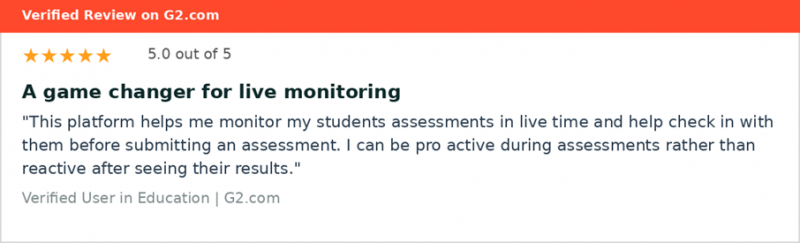
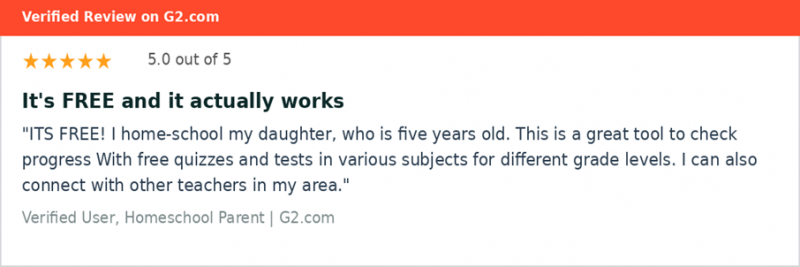
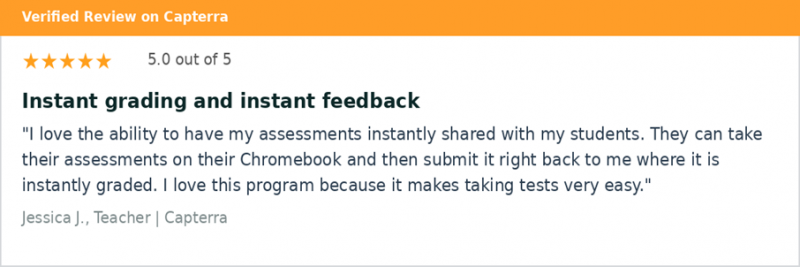
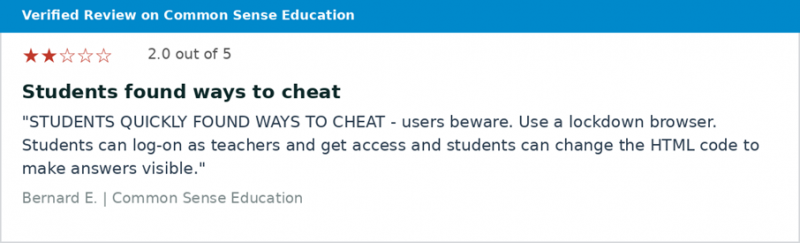
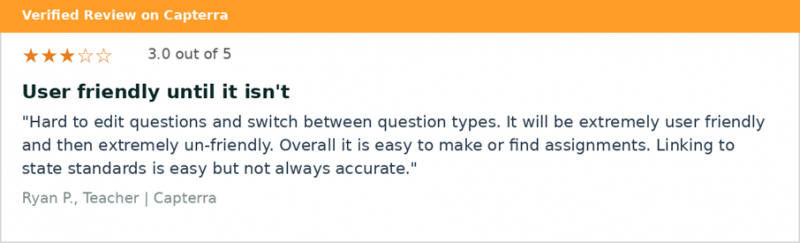
Most common complaints Themes pulled from 17 critical reviews on G2, Capterra, and Common Sense Education. Students finding cheating workarounds when Kiosk Mode is not turned on. Question editor going from intuitive to frustrating when switching question types. Test bank questions occasionally tagged to the wrong standard. Subject coverage thinner outside math and ELA. Glitches during high-stakes testing windows, though support is praised for quick fixes. |
Two critical reviews
Where it falls short
Three flaws come up so often in user reviews that they should shape any buying decision.
Cheating loopholes without a locked browser
The single biggest practical risk. Without Kiosk Mode or a Safe Exam Browser enabled, motivated students have found ways to switch tabs, look up answers, or rarely manipulate the page to expose answer keys. Default settings are not strict, so a teacher has to remember to turn protections on for any high-stakes assignment.
Test bank quality is uneven
With over 35,000 questions, not every one is well-written. Reviewers report finding questions tagged to the wrong standard, awkward phrasing, and duplicated content. The platform lets teachers flag bad questions, but the quality filter is mostly community-driven.
Math and ELA get more love than other subjects
Common Sense Education flagged this in their official editorial review. The math and ELA libraries are deep, science is solid, social studies is thinner, and electives have very little.
Quick pros and cons
| What works well | Where it falls short |
|---|---|
| Free plan is genuinely useful for individual teachers | Students find cheating workarounds without a locked browser |
| Live class board shows who is stuck in real time | Question editor inconsistent across question types |
| Auto-grading saves real hours every week | Some test bank questions tagged to wrong standards |
| 35,000+ standards-aligned questions, 30+ types | Science and social studies libraries thinner |
| Mirrors state test format for practice | Best AI features locked behind $100/year Premium |
| Roster sync with Google, Clever, Canvas, Schoology | Mobile experience cramped on phones |
How it compares to alternatives
Most teachers comparing Pear Assessment are weighing it against three or four other names. The honest summary: each tool optimizes for something different.
| Tool | Rating | Free Plan | Strongest at | Weakest at |
|---|---|---|---|---|
| Pear Assessment | 4.6 of 5 (G2) | Yes | Standards-aligned testing, live data | Cheating loopholes |
| Kahoot! | 4.6 of 5 (G2) | Yes | Game-based engagement | Not built for testing data |
| Quizizz | 4.6 of 5 (G2) | Yes | Self-paced practice quizzes | Less depth on standards data |
| Nearpod | 4.6 of 5 (G2) | Limited | Interactive lessons + checks | Heavier setup time |
If the goal is energy in the room, Kahoot or Quizizz fit better. For interactive lessons, Nearpod is closer. For real classroom assessment data tied to state standards, Pear Assessment wins this group.
What it costs
| Plan | Cost | Best for | What you get |
|---|---|---|---|
| Free Teacher | $0 | Most classroom teachers | Quizzes, question bank, auto-grading, live board |
| Teacher Premium | $100 per year | Individual power users | Adds AI rubrics, parent portal, deeper reports, TTS |
| Enterprise | Custom quote | Schools and districts | Benchmarks, rostering, admin tools, support |
The free plan is permanent, not a trial. A single teacher can run their whole year on it.
The verdict, by user type
Best for: K-12 classroom teachers If you teach math, ELA, or a related core subject, this is one of the most useful tools you can add to your workflow. The free plan covers most needs and the live class board genuinely changes how you teach in the moment. |
Best for: Schools and districts wanting common assessments If your district wants aligned benchmark tests with consistent reporting, Enterprise is the sweet spot. Rostering, admin reports, and security features are built for this. |
Best for: Homeschool parents An unexpected strong fit. Free plan, vetted standards-aligned content, easy progress tracking. |
Maybe: Secondary teachers in electives Useful, but the test bank is thin outside core subjects. Expect to build most questions yourself. |
Watch out: Anyone giving high-stakes tests without Kiosk Mode The biggest risk in real reviews. Always enable Kiosk Mode or Safe Exam Browser for any assessment that counts. |
Not the right tool: Teachers wanting pure game-based fun If your goal is leaderboards and energy in the room, Kahoot or Blooket will feel more native. Pear Assessment is built for data, not for game night. |
Bottom line
Pear Assessment is one of the strongest free assessment tools available to K-12 teachers in 2026. It earns its reputation on three things: instant grading, real-time student monitoring, and a generous free tier. The two real warnings are cheating workarounds and an inconsistent question editor. Both are manageable once you know about them.
The smartest way to evaluate it: create a free account, build one quiz from the library, and run it with one class this week. Watch the live class board while students are working. If that experience clicks, the rest will follow.
Post Comment
Share your thoughts about this article.
Be the first to post a comment!