OpenAI.fm is a small site that does one thing well. You type some text, choose a voice and a tone, press play, and a few seconds later the page reads your words out loud in a voice you can download. It runs on OpenAI's GPT-4o mini TTS model, and it is free to try in the browser with no setup.
I spent time pushing it with different scripts, voices and tones to find where it shines and where it falls short. This post covers what the tool is, the controls it gives you, the exact steps to use it, and the audio it produced in my own tests. At the end you will find what reviewers have said since launch, plus my own verdict.
What is OpenAI.fm?
OpenAI.fm is the official demo page for OpenAI's text-to-speech model, GPT-4o mini TTS. The header on the site describes it as an interactive demo for developers to try the latest text-to-speech model in the OpenAI API.
In plain terms, it is a playground. You are not signing up for anything to try it. You open the page, you get a ready-made example loaded in, and you can change every part of it. The same model that powers the demo is available through the OpenAI API, so the page doubles as a preview of what you would build into an app. A START BUILDING link and a code button sit at the top for exactly that.
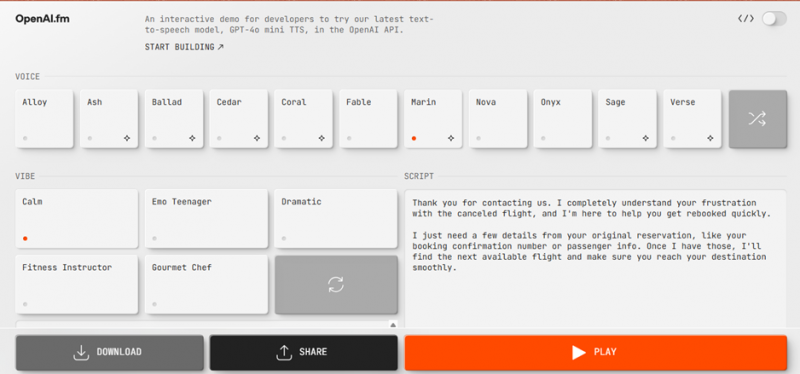
The OpenAI.fm interface: voices on the left, vibes in the middle, your script on the right.
OpenAI.fm in July 2026
OpenAI.fm remains active as OpenAI’s official interactive demonstration of the Speech API. The page still uses GPT-4o mini TTS rather than one of OpenAI’s newer conversational voice models.
That distinction matters following the July 2026 launch of GPT-Live. GPT-Live is designed for continuous two-way conversation. It can listen while speaking, handle interruptions and decide when to respond or remain quiet. OpenAI.fm performs a much narrower task: it takes a finished script and converts it into spoken audio.
The two products therefore serve different purposes.
| Product | Main Purpose | Input | Output |
|---|---|---|---|
| OpenAI.fm | Testing scripted text-to-speech | Written script and delivery instructions | Downloadable spoken audio |
| GPT-4o mini TTS API | Adding generated speech to an application | Text sent through an API request | Streamed or downloadable audio |
| GPT-Live | Natural two-way AI conversations | Continuous speech and conversation context | Live spoken responses |
OpenAI’s developer showcase continues to identify GPT-4o mini TTS as the model behind OpenAI.fm. The arrival of GPT-Live does not make the demo obsolete. It simply means OpenAI now has separate products for scripted narration and live conversation.
What makes OpenAI.fm different
Most text-to-speech tools give you a single box: paste text, get audio. OpenAI.fm splits the job into two separate inputs, and this is the part worth understanding.
• Script: the actual words you want spoken. This is the what.
• Voice and Vibe: how those words should sound. This is the how.
The Vibe is a short instruction that steers the delivery. Pick the Calm preset, for example, and the instruction box fills with direction such as Voice Affect: Calm, composed, and reassuring; project quiet authority and confidence. That instruction is sent alongside your script, and the model performs your text in that style.
This separation is the headline feature. You can keep the same script and swap the tone from a calm support agent to a dramatic narrator without rewriting a word. In the API, this maps to an instructions field that is separate from the input text.
The voices on OpenAI.fm
The demo currently offers eleven named voices plus a random option. The set you can pick from is:
• Alloy
• Ash
• Ballad
• Cedar
• Coral
• Fable
• Marin
• Nova
• Onyx
• Sage
• Verse
Each one has its own character. Some lean warm and conversational, others are deeper or more neutral. There is also a shuffle button if you want the page to pick one for you. The fastest way to find a fit is to keep your script fixed and click through a few voices back to back.
The vibes, and writing your own
Out of the box, the Vibe section gives you a handful of presets to start from:
• Calm
• Emo Teenager
• Dramatic
• Fitness Instructor
• Gourmet Chef
Next to these is a regenerate button that swaps in fresh instruction text. The presets are only a starting point. The instruction box under the vibes is fully editable, so you can write your own direction and control affect, tone, pacing, pronunciation and emotion in your own words. This is where the tool gets genuinely useful, since a few lines of instruction can change the whole feel of a read.
How to use OpenAI.fm, step by step
Getting audio out of the tool takes under a minute. Here is the flow I used.
1. Open the site. Go to openai.fm in any browser. An example script, voice and vibe are already loaded so you can hear something straight away.
2. Pick a voice. Click any card in the Voice row. The selected voice shows a small orange dot.
3. Pick a vibe or write your own. Choose one of the presets, then edit the instruction text below it if you want a specific tone, pace or emotion.
4. Enter your script. Clear the example text in the Script box on the right and paste the words you want spoken.
5. Press Play. Hit the orange Play button at the bottom. After a few seconds the page starts reading your script in the voice and tone you set, and the button turns into a Stop control while it plays.
6. Download or share. Use Download to save the audio as a file, Share to create a link, or the code button at the top to grab the API snippet.
That is the entire loop. Change a setting, press play again, and you have a new take.
My hands-on test
I wanted to see how far the tone control could stretch, so I gave it a deliberately dry, technical paragraph paired with an unusual voice and vibe.
The script I used was a straight hardware explainer:
Trainium is Amazon's custom AI training chip, built by AWS to handle the heavy compute workloads behind large language models and other advanced AI systems.
For the settings, I picked the Cedar voice and the Emo Teenager vibe, then pressed play.
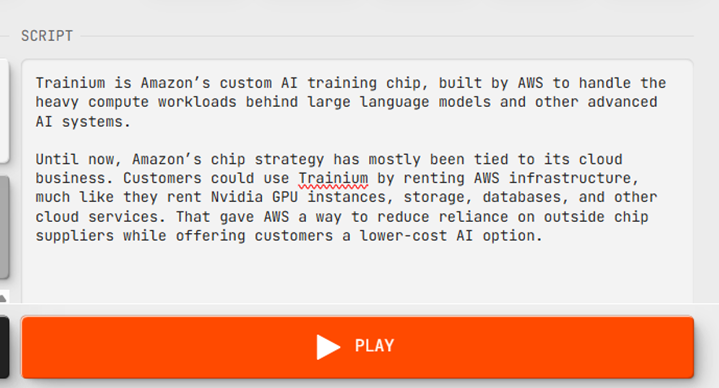
The technical script I tested.
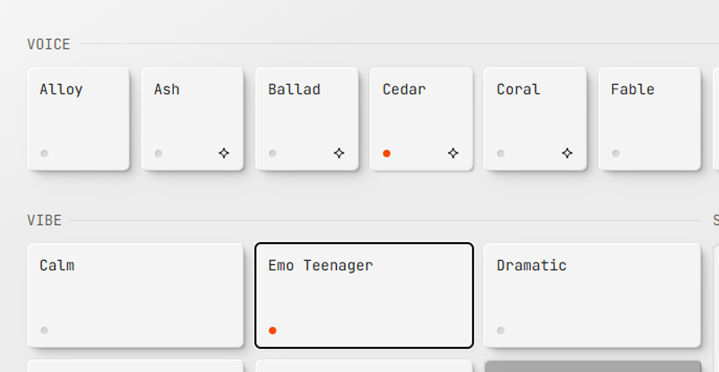
My settings: the Cedar voice with the Emo Teenager vibe.
The output: a few seconds after pressing play, the page read the full paragraph out loud, and I saved it. The file came out as a standard MP3, just under 33 seconds long, recorded in mono at a 24 kHz sample rate. That is a clean, small file you can drop straight into a video, a slide or a podcast draft.
The result itself was the fun part. Reading a dense paragraph about Amazon's AWS chips in an emo teenager delivery created an obvious, intentional mismatch. The words stayed accurate while the tone went moody and expressive. It made the point clearly: the model is not just reading text, it is performing it.
To check the other end of the range, I switched to the Marin voice with the Calm vibe and ran the customer-service script that loads by default, the flight-rebooking apology. That combination sounded like a real support agent: steady, warm and reassuring, the kind of read you could put in front of customers. Same tool, completely different feel, and only the voice and vibe changed.
What you get with the output
Once the audio is generated, the bottom bar gives you three ways to use it:
• Download saves the spoken audio as a file you own and can reuse.
• Share creates a link to your exact setup so someone else can hear it.
• The code button hands you the API call behind your settings, so you can move from the demo into your own project without guessing the parameters.
Who OpenAI.fm is for
The page is aimed at developers, but it is just as handy for anyone who needs a voice quickly. Realistic uses include:
• Prototyping the voice and tone of an app, assistant or phone system before writing code.
• Narration for short videos, demos, reels and explainers.
• Draft voiceovers for podcasts, e-learning or product walkthroughs.
• Accessibility, turning written content into audio.
• Quick experiments to find the right voice for a brand or character.
Because you can hear changes instantly, it is a strong place to make decisions about tone before committing to a paid workflow.
Pricing and the API behind it
The existing article describes GPT-4o mini TTS as costing approximately $0.015 per minute. That estimate should be replaced because OpenAI currently publishes pricing according to tokens rather than a fixed charge for each minute of speech.
The current rates are:
| Usage Type | Current Rate |
| Text input | $0.60 per one million text tokens |
| Audio output | $12 per one million audio tokens |
| Maximum text input | 2,000 tokens per request |
| Free API tier | Not supported for this model |
A token is not the same as a word or a second of audio. The final cost varies according to the script length, speaking pace, pauses and resulting audio duration. A flat per-minute estimate can therefore differ from the amount charged for a particular request.
The free browser demonstration and the API should also be separated clearly. OpenAI.fm can be tested without configuring billing, but developers moving the generated code into a product need an API account with available credits.
Pros and cons
| What works well | Where it falls short |
|---|---|
| Free to try in the browser, no account needed | It is a demo, not a studio, with limited fine controls |
| Voice plus vibe gives real control over tone | Longer scripts can lose some tone consistency |
| Eleven voices plus editable instructions | Best results are in English; other languages vary |
| Fast generation, audio ready in seconds | No timeline editing, layering or multi-speaker mixing |
| One-click download, share link and API code | Output can dip on unusual words or proper names |
| Clean, small MP3 files ready to reuse | You still need the paid API to use it at scale |
Verdict, my experience
After running several scripts through it, OpenAI.fm earned a spot in my bookmarks. The thing that won me over was not the voice list. Plenty of tools have voices. It was how quickly I could change the feel of a read. Putting a dry paragraph about Amazon's chips into an emo teenager voice, then flipping a flight-rebooking apology into a calm, professional support tone, all in the same minute, made the value obvious.
Practically, it delivered. Generation took a few seconds, the audio came out as a tidy 33-second MP3 at 24 kHz, and saving it was one click. The output dropped cleanly into other tools with no conversion needed.
It is not a full production suite, and it should not be judged as one. There are no fine controls for speed or layering in the demo, longer scripts can drift in tone, and the heavy lifting at scale belongs to the paid API. But as a free way to test voices, dial in a tone with plain instructions, and walk away with usable audio plus the exact API code to reproduce it, it is one of the easiest text-to-speech tools to recommend right now.
My take: if you write, build, narrate or just want to hear your words spoken well, open OpenAI.fm and run one script through it. You will know within a minute whether it fits your work.
Post Comment
Share your thoughts about this article.
Be the first to post a comment!