We ran two jobs through EzRemove without ever logging in: a portrait with messy flyaway hair, and a blurry anime frame. The background remover produced a clean, download-ready cutout in seconds. The upscaler produced a change so slight we had to hunt for it. Here is every step, the full pricing from $7 to $80 a month, and how the per-image cost compares to remove.bg.
$0 COST OF OUR ENTIRE TEST | 10 FREE CREDITS/DAY IF YOU SIGN UP | $0.018 CHEAPEST PER-CREDIT ON $36 TIER | 11x CHEAPER THAN REMOVE.BG ENTRY |
First look at the interface
What loads when you search the tool and click through, before you have committed to anything.
| Search "ez remover", land on the site, survey what is on offer |
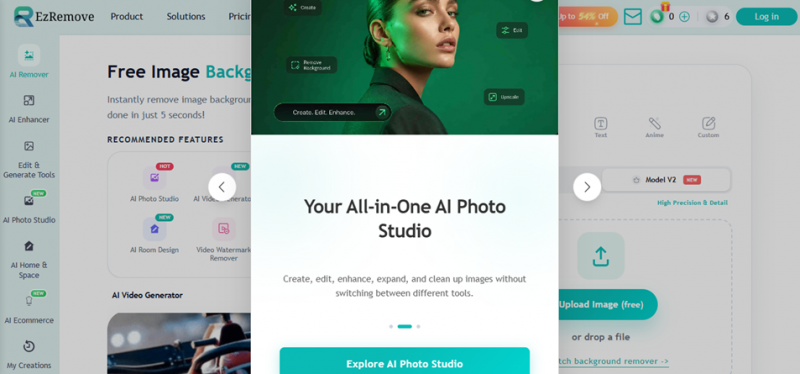
Fig 1. Landing page with the AI Photo Studio promo overlay open.
A tool rack, not a single-purpose app
The first thing that registers is the left rail: AI Remover, AI Enhancer, Edit & Generate Tools, AI Photo Studio, AI Home & Space, AI Ecommerce, My Creations. This is not a one-trick background remover. It is a suite trying to be a browser Photoshop, and the sidebar is doing the same job an app drawer does on a phone.
The counterweight is clutter. A promo overlay for AI Photo Studio covers the hero on arrival. Behind it sits a yearly pass banner, an "Up to 54% Off" chip, a credit counter, and a login button. Four monetization prompts are visible before a single image has been uploaded. It is busy in a way that makes you wonder how hard the paywall will bite.
| TOOL GROUPS | 7 in the left rail |
| LOGIN DEMANDED | No |
| UPLOAD BUTTON | Reads "Upload Image (free)" |
| PROMO ELEMENTS | 4 visible before any action |
| MODEL CHOICE | V1 or V2, V2 marked NEW and default |
READING THE ROOM The upload button says "free" and means it. That is worth noting up front, because the surrounding banner density sets an expectation of a paywall that never actually arrives during a normal test. |
Background remover test
The main event. A portrait with dark hair against a dim indoor background, which is the case most tools fumble.
| Open AI Remover, pick Background Remover from the menu (marked in red) |
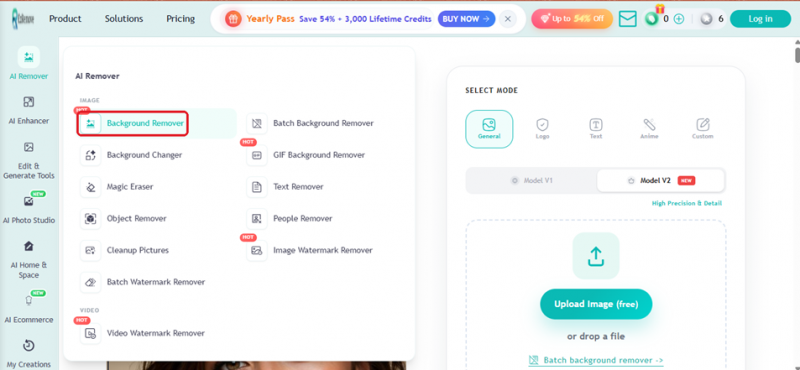
Fig 2. The AI Remover menu. Background Remover selected, marked here in red.
Eleven removers where most sites ship one
Opening AI Remover reveals the depth: Background Remover, Background Changer, Magic Eraser, Object Remover, Cleanup Pictures, Batch Watermark Remover, Batch Background Remover, GIF Background Remover, Text Remover, People Remover, Image Watermark Remover, and a Video Watermark Remover under a separate VIDEO heading.
Two things stand out. First, batch and GIF background removal are in the free-facing menu, not fenced behind an enterprise tier, which is unusual. Second, the right panel offers five modes (General, Logo, Text, Anime, Custom) plus a V1/V2 model toggle. Most competitors give you one model and no say in it. Anime mode in particular matters for anyone cutting out illustrated assets, where general-purpose models tend to chew through line art.
| REMOVERS | 11 image tools + 1 video tool |
| MODES | General, Logo, Text, Anime, Custom |
| MODELS | V1 (legacy) and V2 (default, high precision) |
| BATCH ACCESS | In the menu, not upsold |
| STILL LOGGED OUT | Yes |
WHAT THE MENU TELLS YOU Mode presets are a tell that someone thought about failure cases. A single general model handles portraits fine and mangles logos. Offering five is a small thing that says the team has watched real users break it. |
| Upload a portrait, watch what happens without pressing anything else |
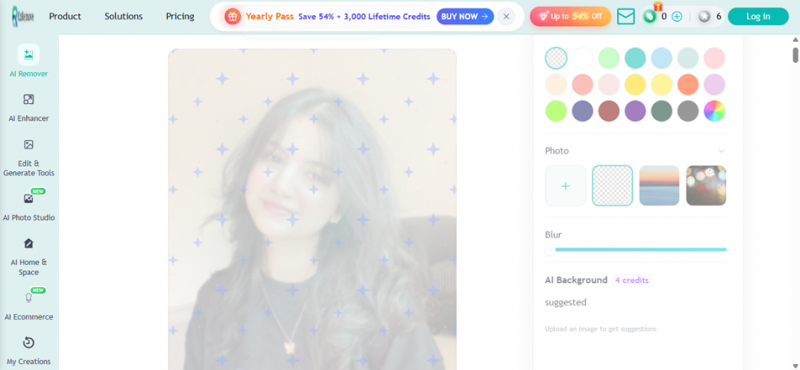
Fig 3. Processing begins the instant the file lands. No confirm step.
Processing starts on drop, with no confirm button
The upload triggers the cutout immediately. No "Process" button, no queue, no interstitial ad. The sparkle animation runs over the image while the right panel populates with the post-processing options: a transparent swatch, roughly twenty background colors, a photo-background picker, a blur slider, and an AI Background generator priced at 4 credits.
That last detail is the first honest look at the credit model, and it is placed well. The cutout is free. The generative extra costs credits and says so before you click, not after. Compare that to the pattern in less scrupulous tools, where the price appears only once the work is done and you feel committed.
| TRIGGER | Automatic on upload |
| CONFIRM STEP | None needed |
| BACKGROUND OPTS | Transparent, ~20 colors, custom photo, blur |
| PRICED EXTRA | AI Background, 4 credits, labelled upfront |
| CREDITS USED | 0 for the cutout itself |
WHERE THE MONEY ACTUALLY SITS The pricing boundary is drawn in a defensible place: deterministic work is free, generative work costs. That is the opposite of a bait funnel, and it is the single most reassuring thing in the whole test. |
| Inspect the cutout at the hair line, the part that usually fails |
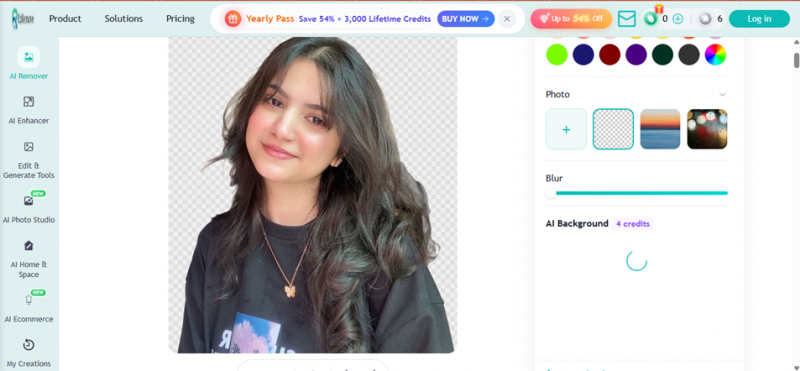
Fig 4. Finished cutout on the transparency grid. Flyaway strands retained.
The hair line holds up, which is the whole test
This is where background removers earn or lose their reputation, and EzRemove earns it. The subject has long dark layered hair with flyaway strands against a dim indoor background, meaning low contrast between subject and backdrop. The edges came back clean, with individual strands preserved rather than smeared into a halo or chopped into a helmet silhouette.
Look closely and it is not flawless. There is faint edge softening where the darkest hair meets what was the darkest part of the background, which is exactly the failure mode every AI segmentation model shares. But at the scale anyone actually uses a cutout, a product listing, a thumbnail, a slide, it is indistinguishable from work you would pay for. Downloading required no login and no credit.
| TIME | Seconds, no visible queue |
| HAIR EDGES | Strands retained, no halo |
| WEAK SPOT | Slight softening on dark-on-dark |
| OUTPUT | Transparent PNG, full resolution |
| WATERMARK | None |
| LOGIN TO DOWNLOAD | Not required |
THE FINDING THAT MATTERS A no-account, no-watermark, full-resolution PNG that handles flyaway hair is the thing remove.bg charges roughly $0.20 an image for. That is the headline, and everything else in this review is a footnote to it. |
AI enhancer test
Second tool, harder problem. Upscalers make bigger claims than background removers and deliver on fewer of them.
| STAGE 05 | Switch to AI Enhancer, choose AI Image Upscaler (both marked in red) |
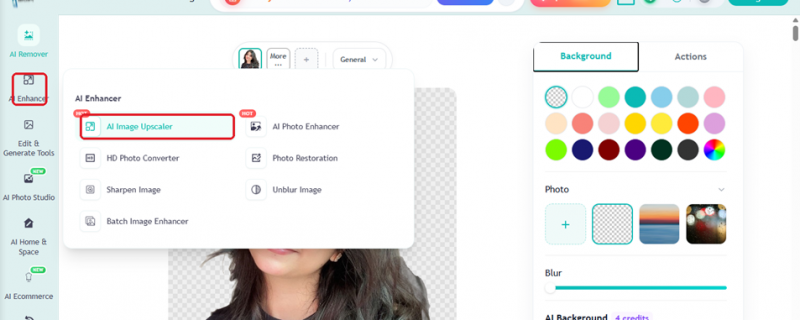
Fig 5. AI Enhancer menu. Sidebar entry and AI Image Upscaler marked in red.
Seven enhancers, and the cutout survives the switch
The AI Enhancer group holds AI Image Upscaler, AI Photo Enhancer, HD Photo Converter, Photo Restoration, Sharpen Image, Unblur Image, and Batch Image Enhancer. Two are flagged HOT.
The detail worth noticing is behind the menu: the cutout from stage 4 is still sitting on the canvas, with a thumbnail strip and a "More" tab at the top. Switching tools did not dump the work. That is real suite behaviour, and it is the practical argument for using a rack of tools over four separate browser tabs. Most free tools treat every job as a fresh session and make you re-upload.
| ENHANCERS | 7 tools, 2 flagged HOT |
| SESSION STATE | Cutout persists across tools |
| MULTI-IMAGE | Thumbnail strip with "+" to add more |
| STILL LOGGED OUT | Yes |
THE UNDERRATED FEATURE Persistent canvas across tools is the thing you only appreciate on the fifth image. It is also the feature most single-purpose free tools cannot offer at all. |
| Upload a deliberately blurry anime frame, set upscale level |
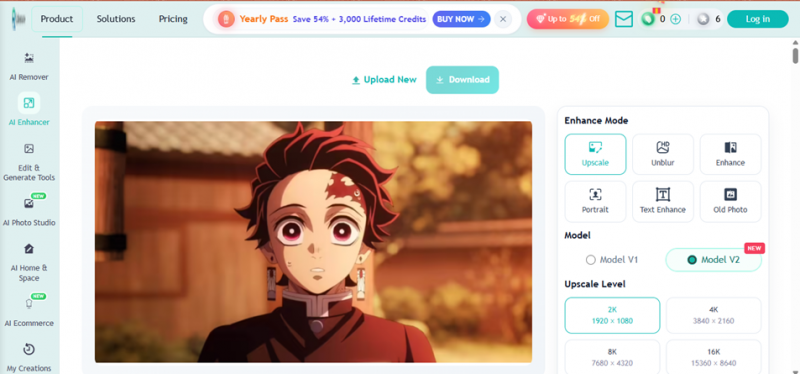
Fig 6. Blurry anime source loaded. Six modes, four upscale levels up to 16K.
The options are generous, and one of them is nonsense
Six enhance modes appear: Upscale, Unblur, Enhance, Portrait, Text Enhance, Old Photo. Upscale levels run 2K, 4K, 8K, and 16K, the last at 15360 by 8640 pixels. Model V2 is default.
Mode-specific processing is genuinely useful, since portraits and old scans need different treatment. But 16K deserves scepticism. Upscaling a blurry source to 15360 pixels wide does not recover detail that was never captured; it invents plausible pixels and multiplies the file size. The option exists because a bigger number sells, not because anyone should pick it. The honest ceiling for a soft source is 2K or 4K.
| MODES | Upscale, Unblur, Enhance, Portrait, Text, Old Photo |
| LEVELS | 2K / 4K / 8K / 16K (15360 x 8640) |
| MODEL | V2 default, V1 available |
| REALITY CHECK | 16K on a soft source is marketing |
SET EXPECTATIONS HERE An upscaler cannot recover information the camera never recorded. Anything above 4K on a blurry input is buying file size, not detail. That is true of every tool in this category, not just this one. |
| Process, then compare before and after on the slider |
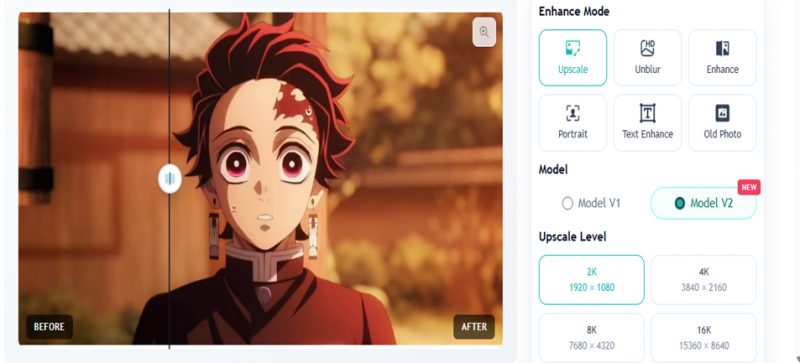
Fig 7. Before/after slider. The difference is present but slight.
It did something, and you have to look hard to see what
Here is the honest result: the enhancement is real but marginal. Dragging the slider shows a modest lift in edge definition, and line work is fractionally crisper. But the change is subtle enough that you have to hunt for it, and on a blurry source that is the expected outcome rather than a defect.
The comparison slider itself deserves credit. It makes the difference checkable instead of asking you to take a marketing claim on faith. Plenty of upscalers show only the output, which conveniently prevents you from noticing how little changed. Offering the slider is a small act of confidence.
Set against the background remover, the gap is stark. One tool solved a hard problem convincingly. The other nudged a hard problem and was transparent about the nudge. That is not a scandal, it is just the difference between a mature capability and a developing one.
| CHANGE | Real but slight on a blurry source |
| EDGE WORK | Fractionally crisper line definition |
| COMPARISON | Before/after slider provided |
| RIGHT PANEL | Mode, model, level all adjustable post-run |
| VERDICT | Usable, not transformative |
WHERE THIS LANDS Come for the background remover. Treat the upscaler as a bonus that occasionally helps, not a reason to choose the platform. If upscaling is your primary job, test it on your own worst image before committing. |
Full pricing: $7 to $80 per month
Captured from the pricing modal during testing. Note this is the credit ladder, and credits buy the premium tools, not the basic cutout.
| Open the pricing modal and read what credits actually buy |
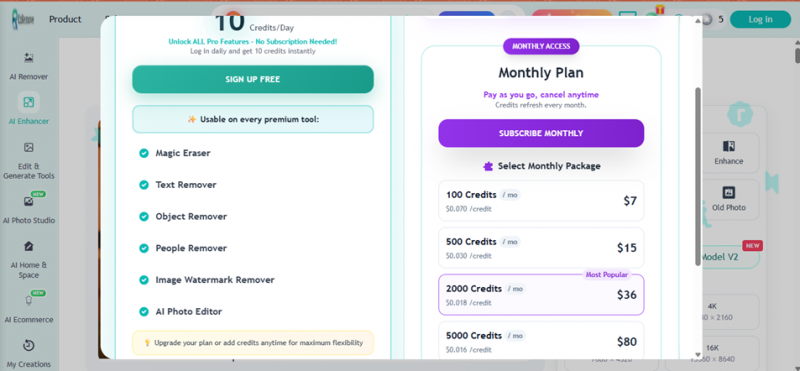
Fig 8. Pricing modal. Free daily credits on the left, monthly ladder on the right.
The free tier is a login bonus, not a bait switch
The left panel makes an unusual promise: "Unlock ALL Pro Features, No Subscription Needed. Log in daily and get 10 credits instantly." Those credits work on Magic Eraser, Text Remover, Object Remover, People Remover, Image Watermark Remover, and the AI Photo Editor.
Ten credits a day is 300 a month if you actually log in every day, which nobody does. Call it 100 to 150 in practice. But the framing matters: signing up buys you credits, it does not unlock a wall. Our entire test ran without an account at all.
| TIER | PRICE | PER CREDIT | NOTES |
|---|---|---|---|
| Free, no account | $0 | n/a | What we tested on. Full-res PNG, no watermark, no login. |
| Free, signed up | $0 | n/a | 10 credits/day. Unlocks Magic Eraser, object and watermark removers. |
| 100 credits | $7 | $0.070 | Worst value on the page. Nearly 4x the cost per credit of the $36 tier. |
| 500 credits | $15 | $0.030 | Sensible entry if you actually need credits. 2.3x better than $7. |
| 2,000 credits | $36 | $0.018 | Marked "Most Popular". The real sweet spot at 3.9x better than $7. |
| 5,000 credits | $80 | $0.016 | Only 11% better than $36. Volume users only. |
DO THE MATH BEFORE YOU BUY The $7 tier is the worst deal on the page At $0.070 per credit, the entry plan costs nearly four times as much per credit as the $36 plan at $0.018. That is a steep penalty for buying small. If you need fewer than 100 credits a month, the daily free credits probably cover you and the $7 plan is money lit on fire. If you need more, skipping straight to $15 or $36 is the rational move. The gap between $36 and $80 is only 11 percent, so the top tier makes sense only if you genuinely burn 2,000 credits. |
ONE CAVEAT WE COULD NOT RESOLVE Credit costs per tool are not published on the pricing page We saw AI Background priced at 4 credits inside the editor. We did not find a published table mapping every premium tool to its credit cost. That means the honest answer to "how many images does $36 get me" is: it depends which tools you use, and you will discover the rate inside the editor. Not a red flag, since the prices are shown before you click, but worth knowing before you assume 2,000 credits equals 2,000 jobs. |
EzRemove against the established options
Competitor pricing collected from vendor pages and independent tests in 2026. Per-image figures assume one credit per image.
| TOOL | FREE TIER | ENTRY PAID | PER IMAGE | ACCOUNT? | BEST AT |
|---|---|---|---|---|---|
| EzRemove | Full-res, no watermark | $7/mo | $0.016 to $0.070 | No | Free full-res cutouts |
| remove.bg | 0.25 MP preview only | ~$9 / 25 credits | $0.20 to $0.39 | Yes | Hardest edges, API |
| PhotoRoom | Watermarked | $9.99/mo | Bundled | Yes | Ecommerce staging |
| Canva Pro | None, Pro-only | $12.99 to $15/mo | Bundled | Yes | Design workflow |
| Pixian.ai | Preview | Pay per image | ~$0.05 | Yes | Occasional high-res |
| rembg (OSS) | Unlimited, local | $0 | $0 | No | Developers, bulk |
THE NUMBER THAT REFRAMES EVERYTHING remove.bg's free tier gives you a 0.25 megapixel preview. EzRemove gives you the actual file. This is the comparison that matters, and it is not close. remove.bg is the category benchmark and genuinely better on the hardest edges, fur and wispy hair, which is why it can charge. But its free output is a thumbnail. EzRemove handed over a full-resolution, unwatermarked PNG to a user who had not even created an account. On the $36 tier, EzRemove's per-credit price is roughly eleven times cheaper than remove.bg's entry rate. The fair caveat: remove.bg still wins when the edge is genuinely brutal, and it has the mature API. If you are running a production pipeline where a bad cutout costs you a customer, that premium is rational. For everyone else, it is hard to justify. |
What other reviewers found
Our test is one session on two images. Here is where independent sources agree, disagree, and contradict themselves.
TOPAI.TOOLS - 14 REVIEWS 64.3% Recommend rate. 9 recommend, 5 do not. Rated highest for value for money. 616 users clicked through.
|
AIXPLORIA - DIRECTORY 4.5/5 Ranked #113 in the Image Editing category. Cited for speed and accuracy on transparent output.
|
G2 - VENDOR PROFILE 0 reviews "There are not enough reviews for EzRemove AI for G2 to provide buying insight." Average rating shows 0.0. HQ location listed as N/A.
|
TOTALMEDIA - 3 WEEKS AGO Mixed The most useful critical read. Argues the tool is reliable on easy jobs and shaky on hard ones.
|
SCAMADVISER - AUTOMATED Legit "Probably legit as the trust score is reasonable." One flag raised.
|
DECLOM - MAR 2026 Positive A reviewer who went in sceptical. Reports it handled hair and fur better than older tools, and rates it on par with or better than paid competitors.
|
CONTEXT FOR THAT 64.3% In the same directory, competitors score higher TopAI.tools rates EzRemove at 64.3% recommend. In the same category on the same platform, Erase.bg scores 90.5%, Removal.ai 71%, and HitPaw 53.3%. So EzRemove sits mid-pack: better than some, well behind the leader. Fourteen reviews is also a thin sample, and G2 has none at all. Treat all of these as weak signals next to your own test on your own images. |
READ THE REVIEWS SCEPTICALLY Half the "EzRemove reviews" online describe a different product While researching this piece we hit a genuine mess. Multiple review sites describe EzRemove as "completely free, no paid plans, no subscriptions, no usage caps". Others describe a pay-per-image service at $0.99 with a 4MB upload limit. Neither matches the credit ladder in our screenshot. The explanation is that at least two similarly named products exist: ezremove.ai (the suite we tested, with credits) and ezremoveai.com (a separate pay-per-download service). A number of AI directories have blended the two, and several appear to be describing a tool nobody opened. One review site simultaneously claims the tool is free with no caps and lists "paid plans from $2". Treat any EzRemove pricing you read elsewhere, including ours, as perishable. The figures in this piece come from the pricing modal as it appeared on 16 July 2026. Check it yourself before you pay. |
My Verdict
I went in expecting a bait funnel. The banner density on the landing page, the "54% off" chips, the credit counter in the header, all of it reads like a tool that is about to ask for a card. It never did. I removed a background from a hard portrait, got a full-resolution PNG with no watermark, and downloaded it without ever creating an account. That is not what this category usually does. The background remover is the real product and it is genuinely good. Flyaway hair against a dim background is the test case that separates competent models from marketing, and it passed at a quality I would ship. The upscaler is the weaker sibling: it did something, it was honest about how little, and it gave me a slider to check its own work. I respect that more than a tool that hides the comparison. |
| USE IT IF | You need occasional cutouts and hate signup walls This is the strongest free offer in the category right now. Full resolution, no watermark, no account. |
| BUY THE $36 TIER IF | You are actually using the premium erasers At $0.018 per credit it is 3.9x better value than the $7 plan. Skip $7 entirely, it is the worst rate on the page. |
| DO NOT BUY IF | You only need background removal The free tier already does that. Credits are for the generative and eraser tools, not the core cutout. |
| USE REMOVE.BG IF | Edge quality is worth $0.20 an image to you Fur, wispy hair, production pipelines, mature API. It is still the benchmark and the premium is rational at the extremes. |
| SKIP THE UPSCALER IF | You expected a rescue tool It nudges. It does not resurrect. No upscaler recovers detail the camera never captured, and 16K on a soft source is file size, not resolution. |
| WATCH OUT FOR | Unpublished per-tool credit costs and hidden ownership You learn credit rates inside the editor. Scamadviser flags the anonymous WHOIS, and G2 has zero reviews. Neither is damning, both are worth knowing. |
The pitch is a Photoshop replacement. The reality is one excellent tool wearing a suite as a costume. Take the excellent tool. It costs nothing.
Post Comment
Share your thoughts about this article.
Be the first to post a comment!