Your browser is where the workday actually happens. Email, documents, research, calls, code reviews, the lot. Which means the small frictions add up fast: a tab you lose, a distraction you follow, a sentence you rewrite three times over.
The right Chrome extensions shave those frictions away quietly, all day long. The wrong ones slow your browser to a crawl and beg for a subscription. This guide skips the padding and organizes everything by the job each tool does, so you can jump straight to the bottleneck that annoys you most and cheerfully ignore the rest.
READ THIS FIRST More extensions means more memory and more surface for things to go wrong. Start with the two or three that fix your biggest pain point, live with them for a couple of weeks, then add more only when a specific, recurring problem calls for it. If Chrome ever feels sluggish, press Shift + Esc to open its Task Manager and see which extensions are eating memory. |
FOCUS and EEP WORK
Make distraction harder to reach
Attention is the whole game. These two make the wrong sites harder to open and staying on task a little more rewarding.
StayFocusd
DISTRACTION BLOCKER
PRICE Free BEST FOR site-hoppers
Set a daily time budget for the sites that swallow your afternoon, and once it runs out they simply stop loading. Its Nuclear Option goes further, blocking everything except what you allow for a stretch of hours you cannot easily undo.
Forest
GAMIFIED FOCUS
PRICE Free + extras BEST FOR a reward loop
Plant a virtual tree at the start of a focus session and watch it grow while you stay on task. Leave for a distracting site and the tree withers, which turns out to be a surprisingly effective nudge.
TASKS and TIME
Catch the work, count the hours
Capture what needs doing before it slips your mind, and see where your hours actually go.
Todoist
TASK CAPTURE

PRICE Free + plans BEST FOR capturing on the fly
See something you need to act on later and save it as a task from any page, without opening the app or losing the tab you were on. It removes the most common excuse for not writing things down: that adding them is a hassle.
Clockify
TIME TRACKING
PRICE Free BEST FOR freelancers
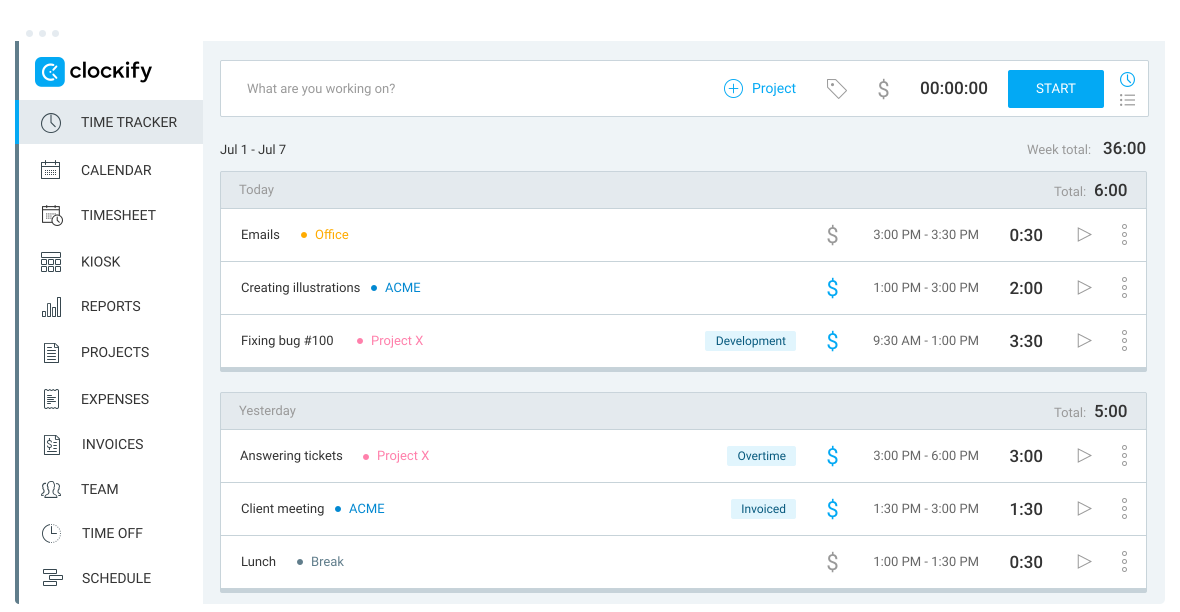
One click starts a timer on whatever you are working on, and one click stops it, with no elaborate setup in between. Over a week it quietly shows you where your time really went, which is often nothing like where you thought.
WRITING and COMMUNICATION
Say it faster and cleaner
Most work is writing of some kind. Write it more clearly, catch the slips, and occasionally say it out loud instead.
Grammarly
WRITING ASSISTANT

PRICE Free + Premium BEST FOR email & docs
Checks grammar, spelling, clarity, and tone as you type across Gmail, Docs, Slack, and almost any text field in the browser. The tone check alone has saved plenty of emails from reading sharper than intended.
Loom
ASYNC VIDEO
PRICE Free + plans BEST FOR skipping a meeting
Record your screen, your face, or both in a couple of clicks and send a short video instead of a long message. A two minute walkthrough often lands better than ten paragraphs, and nobody has to find a calendar slot.
TAB MANAGEMENT
Tame the tab bar
If your row of tabs looks like a ransom note, start here. Both of these turn chaos back into something you can navigate.
OneTab
TAB CLEANUP
PRICE Free BEST FOR reclaiming memory
Click once and every open tab collapses into a single tidy list you can restore later, freeing up the memory all those tabs were holding. It is blunt, and it is brilliant when you have forty tabs open and a slow machine.
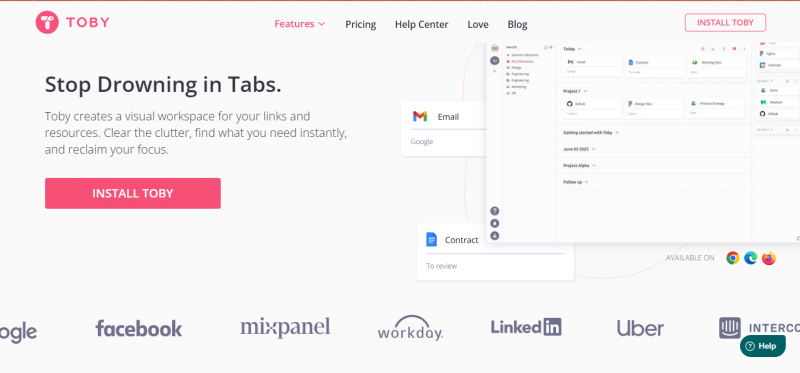
Toby
TAB WORKSPACES
PRICE Free + plans BEST FOR project spaces
Organize tabs into visual collections you can open as a group, so each project gets its own clean workspace instead of one endless row. Switching context becomes opening a board rather than hunting through tabs.
RESEARCH and SAVING
Find it again later
Turn a messy pile of open tabs and copied quotes into something you can actually search when you need it.
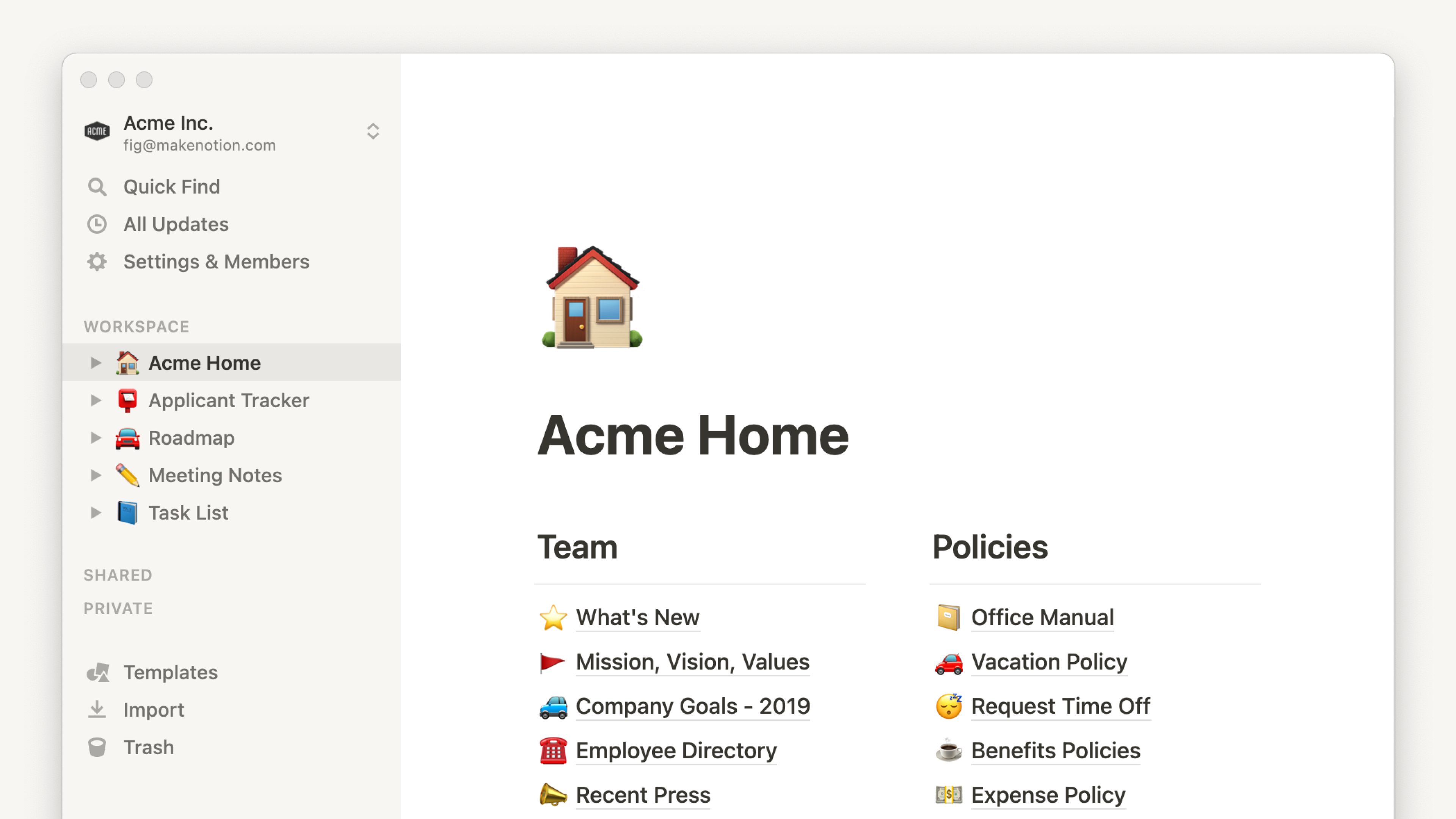
Notion Web Clipper
CLIP TO NOTION
PRICE Free BEST FOR Notion users
Save any page straight into your Notion workspace with a click, so articles and references land where the rest of your notes already live. It is basic by design, and that is exactly why it stays out of the way.
Raindrop.io
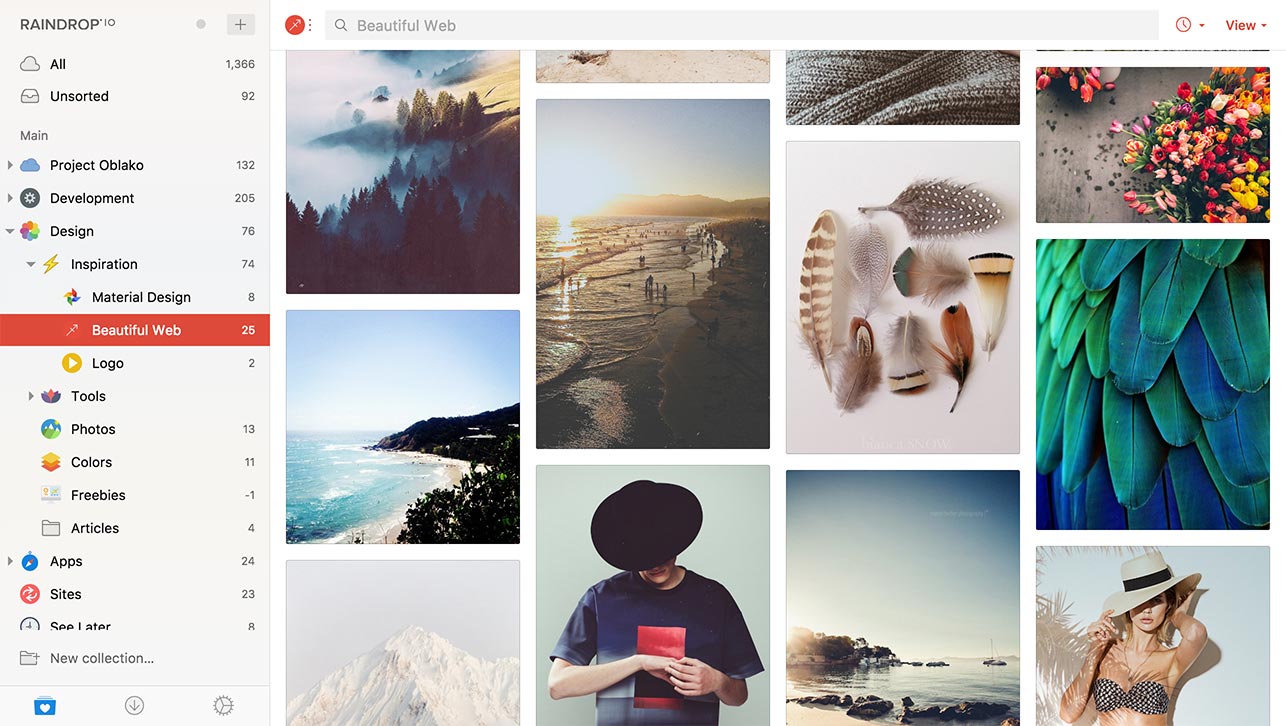
VISUAL BOOKMARKS
PRICE Free + Pro BEST FOR bookmarks you revisit
Save links into visual, organized collections that are far easier to browse than a buried bookmarks folder. For anyone who saves things and never finds them again, this is the fix.
BROWSER ESSENTIALS
Install once, forget forever
The quiet utilities you set up a single time and never think about again, because they just work in the background.
uBlock Origin Lite

AD & TRACKER BLOCKER
PRICE Free BEST FOR a calmer browser
Blocks ads and trackers so pages load quicker, look tidier, and compete less for your attention.
Worth knowing: the classic uBlock Origin left the Chrome Web Store when Google moved to its Manifest V3 rules, so on Chrome you install the rebuilt Lite version. The full-strength original still runs on Firefox and Brave.
Bitwarden
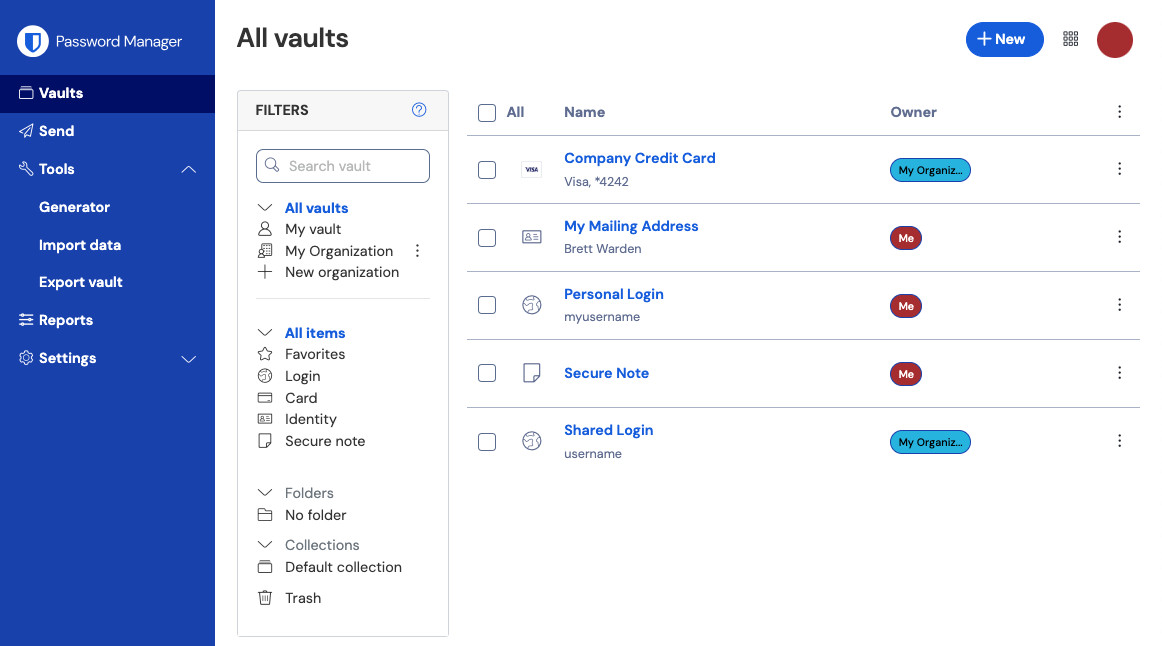
PASSWORD MANAGER
PRICE Free, generous BEST FOR everyone
An open-source password manager that generates strong, unique passwords, fills them in for you, and syncs across your devices. The free plan covers what most people actually need, without the constant nudge toward an upgrade.
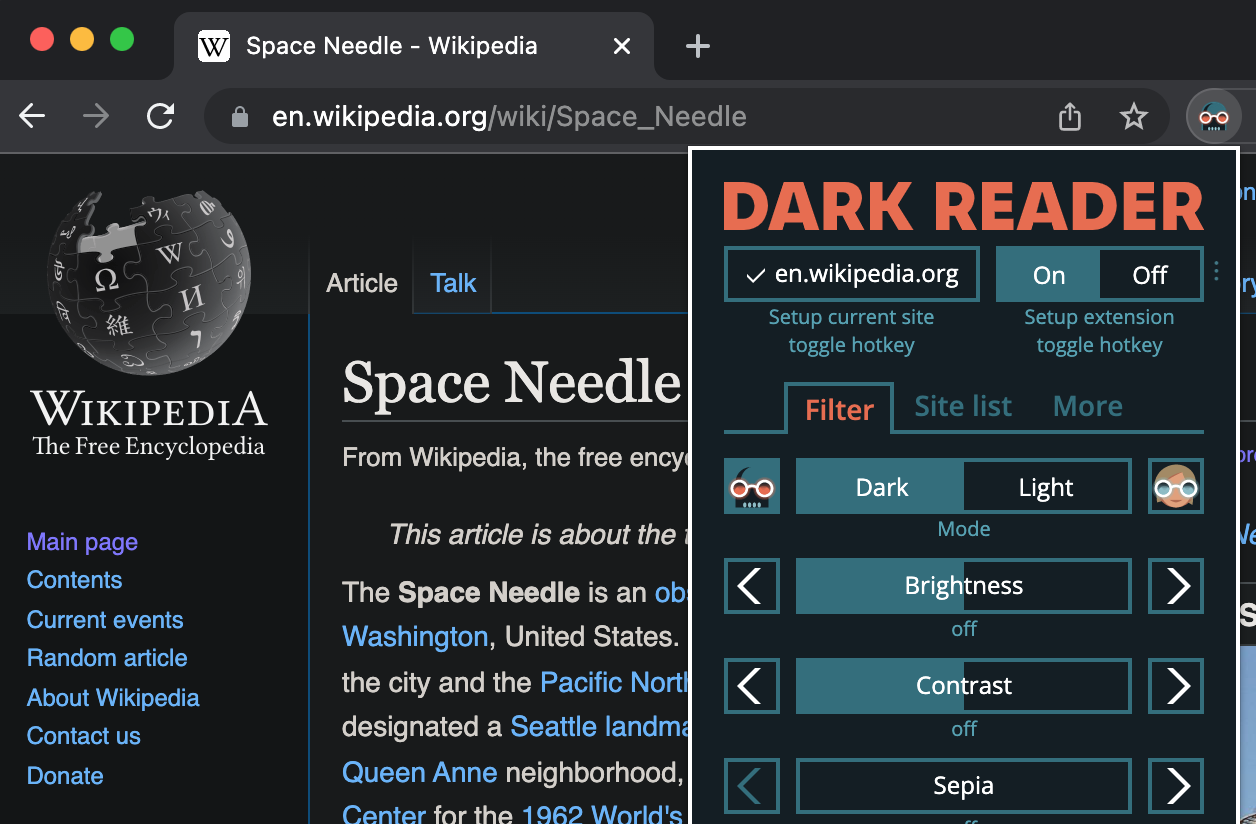
Dark Reader
DARK MODE EVERYWHERE
PRICE Free BEST FOR tired eyes
Adds a well-made dark mode to nearly every site on the web, with control over brightness, contrast, and warmth. Your eyes will notice the difference after dark.
AI and AUTOMATION
An assistant in the sidebar
The newest category, and the one saving people real hours: an assistant that reads the page you are on, and a robot for the boring clicks.
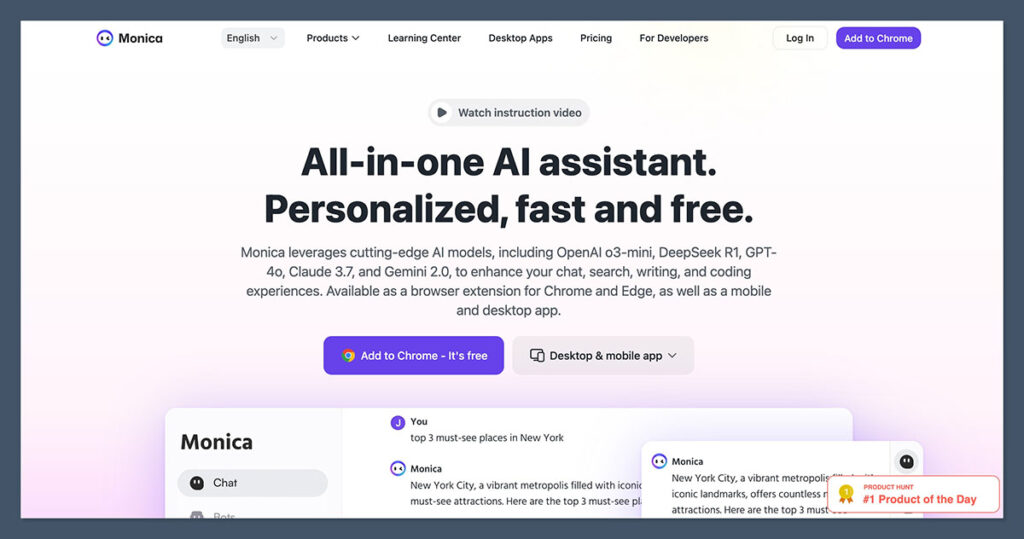
Monica AI
AI SIDEBAR
PRICE Free + plans BEST FOR page-aware answers
An AI sidebar that reads the current page before it responds, so you can summarize an article, translate a passage, or ask a question without opening a separate chat. That context-awareness is what makes it more useful than a plain chatbot in another tab.
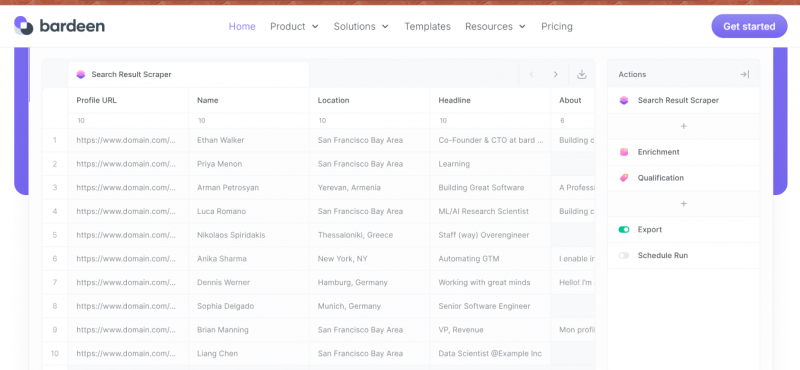
Bardeen
NO-CODE AUTOMATION
PRICE Free + Pro BEST FOR repetitive chores
Build no-code automations that scrape a page, fill a spreadsheet, or move data between web apps, a bit like having Zapier running inside the browser. Handy for the small, repeated tasks that are too fiddly to keep doing by hand.
THE TAKEAWAY
Build a lean stack, not a museum
You do not need all fifteen. A small, deliberate setup beats a bloated one every single time. The goal is a toolbar that genuinely makes you faster, not a row of icons you forgot you installed.
Pick the one category that describes your most irritating browser problem, and start there.
1. Name your bottleneck. Distraction, lost tabs, slow writing, or scattered research. Pick the loudest one.
2. Install its top pick. One extension, not the whole category. Give it two weeks of real use.
3. Add only on demand. Reach for the next tool when a specific, recurring need actually shows up.
4. Audit now and then. Review the permissions each extension asks for, and remove anything you have stopped using.
THE PRODUCTIVE BROWSER
Prices, names, and store availability shift often, especially as Chrome updates its extension rules. Check each extension on the Chrome Web Store for current details before you install.
Post Comment
Share your thoughts about this article.
Be the first to post a comment!