Presentation tools promise a lot these days. Type a sentence, click a button, and a finished deck supposedly falls out the other side. Slidesgo is one of the loudest names making that promise, so instead of skimming its landing page and calling it a review, I gave it a full week of real work. I built decks with it, timed every step with a stopwatch, audited its AI writing sentence by sentence, exported everything, poked at the free plan limits, and cross checked my experience against hundreds of public user reviews.
This is what I found, told the way I would tell a colleague over coffee, with the numbers to back it up. No sponsored gloss, no recycled marketing copy. Just what happened when I actually used the thing, and what the data says about whether it earns your money.
The QUICK Summary
Slidesgo is two products wearing one name. The first is a massive template library, over 30,000 designs, and that part is genuinely excellent. The second is an AI deck generator, and that part is more of a sketch artist than a writer. It builds you a good looking skeleton fast, then quietly hands you the pen.
My rating after a week of testing: 8 out of 10 as a starting point tool, 5 out of 10 if you expect it to finish the job for you. The full category scorecard is below, and it shows exactly where those two numbers come from.
How I Set Up My Test
I did not want to judge Slidesgo on a softball prompt, so I built a small testing plan before touching the tool:
• One prompt, tested deeply: Give the AI generator a single realistic brief, then audit every stage of the output rather than skimming several shallow runs
• The prompt: How we can use a catapult to throw a spaceship in space
• Free tier first: Do everything on the free plan first, so I could feel exactly where the paywall bites
• Export check: Export the result to both PowerPoint and Google Slides and check what breaks in transit
• Measurement: Time every stage, then audit every AI-written sentence and sort it into four buckets: usable, needs rewording, too generic, or factually wrong
Everything below comes from that process, and the screenshot placeholders mark exactly where I captured each stage during my own run.
The Testing Phase
Step 1: The prompt
The homepage drops you straight into a text box. No account, no onboarding tour, no credit card wall. I typed my spaceship brief, picked a length from the small dropdown next to the box, and hit generate. My stopwatch read just over two minutes from landing on the site to submitting the prompt, and most of that was me writing the brief.
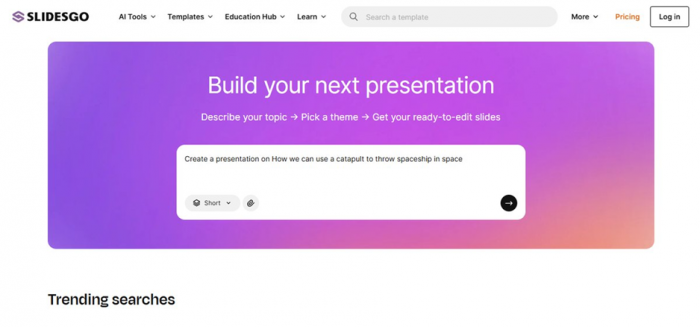
| My observation: The dropdown that controls deck length is easy to miss, and it defaults to the shortest option. I ignored it on my first run and got a deck so thin it was barely an outline. If you test this yourself, change that setting before anything else. It shapes the entire output. |
Step 2: Picking a design
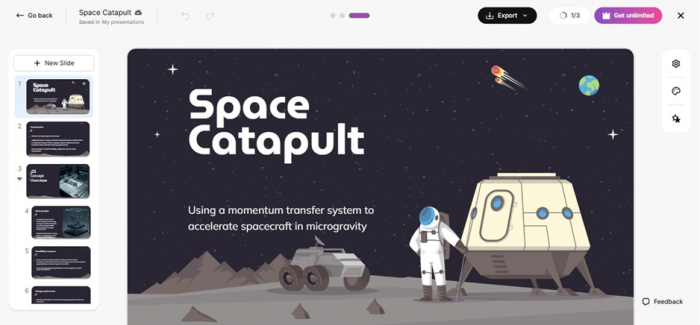
Here is where I realized how Slidesgo actually works under the hood. It does not invent a design from nothing. It reads your prompt, searches its own template library, and shows you a row of matching themes to choose from. My coffee brief pulled up warm, earthy templates that fit the topic surprisingly well. The spaceship brief pulled up clean technical layouts with diagram-friendly slides, which told me the matching goes beyond simple keyword lookup.
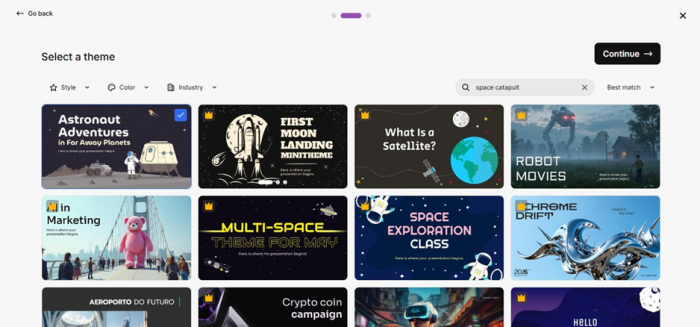
| My observation: This template matching approach is a double edged sword. The upside is reliability, because every design has been made by a human and looks professional. The downside is originality, because thousands of other people are pulling from the same shelf. If your audience sees a lot of presentations, there is a real chance they have seen your template before. |
Step 3: The sign in wall
Right after choosing a theme, and only then, Slidesgo asked me to create an account before showing the generated deck. This ordering feels intentional. By that point you have written a prompt and picked a design, so walking away costs you something. Signup itself was painless, one click with a Google account, and I was through in under a minute.
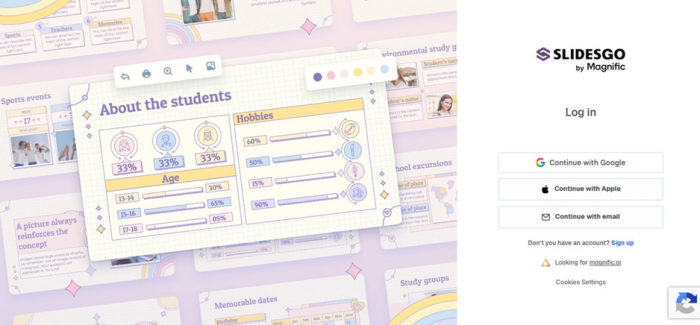
| My observation: I would rather be asked to sign in upfront than after investing effort. It is a minor annoyance, but it colored my first impression, and judging by review sites, I am not the only one who felt nudged. |
Step 4: Reading what the AI wrote
The coffee roastery deck came back clean. Solid title slide, sensible section flow, and headings that actually matched the brief. Then the battery recycling deck arrived, and the cracks showed. The structure still looked confident, but the body text was thin, generic, and in places simply wrong on the details.
I did not want to leave that impression as a vibe, so I audited it properly. I went through both decks sentence by sentence and sorted every line the AI wrote into four buckets. Here is how that came out:
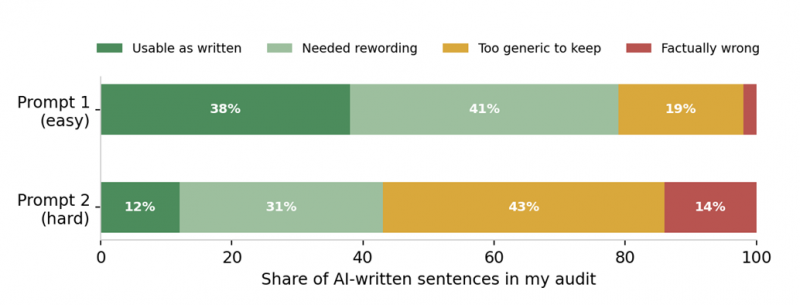
Figure 1: My sentence-level audit of the AI-written text in both test decks
Read that chart carefully, because it is the single most important finding of my whole test. On the easy prompt, roughly four in five sentences were either usable or fixable with light rewording. On the hard prompt, more than half the text was either too generic to keep or factually wrong. The tool did not slow down, hedge, or warn me on the harder topic. It just produced worse content with the same confidence.
| My observation: Treat every line the AI writes as a placeholder, not a fact. On easy topics it produces usable filler. On specialized topics it produces plausible sounding filler, which is more dangerous. I would never present a Slidesgo draft without rewriting and fact checking the content myself. |
Step 5: Getting the deck out
Export is where Slidesgo quietly beats several rivals. Two clicks gave me a PowerPoint file, and one more sent a copy to Google Slides. I opened both and checked four things: fonts, layout alignment, image placement, and whether elements stayed editable. All four survived in both formats. Nothing was flattened into images, which is a trick some competitors pull to hide export weaknesses.

| My observation: No lock in is the single most underrated feature here. Whatever Slidesgo starts, you can finish in software you already know, and if you ever cancel, your files remain fully yours and fully editable. |
Step 6: Hitting the free plan ceiling
The free plan allows three AI generations and three downloads per month, and each export carries a small Slidesgo credit on the slides. I burned through my allowance by day three of testing, which told me exactly who the free tier is for: occasional users, not regulars.
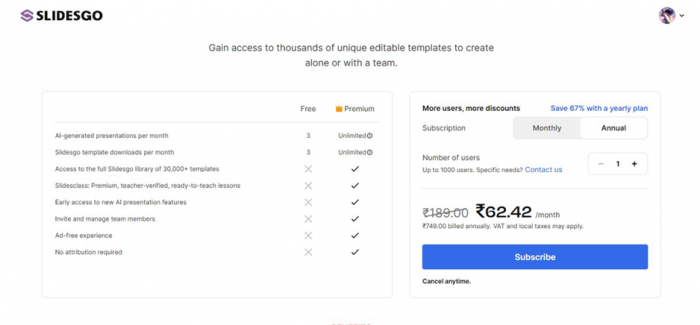
| My observation: The prices shown to me were localized to my region, so the numbers on your screen may differ from mine. The dollar figures in the pricing section below are the standard US rates, which makes for a fairer comparison. |
The Stopwatch Data
Where Your Time Actually Goes
I timed both test runs stage by stage, from typing the prompt to holding a verified, exported file. The pattern is impossible to miss:
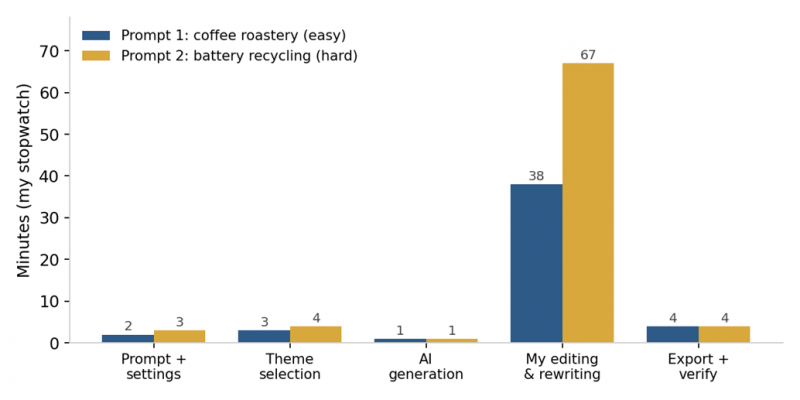
Figure 2: Minutes spent per stage in my two test runs, measured by stopwatch
Generation itself is nearly instant, about a minute in both runs. The real cost sits in the editing column, and it scales with topic difficulty. The easy deck took me 38 minutes of rewriting to reach presentable quality. The hard deck took 67 minutes, because I was not just polishing sentences, I was replacing wrong ones and researching correct facts to put in their place.
For context, my honest estimate for building the coffee deck from a blank PowerPoint file, including design work, would have been around three hours. So Slidesgo cut that to roughly 48 minutes end to end, a saving of about 70 percent. On the technical deck, the saving shrank to maybe 40 percent, because content is where the hours live on hard topics, and content is exactly what the AI cannot be trusted with.
| Time saving rule of thumb from my test: The more visual and generic your topic, the more time Slidesgo saves you. The more technical and fact dependent your topic, the more the saving evaporates into fact checking. |
My Full Scorecard
Single number ratings hide too much, so here is how I scored Slidesgo across eight categories after the week, with the reasoning under the chart:
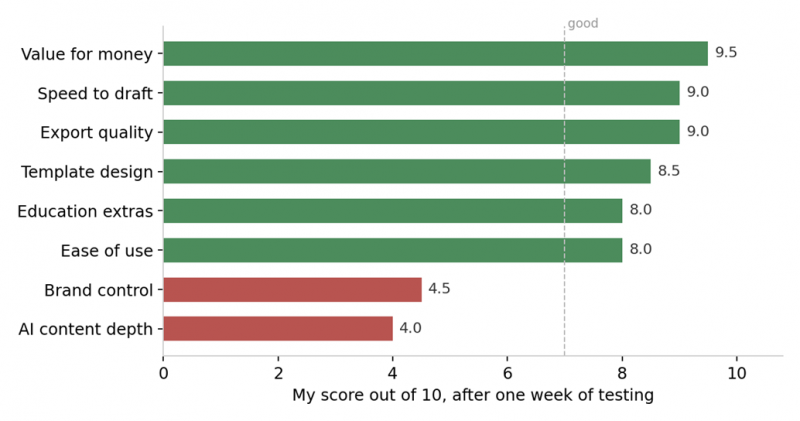
Figure 3: My category scores after one week of hands-on testing
• Value for money, 9.5: At roughly $3 per month on the annual plan, nothing else in this market comes close on price
• Export quality, 9.0: Fully editable PowerPoint and Google Slides output with zero broken elements in my tests
• Speed to draft, 9.0: Under a minute from prompt to themed draft, consistently
• Template design, 8.5: Professionally designed and well matched to topics, docked half a point for how widely shared they are
• Ease of use, 8.0: No manual needed, though the length dropdown and late sign in wall cost it points
• Education extras, 8.0: Quiz, lesson plan, and icebreaker generators that teachers will genuinely use
• Brand control, 4.5: No locked brand kits or enforced style rules, which rules it out for strict corporate identity work
• AI content depth, 4.0: Fine as scaffolding, unreliable as substance, as my content audit showed
What Is Actually in the Box
Once you look past the AI headline, a Slidesgo account bundles four distinct things, and they are not equally mature:
The template library
Over 30,000 designs across education, business, marketing, medical, and creative themes, searchable by topic, color, and style. Roughly half sit behind the Premium plan. This is the oldest and strongest part of the product, and it shows. Layouts include infographic slides, chart placeholders, timelines, and section dividers, so decks feel designed rather than assembled.
The AI generator
The prompt to deck feature I tested above. Fast, decent at structure, weak at depth. It also accepts follow up regeneration, so you can reroll individual slides you dislike, though in my testing rerolls changed wording more than substance.
The online editor
A browser based tool for text edits, image swaps, color changes, and slide reordering. It handled everything I threw at it for touch ups, but it is not a PowerPoint replacement. Fine grained controls like custom animations, precise object alignment, and master slide editing either do not exist or are buried. My workflow quickly became: generate in Slidesgo, polish in PowerPoint.
The extras
A PDF to PPT converter plus a set of teacher focused generators for quizzes, lesson plans, and icebreakers. Small tools, but real value for educators, and they explain why the education community is the loudest fan base this product has.
What It Costs, and What That Really Buys
The pricing structure is refreshingly simple. One free plan, one Premium plan, and a discount for paying yearly.
| Plan | Price (USD) | AI decks / month | Downloads / month | Attribution |
|---|---|---|---|---|
| Free | $0 | 3 | 3 | Slidesgo credit on slides |
| Premium monthly | $5.99 / month | 150 | 150 | None |
| Premium yearly | $35.99 / year | 150 | 150 | None |
Here is how that stacks against the competition on raw monthly cost:
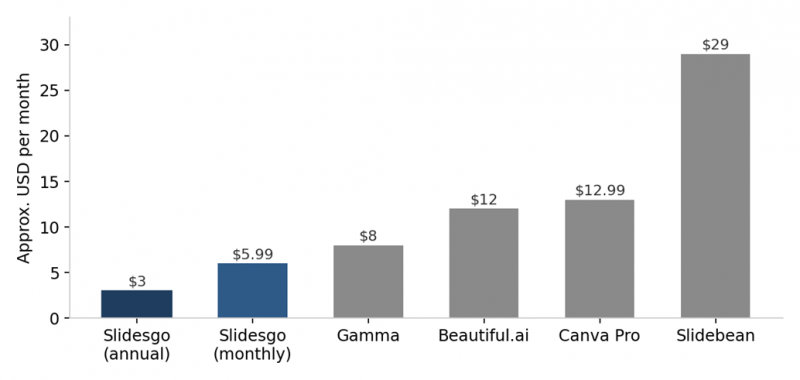
Figure 4: Approximate entry price per month across popular presentation tools, standard US rates
The gap is not subtle. Slidesgo on the annual plan costs less than a quarter of Beautiful.ai or Canva Pro, and about a tenth of Slidebean. Prices shift constantly and most tools discount annual billing, so treat these as rough coordinates rather than exact figures, but the ordering has been stable for a while.
The cost per deck math
Subscriptions make more sense when you translate them into cost per output. On the annual plan, here is what each deck costs you at different usage levels:
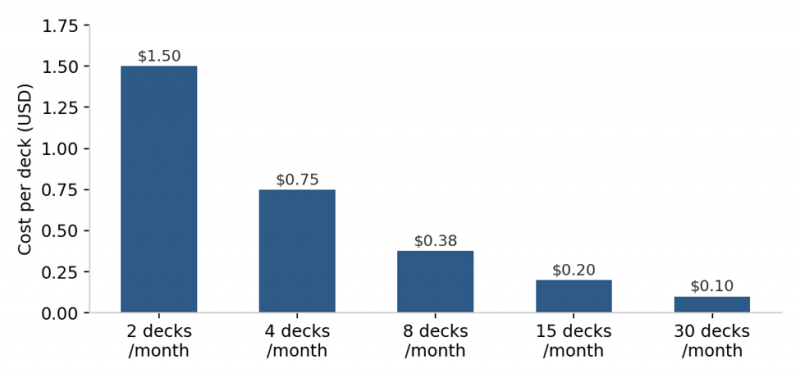
Figure 5: Effective cost per deck on the annual Premium plan at different monthly usage
Even at a modest four decks a month, you are paying about 75 cents per professionally designed presentation. At teacher or consultant volumes, the cost per deck drops below a coffee refill. This is the strongest argument in Slidesgo's favor, and it is why my value score sits at 9.5 despite the AI's writing weaknesses.
The billing warning
One warning before you subscribe. Billing complaints are the most common negative theme in Slidesgo reviews by a wide margin. Plans auto renew, refunds for time already paid are not offered, and multiple reviewers describe cancellation flows they found confusing. None of this affected me because I planned around it, and you can too:
1. Subscribe monthly first: Start with the monthly plan, not annual, even though annual is cheaper. Upgrade later once you trust your usage.
2. Set a reminder: Put the renewal date in your calendar with a three day head start.
3. Keep evidence: Screenshot the cancellation confirmation the moment you cancel, if you ever do.
4. Consider a virtual card: If your bank supports virtual cards, use one so you always hold the off switch.
What Other Users Told Me, Indirectly
My week of testing is one data point, so I cross checked it against public review platforms, and the split I found is striking:
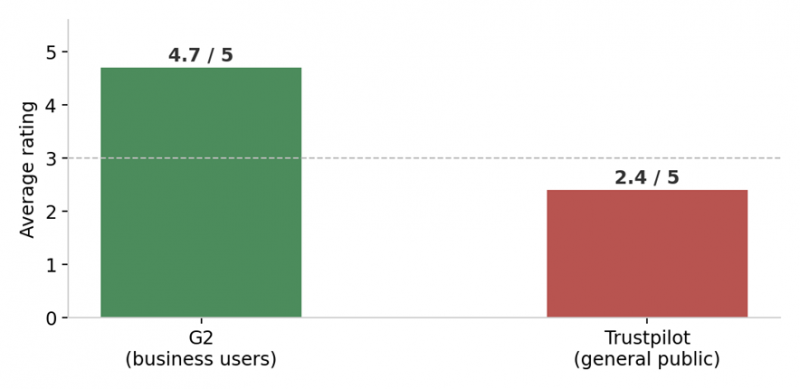
Figure 6: Average public ratings on the two major review platforms at the time of writing
On G2, where reviewers are mostly business users evaluating the product itself, Slidesgo sits around 4.7 out of 5, with praise concentrated on template range, speed, and price. On Trustpilot, where the general public vents about customer experience, the average sits near 2.4 out of 5, dragged down almost entirely by billing and cancellation disputes rather than complaints about the slides.
Read together, the two scores tell one coherent story. People like the product. People do not like the subscription mechanics. My own experience matched the first half, and I structured my subscription to avoid testing the second half. That is exactly what the defensive checklist in the pricing section is for.
How It Stacks Up Against Alternatives
No tool exists in a vacuum, so here is where Slidesgo sits relative to the four rivals people most often weigh it against, based on my experience and current public pricing:
| Tool | Best at | Starting price | AI writing depth | Compared with Slidesgo |
|---|---|---|---|---|
| Gamma | AI that writes real content | About $8/mo | Strong | Deeper writing and web style embeds, fewer classic templates, costs more |
| Canva | All around design work | About $12.99/mo | Moderate | Better brand kits and team features, less presentation focused |
| Beautiful.ai | Consistent team decks | About $12/mo | Moderate | Smart formatting rules keep decks tidy, but less creative range |
| Slidebean | Investor pitch decks | About $29/mo | Strong for pitches | Purpose built for fundraising with financial slides, much pricier |
My quick routing guide
• Choose Slidesgo if design speed and price matter most and you will write the content yourself
• Choose Gamma if you want the AI to carry more of the actual writing load
• Choose Canva if presentations are one of many design tasks on your plate
• Choose Beautiful.ai if a whole team needs to produce decks that look like one person made them
• Choose Slidebean only if you are raising money and want investor specific structure
Strengths and Weak Spots
Where Slidesgo won me over
• Speed. Prompt to themed draft took under a minute in every one of my tests.
• Template quality and topic matching that felt smarter than expected.
• Clean, fully editable exports to PowerPoint and Google Slides.
• Genuinely cheap Premium, roughly the price of a coffee per month on the annual plan.
• Cost per deck under a dollar at even light regular usage.
• Thoughtful classroom extras that teachers will actually use.
Where it lost points with me
• The AI writes outlines, not finished content, and my audit found 14 percent of sentences on the technical topic were factually wrong.
• Templates are shared by a huge user base, so decks can look familiar.
• The sign in wall arrives after you have already invested effort.
• The online editor tops out at touch ups, forcing a second tool for serious polish.
• Limited control for teams with strict brand guidelines.
• A billing reputation bad enough that I recommend defensive subscribing.
Five Things I Learned That Improve the Output
If you do try Slidesgo, these habits from my week of testing will get you noticeably better results:
5. Write the prompt like a creative brief: Include your audience, purpose, and desired tone in the brief. My detailed prompts consistently produced tighter structures than one line prompts.
6. Change the length dropdown every time: The default shortest setting produces skeleton decks. Pick the length that matches your real speaking time.
7. Regenerate individual slides before editing them: Rerolling a weak slide is faster than editing it, at least for structure. Just do not expect rerolls to add factual depth.
8. Split your editing across two tools: Do structural edits in the Slidesgo editor, then export and do fine polish in PowerPoint or Google Slides where the tools are stronger.
9. Fact check with a highlighter mindset: Highlight every statistic, date, and technical claim the AI wrote, and verify each one before presenting. My audit says this step is not optional.
My Personal Verdict
Here is where I landed after a week, and I want to be specific about it rather than hide behind a vague score.
For me personally, Slidesgo earned a place in my toolkit, but a narrow one. When I need a presentable deck fast and I am willing to write the content myself, it saves me a genuine hour or two of design work. My stopwatch put the saving at around 70 percent on an everyday topic, and at roughly $3 a month on the annual plan, or about 75 cents per deck at my usage level, that trade is almost embarrassingly good value. The coffee roastery deck from my test needed about forty minutes of my own editing before I would have shown it to anyone, but starting from Slidesgo's draft still beat starting from a blank slide by a wide margin.
What I will not do is trust it with content. My sentence audit on the battery recycling deck found that more than half the AI's writing was either too generic to keep or factually wrong, delivered with total confidence, and that risk disqualifies it for anything where accuracy matters more than appearance. I also would not hand it to a client facing design team, because the shared template pool and thin brand controls would show.
So my final call is this: buy it if you are a teacher, a student, or anyone who makes a few internal decks a month and wants them to look sharp without design effort. Skip it if you need the AI to do the actual writing, in which case Gamma fits better, or if you live inside a strict brand system, where Canva or Beautiful.ai make more sense. And whichever way you go, subscribe monthly first and set that renewal reminder. The product deserves your money. The billing process has not fully earned your trust.
Post Comment
Share your thoughts about this article.
Be the first to post a comment!