Typing the address is faster when you know where you are going, and the gap is bigger than most people assume. But the reason has almost nothing to do with typing speed, and the fastest method is neither of the two most people use.
THE RULE IN ONE LINE Know the site, type it. Do not know the site, search it. Visit it often, let autocomplete finish it. Most people default to searching for all three, which is where the time goes. |
Why this is not really two options
The question assumes two separate boxes. Modern browsers removed that split years ago. Chrome calls its combined field the omnibox, and Firefox, Edge and Safari all work the same way: one bar handles both jobs.
So the browser has to guess what you meant. It reads what you typed and tests whether it looks like a web address before doing anything else. Type something with a domain pattern like wikipedia.org and it navigates directly. Type words like best laptops and it hands the text to your default search engine.
That means the real choice is not which box you use. It is what you type into the only box there is, and whether the browser can resolve it without help.
What each path actually does
The speed difference comes from step count. Here is what happens after you press Enter on each route.
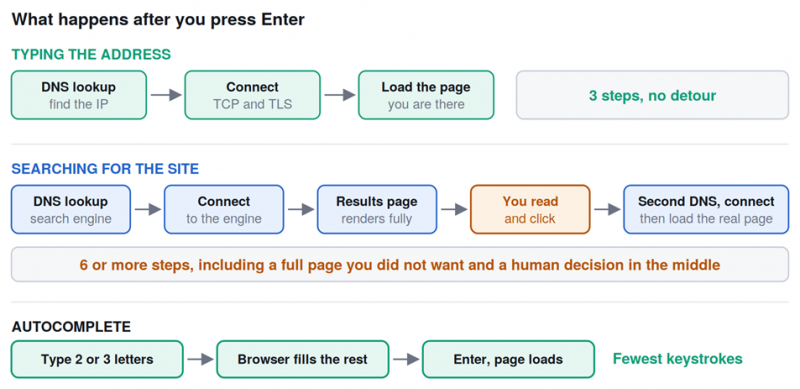
Searching adds a whole page load and a human decision that direct navigation skips entirely.
Look at the middle box on the search path. That orange step is you, reading results and deciding which to click. It is usually the slowest part of the whole sequence, and it is the one no browser update can optimise away.
Where the time goes
The individual pieces are small and measurable. The problem with searching is that you pay several of them twice.
| Step | Typical cost | Typed address | Search first |
|---|---|---|---|
| DNS lookup | 20 to 120 ms, faster if cached | Once | Twice, engine then destination |
| TCP and TLS handshake | Two round trips, more on TLS 1.2 | Once | Twice |
| Search results page render | Several hundred ms upward | Never | Always |
| You reading and clicking | 1 to 3 seconds, often more | Never | Always |
| Ad or tracking redirect | Extra request plus parsing | Never | Sometimes |
DNS is the smallest piece. Typical lookups land between 20 and 120 milliseconds, and anything at or below that range counts as healthy. Cached lookups are far quicker. On its own it is not worth optimising your habits around.
The expensive parts are the ones people never count: a full search results page that you did not want, and the seconds you spend deciding which link is the right one. Those dwarf every network measurement on this list.
THE HIDDEN COST ON AD CLICKS If you click a sponsored result rather than an organic one, the browser goes through an extra redirect that registers the click before sending you on. That means another request, more parsing, and more script execution. Clicking the ad at the top of the results for a site you already knew the name of is the slowest possible way to arrive. |
Where typed addresses lose time
Direct navigation is not free of overhead. Type example.com without a scheme and the browser may first try an insecure connection, receive a redirect, then reconnect over HTTPS, which costs an extra round trip.
Sites on the HSTS preload list avoid this. That list ships inside the browser, so it knows to go straight to HTTPS without the redirect. Major sites are usually covered, but plenty are not. Turning on HTTPS-only mode in your browser gets you the same benefit everywhere.
Autocomplete changes the maths
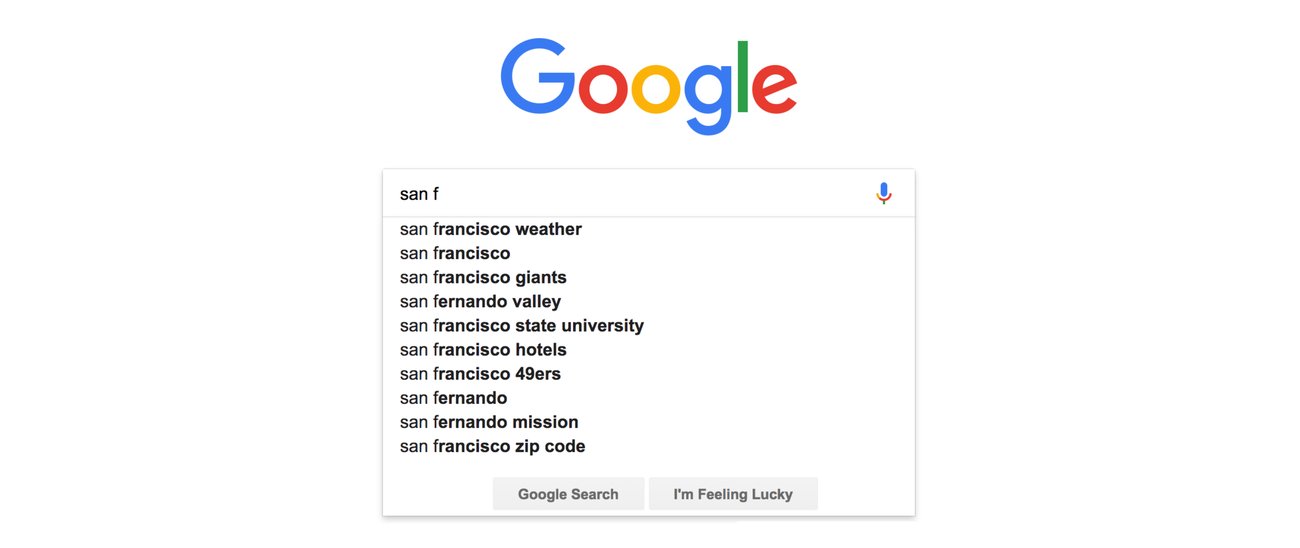
This is what makes the original question outdated. You are not really choosing between typing 22 characters and typing a search phrase, because the browser stops letting you finish either one.
Chrome's omnibox now ranks suggestions with a machine learning model rather than simple prefix matching, so it copes with partial input, typos, and cases where several sites could match. It also completes based on page titles and past search words, not just the start of a URL. Type flights and it can take you to Google Flights directly, where previously you had to start with google.com.
The practical effect: for any site in your history, you are typing two or three characters and pressing Enter. That is fewer keystrokes than most search phrases, and it lands you on the destination rather than on a results page.
WHY AUTOCOMPLETE SOMETIMES STOPS WORKING Suggestions get worse if you clear browsing history often, if predictive services are switched off, or if you are in a private window where history is not used the same way. If your address bar suddenly feels dumber, one of those three usually explains it. |
The method faster than both
Custom search keywords are the fastest route to a specific site, and almost nobody has them set up. You assign a short keyword to a site’s own search, then type the keyword, a space, and your query.
So instead of loading a search engine, finding Wikipedia, and searching again inside it, you type w round trip time and land on the article. Two steps collapse into one.
| Goal | Slow way | Fast way |
|---|---|---|
| Reach a site you visit daily | Search its name, click the first result | Two letters, autocomplete, Enter |
| Find something inside a known site | Search engine, click through, search again | Keyword shortcut straight to the query |
| Return somewhere from earlier today | Search for it again | Type part of the page title, pick from history |
| Open a site you have bookmarked | Open bookmarks menu and hunt | Type part of the bookmark name in the bar |
Setting keywords takes about a minute. In Chrome and Edge, open your search engine settings and add a site search entry. In Firefox, right-click a search box on a site and choose to add a keyword for it.
When searching is the right call
Direct navigation only wins when you already know the address. Search wins outright in these cases, and forcing a URL is the slower choice.
• You do not know the exact domain. Guessing wrong costs a failed load plus a search anyway
• The company name and domain differ. Plenty of brands do not sit on the domain you would guess
• You want a specific page deep inside a site. Searching the page title is faster than navigating the site's own menus
• You are comparing sources. The results page is the point, not an obstacle
• The domain is long or easy to mistype. One typo costs more than the search would have
ONE REAL SAFETY REASON TO SEARCH INSTEAD Typo-squatters register misspellings of popular domains and use them for phishing. If you are typing a banking or payment address from memory and are not certain of the spelling, searching or using a saved bookmark is safer than a confident guess. Speed is not worth landing on a convincing fake. |
Three habits that waste time
These are the patterns that turn a one-step trip into three, and all of them are common.
Typing a site name into a search engine you had to load first
Opening google.com and then searching for a site you could have typed directly is the slowest common pattern on the web. You load a full page, search, read results, then load the page you wanted. Four steps to reach a destination you could name from the start.
Typing the full address including https and www
Unnecessary in every current browser. bbc.com works identically to typing out the scheme and subdomain, and it is roughly twelve fewer characters. The browser fills in the rest.
Clicking the sponsored result for a site you already knew
Searching a brand name and then clicking the ad above the organic result adds a tracking redirect on top of everything else. If you knew the name well enough to search it, you knew it well enough to type it.
Keyboard shortcuts worth learning
Most of the remaining time is spent moving your hand to the mouse. These remove that.
| Shortcut | What it does |
|---|---|
| Ctrl + L or Cmd + L | Jump to the address bar and select everything in it |
| Alt + D | Same thing, if you prefer it on Windows |
| Ctrl + Enter | Wraps what you typed with www and .com automatically |
| Shift + Delete | Removes a wrong autocomplete suggestion so it stops appearing |
| Tab then Enter | Moves through suggestions without touching the mouse |
| Ctrl + T | New tab with the cursor already in the address bar |
The combination worth building into muscle memory is Ctrl + T, two or three letters, then Enter. Hand never leaves the keyboard, no search engine involved, and it works for every site you have visited before.
What to do from now on
The short version Typing the address is faster when you know it, because searching adds a second DNS lookup, a second connection, a full results page, and the seconds you spend reading it. The network costs are small individually. The results page and your own decision time are not. But the honest answer is that neither option in the title is the fastest one available. For sites you already visit, autocomplete gets you there in two or three keystrokes without a search engine. For searching inside a known site, a keyword shortcut collapses two steps into one. Keep searching when you do not know the domain, when the name and address differ, or when you are unsure of the spelling of something sensitive. Everywhere else, let the address bar finish your sentence. |
THREE CHANGES WORTH MAKING TODAY Learn Ctrl + L so your hand stays on the keyboard. Stop typing https and www, since the browser adds them. Set up two or three keyword shortcuts for the sites you search inside most often, which takes about a minute each and saves a step every time. |
Post Comment
Share your thoughts about this article.
Be the first to post a comment!