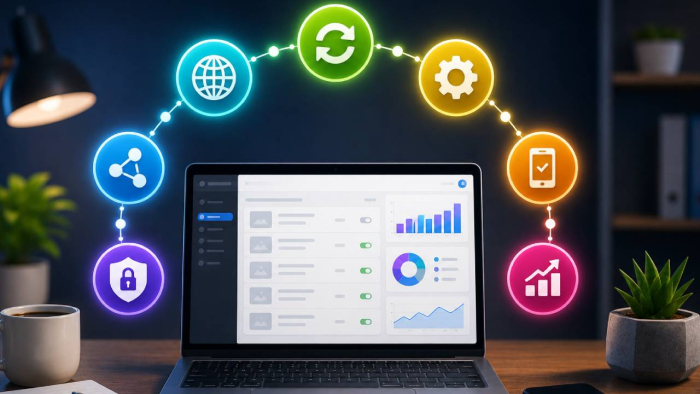
Businesses once relied on paper for everything—contracts, invoices, approvals, and internal forms. Each step involved printing, signing, scanning, and filing, consuming time and resources that could have gone toward actual work. Today, the move from paper to digital document management is completely transforming how teams operate. Going paperless saves hours of manual effort, cuts printing and storage costs, and reduces environmental waste. It also creates space for smoother collaboration, faster approvals, and better record-keeping.
At the center of this shift is the PDF signer: a tool that lets you sign PDFs online, approve files instantly, and keep every document secure in the cloud. So, whether you’re running a small business or managing enterprise workflows, learning how to sign a PDF digitally is one of the simplest and most effective ways to build a faster, smarter, and truly paper-free operation.
What Does “Going Paperless” Mean?
To understand how a PDF signer supports a paperless workflow, it helps to start with what “going paperless” really involves and why so many organizations are committing to it.
Definition and benefits of paperless processes
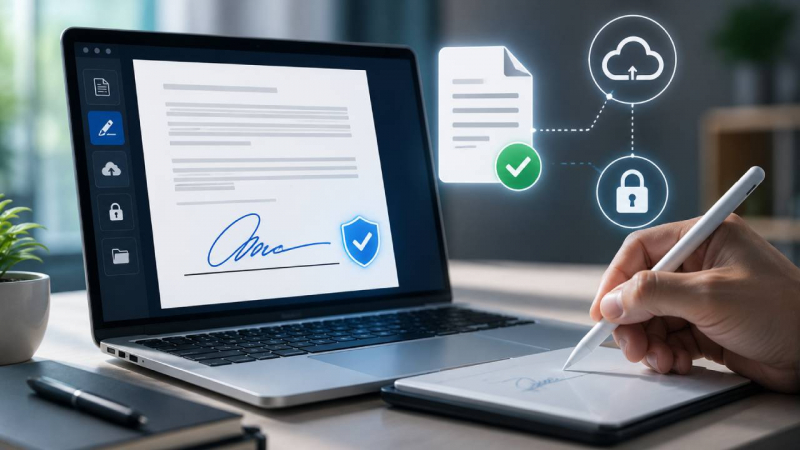
Going paperless means managing, signing, and storing documents electronically instead of handling physical copies. The benefits are clear: faster turnaround times, reduced storage needs, and better document tracking. With everything being digital, finding a file takes seconds, not hours.
Common challenges of traditional paper-based workflows
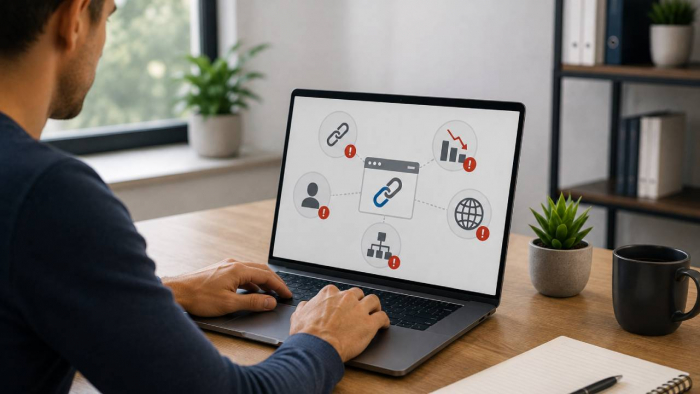
Traditional paper systems create bottlenecks. People misplace files, wait for signatures, or deal with printer and scanner issues. Paper documents also introduce version-control problems—different departments may work with different copies. These inefficiencies often push businesses to look for tools that allow them to sign PDFs electronically.
The role of digital tools in modern document management
This is where digital tools come in. Platforms that let you digitally sign PDF documents, store them in the cloud, and share them securely remove the need for manual processing. Using an online PDF signer not only improves speed and accuracy but also supports long-term sustainability goals by reducing paper waste. Choosing secure eSignature workflows also helps organizations simplify document management while maintaining compliance and collaboration.
How a PDF Signer Helps You Go Paperless
Once the benefits of paperless systems are clear, the next step is understanding exactly how a PDF signer supports this transition.
Enables instant digital approvals and signatures
One of the biggest time-savers in a paperless setup is instant signing. With an online PDF signer, you can sign a PDF directly in your browser—no printing or scanning needed. Team members and clients can also approve documents remotely, turning what used to take days into minutes.
Reduces the need for printing and scanning
Printing and scanning create extra steps that slow work down. Digital signatures eliminate all that. Learning how to electronically sign a PDF means every approval stays online, reducing waste and ensuring every signed copy remains consistent and traceable.
Keeps all signed files organized in one place
Paper files often get buried in drawers or folders. A digital signer, such as Lumin, keeps everything organized within your account. You can tag, search, or categorize your signed PDFs easily and back them up automatically in cloud storage.
Step-by-Step: How to Complete Documents Online
Now that the benefits are clear, here’s how to complete and sign PDFs online from start to finish using a secure, web-based signer.
Step 1: Upload Your PDF
Start by uploading the file you want to sign PDF. Most platforms support common file types like PDF, DOCX, and image formats. Simply drag and drop your document into the signer or upload it from cloud storage.
For stronger security, make sure the site uses SSL encryption (look for “https://” in the URL) before uploading sensitive material.
Step 2: Add Your Signature or Fill Out Fields
You can digitally sign PDFs in several ways:
● Draw your signature using a mouse or touchscreen.
● Type your name and select a signature style.
● Upload an image of your handwritten signature.
Most tools also allow you to insert initials, checkboxes, or date fields. Adjust placement and size for a professional finish.
Step 3: Review, Sign, and Send
Before finalizing, review each page to ensure all fields are correct. After you sign the PDF, you can send it directly through email or share a secure link. Many tools also integrate with Google Drive, Dropbox, and OneDrive for quick storage.
This step completes the entire process—without a single piece of paper changing hands.
Recommended Tools for Paperless Signing
At this stage, the main question is which tool will fit your workflow best. Here are some of the most reliable platforms to sign PDFs online efficiently:
Overview of top platforms
Lumin – An intuitive online PDF editor with built-in signing, editing, and collaboration tools. Ideal for teams that want to handle everything in one place.
Adobe Acrobat – A powerful desktop and cloud solution that supports both digital and electronic signatures with advanced editing features.
Signwell – A focused signing tool that offers templates and audit trails for quick document turnaround.
Comparison of features and ease of use
● Lumin: Combines editing, commenting, and signing in one clean interface; easy for individuals and teams.
● Adobe Acrobat: Offers advanced features and integrates well with enterprise systems, but can be heavier for casual users.
● Signwell: Best for smaller teams that only need to sign PDFs quickly without editing.
Tips for Secure Paperless Document Management
Once you’ve moved to digital workflows, maintaining security and compliance is critical. The tips below ensure that every document you handle stays valid and protected.
How to ensure your e-signatures are legally binding
When you sign PDFs online, always check that your platform complies with major legal frameworks such as the ESIGN Act in the U.S. and eIDAS in the EU. These regulations confirm that digital signatures hold the same weight as handwritten ones.
Data protection and encryption practices
Only use signing tools that offer encryption during both transfer and storage. Lumin, for example, uses bank-grade security to keep all signed PDFs private. Avoid sharing documents through unsecured email attachments—opt for encrypted links or cloud sharing instead.
Backing up and organizing signed documents
Regularly back up your digitally signed PDFs to multiple locations—cloud and offline drives alike. Label files clearly with consistent naming conventions to make retrieval simple. Keeping organized records guarantees compliance and saves time during audits or reviews.
Final Thoughts
Going paperless isn’t just an environmental choice; it’s a practical move toward faster, more secure, and more efficient document handling. With a reliable PDF signer, you can sign PDFs online, store them safely, and share them instantly without touching a printer or scanner.
Learning how to sign a PDF digitally gives you full control over your workflow while maintaining legal validity and data security. Tools like Lumin make this process accessible to everyone—from freelancers to large organizations—so every approval, contract, or form can be completed in minutes, not days.
Post Comment
Share your thoughts about this article.
Be the first to post a comment!