Why screen recording?
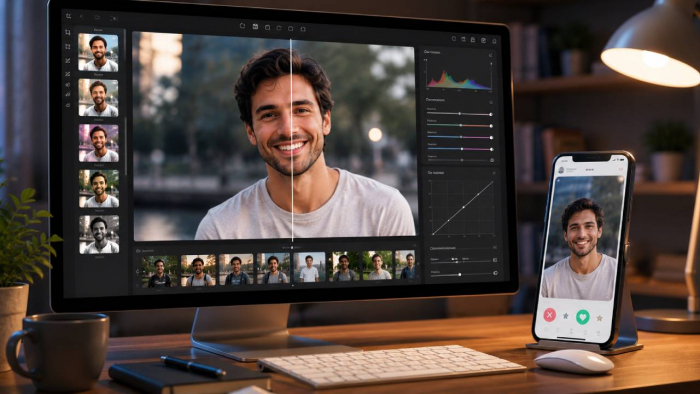
Screen recording software allows you to capture everything happening on your computer display, often alongside system audio, microphone narration, and webcam footage.
The right screen recorder can help you create:
- YouTube tutorials
- Product demonstrations
- Online courses
- Software walkthroughs
- Employee-training videos
- Customer-support guides
- Business presentations
- Gameplay recordings
- Asynchronous team updates
- Bug reports and technical documentation
However, not every screen recorder serves the same purpose.
OBS Studio provides powerful recording and streaming controls but requires more setup. Loom prioritizes fast recording and cloud sharing. Camtasia combines recording with a full video editor, while Snagit focuses on screenshots, annotations, and shorter instructional videos.
Your ideal choice depends on what you record, how much editing you need, where you want to store the files, and whether you are willing to pay for advanced features.
How We Tested These Tools (Methodology)
To keep this guide trustworthy, every recommendation below is based on the same repeatable test process rather than marketing pages:
• Same test recording: each tool recorded an identical 5-minute task (a browser demo with webcam overlay and microphone narration) on the same Windows 11 laptop and M-series MacBook where supported.
• What we measured: setup time from install to first recording, output quality at 1080p, CPU usage while recording, export or upload speed, and how much editing was possible without leaving the app.
• Pricing verification: every price in this article was checked against the vendor's official pricing page in 2026, since several tools have switched from one-time licenses to subscriptions.
• Real-world weighting: ease of use for a first-time user counted as much as raw feature depth, because most readers record tutorials and updates, not Hollywood productions.
Top Screen Recording Software
1. OBS Studio (Free + Open Source)
- Best for: Live streaming, gameplay, advanced recording, and multi-source productions
- Operating systems: Windows, macOS, and Linux
- Price: Free and open source
Why Choose OBS Studio?
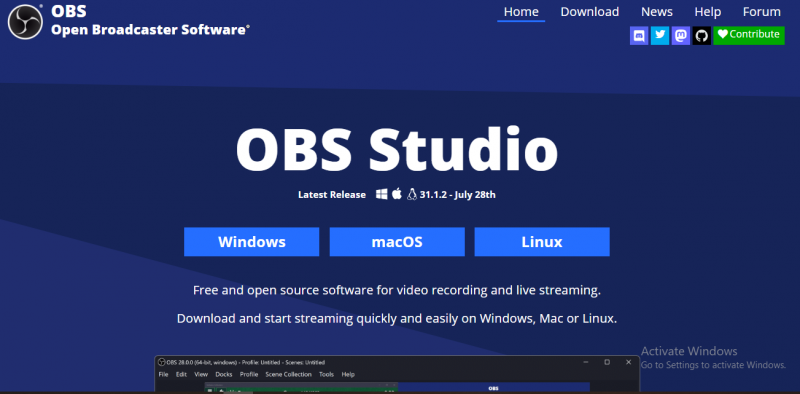
OBS Studio is one of the most powerful free tools for screen recording and live streaming.
It allows users to combine multiple sources—including displays, application windows, webcams, capture cards, images, browser pages, and audio inputs—inside one recording or broadcast.
OBS does not impose a watermark or commercial-use restriction. The current official release supports Windows 10 and 11, macOS 12 or later, and Linux distributions through supported installation methods.
OBS is particularly useful for gamers, streamers, podcasters, educators, and creators who need greater control than a basic one-click recorder provides.
Key Features:
- Multiple scenes and recording sources
- Real-time video and audio mixing
- Screen, window, webcam, and capture-card recording
- Custom transitions
- Audio filters and mixer controls
- Studio Mode for previewing scene changes
- Hardware-encoder support
- Live streaming to major platforms
- Plugin and script support
- No watermark or fixed recording limit
Advantages:
- Completely free
- No watermark
- Highly customizable
- Strong recording and streaming controls
- Large user and plugin community
- Suitable for professional-quality workflows
Limitations:
- Steeper learning curve than Loom or ScreenPal
- No complete timeline-based video editor
- Incorrect settings can create large files or poor performance
- Requires a reasonably capable computer for demanding scenes
Verdict: OBS Studio is the best free option for users who want detailed control and are willing to learn the interface. Pair it with a separate video editor when you need extensive post-production.
Why choose OBS?
It offers unlimited recording time, real-time audio/video mixing, and is ideal for gamers and streamers. But it’s not beginner-friendly.
Key features:
- Custom transitions
- Studio Mode for live previews
- Unlimited scenes and sources
Steep learning curve. No built-in editor.
2. Loom (Freemium)
- Best for: Asynchronous communication, product walkthroughs, feedback, and team updates
- Operating systems: Web, Windows, macOS, and browser-based workflows
- Price: Free Starter plan; paid Business and AI plans available
Why Use Loom?
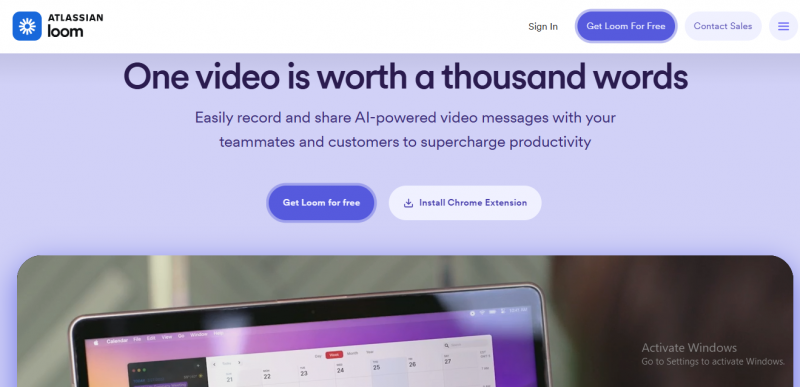
Loom is designed for recording a message quickly and sharing it through a link.
Users can record their screen, webcam, and microphone together. When the recording ends, Loom processes the video and makes it available for cloud-based sharing.
This makes it particularly useful for remote teams that want to replace unnecessary meetings or lengthy written explanations with short visual updates.
The current Starter plan permits up to 25 recordings per person, with a five-minute limit for each video. Paid plans provide unlimited recordings and longer videos. Loom’s official pricing walkthrough lists Business at $8 per user per month when billed annually, although the price shown at checkout can vary by plan, region, and included AI features.
Key Features:
- Screen and camera recording
- Instant cloud sharing
- Automatic transcripts
- Viewer comments and reactions
- Video trimming
- Recording analytics
- Password and access controls on eligible plans
- Automatic titles and summaries
- AI-assisted editing on supported plans
- Integrations with workplace tools
Advantages:
- Very easy to learn
- Fast recording-to-sharing workflow
- Useful for distributed teams
- No need to export and upload every video manually
- Transcripts make recordings easier to review
Limitations:
- Free videos are limited to five minutes
- Starter users can store only a limited number of recordings
- Advanced AI, security, and team-management tools require paid plans
- Cloud dependence may not suit confidential or offline workflows
- It is not a full professional video editor
Verdict: Loom is one of the best screen recorders for workplace communication, customer explanations, and short product walkthroughs.
Why use Loom?
Fast, clean UI with instant cloud sharing. Great for startups and remote teams.
Key features:
- Record screen + camera
- Automatic transcript and captions
- Viewer analytics
Super easy to use.
Limited features in free version.
3. Camtasia (Paid)
- Best for: Professional tutorials, courses, product demonstrations, and polished instructional content
- Operating systems: Windows and macOS
- Price: Subscription plans; Starter costs $39 per year, while full editing plans start with Essentials at $179.88 per year in the United States
Why Choose Camtasia?
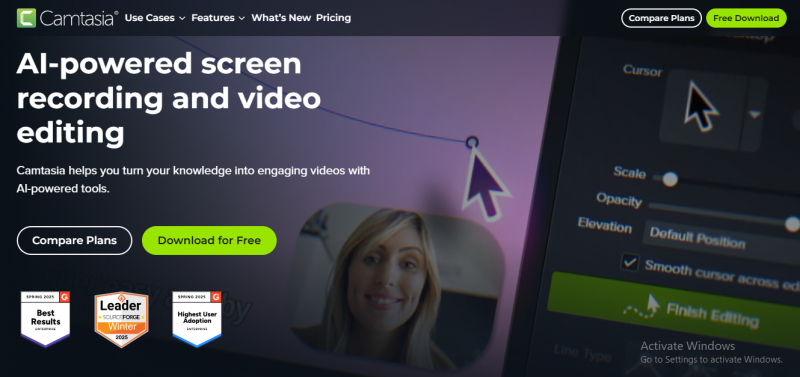
Camtasia combines a powerful screen recorder with a multi-track video editor.
Unlike tools that only capture and share recordings, Camtasia allows users to arrange footage on a timeline, remove mistakes, add graphics, adjust audio, insert animations, highlight cursor movement, and create a polished final video.
Camtasia can record the screen, camera, microphone, system audio, and mouse data as separate elements. Its current recording engine supports captures of up to 4K at 60 frames per second.
TechSmith no longer sells Camtasia solely through the simple $299.99 one-time licence described in the previous article. It now offers annual Camtasia Suite plans.
The $39 Starter plan provides advanced capture tools, but exports from the Camtasia Editor are watermarked. The Essentials plan, listed at $179.88 annually in the United States, includes the full screen-recording and editing workflow.
Key Features:
- Multi-track video editing
- Separate screen, camera, audio, and cursor tracks
- 4K screen recording
- Cursor highlighting and effects
- Transitions and animations
- Templates and reusable themes
- Audio cleanup
- Captions and transcription tools
- Webcam-background removal
- Stock media and assets
- Quizzes and interactive content on supported plans
- Browser-based Camtasia Online recorder
Advantages:
- Recording and editing in one application
- Easier to learn than many professional editors
- Excellent for educational and training content
- Strong cursor and screen-demonstration tools
- Suitable for repeatable branded-video workflows
Limitations:
- More expensive than basic screen recorders
- Subscription model may not suit occasional users
- Advanced projects can require significant processing power
- The lowest-priced plan does not provide watermark-free Camtasia Editor exports
Verdict: Camtasia is one of the strongest choices for anyone who regularly produces polished tutorials and needs recording and editing inside the same application.
Excellent for polished, edited content.
Expensive for casual users.
4. Snagit (Paid)
- Best for: Annotated screenshots, visual documentation, process guides, and short recordings
- Operating systems: Windows and macOS
- Price: Paid annual subscription; pricing varies by region
Why Choose Snagit?
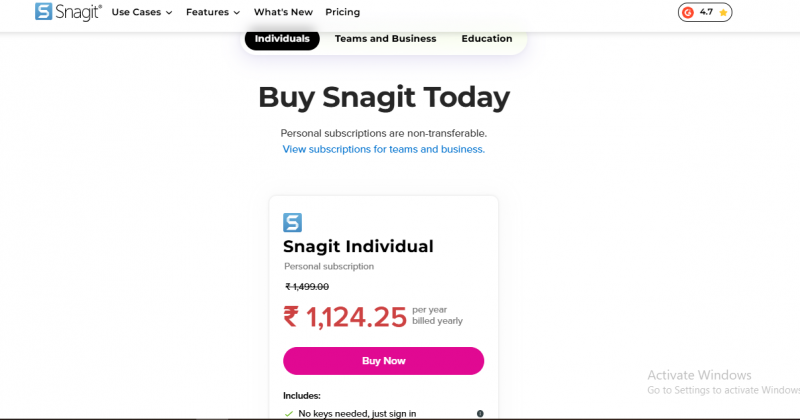
Snagit is primarily a screen-capture and visual-documentation tool rather than a full video-production suite.
It can capture regular screenshots, long scrolling pages, selected regions, application windows, and short screen recordings. Its editing tools make it easy to add arrows, labels, callouts, highlights, numbered steps, and blurred areas.
Snagit now includes AI-assisted tools for background removal, image simplification, sensitive-information redaction, and converting captured clicks into step-by-step instructions.
The previous $62.99 one-time price is outdated. Snagit is now sold as an annual subscription, with prices localized by country. Its current system requirements list Windows 10 or 11 and macOS 14 or later.
Key Features:
- Full-screen, region, window, and scrolling capture
- Screen and webcam recording
- Screenshot annotation
- Video-to-GIF conversion
- Step-by-step guide creation
- Sensitive-information redaction
- AI image simplification
- Background removal
- Screencast sharing
- Starter stock-asset library
Advantages:
- Excellent for software documentation
- Faster than a full editor for short visual guides
- Strong screenshot and annotation tools
- Useful for support, HR, training, and technical teams
- Easier to use than Camtasia
Limitations:
- Not intended for complex video editing
- Requires an annual subscription
- Less suitable for gameplay and long-form video
- Limited timeline and audio-editing functionality
Verdict: Snagit is the best option for users who create screenshots, standard operating procedures, annotated guides, and short explanatory videos more often than full video productions.
5. ScreenPal (formerly Screencast-O-Matic) (Freemium)
- Best for: Teachers, students, training teams, video feedback, and budget-conscious creators
- Operating systems: Web, Windows, macOS, iOS, and Android
- Price: Free plan; Deluxe costs $4 per month and Max costs $10 per month when billed annually
Why Choose ScreenPal?
ScreenPal, previously known as Screencast-O-Matic, combines accessible screen recording, video editing, hosting, captions, and educational features.
It is useful for educators who create lessons, explain assignments, provide student feedback, or share recordings through learning-management systems.
The current Deluxe plan costs $4 per month when billed annually and includes unlimited recording, hosting, a full editor, storyboards, speech-to-text captions, and stock media. The Max plan costs $10 per month when billed annually and adds ScreenPal AI, automated transcription, text-to-speech narration, and AI video generation.
Key Features:
- Screen and webcam recording
- Video editing
- Captions and transcripts
- Video hosting and sharing
- Stock images, audio, and video
- Interactive storyboards
- AI narration and video tools on Max
- Learning-management-system integrations
- Team and education plans
- Mobile applications
Advantages:
- Affordable paid plans
- Beginner-friendly
- Strong education features
- Combines recording, editing, and hosting
- Useful across desktop, browser, and mobile workflows
Limitations:
- Advanced features are divided between paid tiers
- Less detailed editing than Camtasia
- Cloud features may require account management and storage planning
- Interface and workflow can feel fragmented because the product covers many use cases
Verdict: ScreenPal offers a strong balance of price, usability, editing, and educational features.
Ideal for education use.
Basic compared to Camtasia.
6. ShareX (Free + Open Source)
- Best for: Developers, technical documentation, screenshots, GIFs, automation, and custom upload workflows
- Operating system: Windows
- Price: Free and open source
Why Choose ShareX?
ShareX is a lightweight Windows application that combines screenshots, basic screen recording, GIF capture, file sharing, annotation, optical character recognition, and workflow automation.
Users can configure what happens immediately after a capture—for example, saving the file, copying it to the clipboard, opening it in an editor, recognizing text, or uploading it to a selected destination.
ShareX is completely free, contains no advertising, does not require an account, and has been actively developed for more than 18 years.
Key Features:
- Full-screen, window, region, monitor, and scrolling capture
- Video and GIF screen recording
- Image editor
- OCR text recognition
- Blur, pixelation, and redaction
- Custom keyboard shortcuts
- Automated after-capture actions
- Custom upload destinations
- QR-code tools
- File, folder, clipboard, and URL uploads
- Portable version
Advantages:
- Free and open source
- Highly configurable
- Excellent screenshot and automation features
- No advertisements or mandatory account
- Useful for software developers and support teams
Limitations:
- Windows only
- Interface can overwhelm beginners
- Not a full video editor
- Does not provide the polished webcam-layout workflow found in Loom or Camtasia
- Custom upload settings require careful configuration
Verdict: ShareX is one of the best free productivity and capture tools for experienced Windows users, but it is not the easiest choice for beginners.
Not for beginners.
Tons of features if you know what you're doing.
7. Bandicam (Paid)
- Best for: Gameplay, high-frame-rate capture, webcams, external devices, and lightweight desktop recording
- Operating systems: Windows and macOS
- Price: Free limited version; Windows personal plans start at approximately $33.26 per year, with a perpetual licence listed at $53.90 during the current promotion
Why Choose Bandicam?
Bandicam is designed to record computer screens, games, webcams, consoles, smartphones, and other external video devices.
Its game-recording mode supports DirectX, OpenGL, Vulkan, and UWP applications. The Windows version can capture gameplay at up to 4K UHD and 480 frames per second when the hardware and selected settings support it.
Bandicam was previously described as Windows-only. It now offers a separate Mac version, although the Mac licence must be purchased independently.
The current Windows personal annual plan is listed at $33.26 for one PC, while a promotional perpetual licence is shown at $53.90. Business and educational use requires a separate business licence. Prices and promotions can change.
Key Features:
- Full-screen and region recording
- High-frame-rate gameplay capture
- DirectX, OpenGL, Vulkan, and UWP support
- 4K UHD recording
- Hardware-accelerated encoding
- Webcam overlay
- Microphone and system-audio capture
- Real-time drawing and highlighting
- Scheduled recording
- External-device capture
- Automatic recording limits
Advantages:
- Efficient performance
- Strong game-capture features
- Smaller file sizes through compression
- Supports high resolutions and frame rates
- Easier to configure than OBS for basic gameplay recording
Limitations:
- Free version adds a watermark and recording restrictions
- Full video editing requires Bandicut or another editor
- Mac and Windows versions are licensed separately
- Some advanced capture modes depend on compatible hardware
- Commercial users need the business licence
Verdict: Bandicam is a practical option for gamers who want strong performance without managing the more complex scene system used by OBS.
8. VLC Media Player (Hidden Feature!)
- Best for: Quick, free desktop capture when no dedicated recorder is available
- Operating systems: Windows, macOS, and Linux
- Price: Free and open source
Why Use VLC?
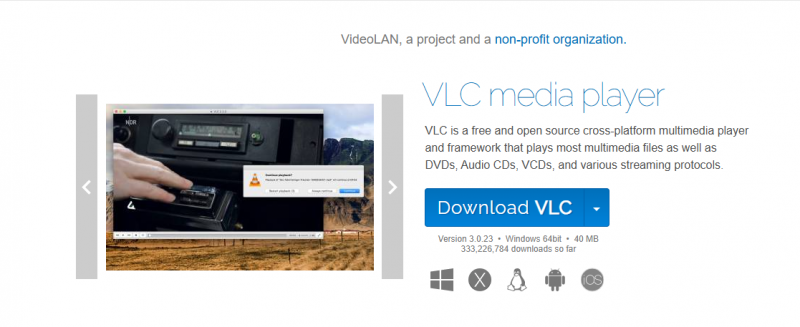
VLC is primarily a cross-platform media player, not dedicated screen recording software.
Its desktop-capture function can record basic screen activity, making it useful in an emergency when VLC is already installed and no other recorder is available.
VideoLAN distributes VLC as a free, open-source, cross-platform media player.
However, configuring VLC for screen capture is less intuitive than using a dedicated tool. It also lacks the convenient webcam overlays, annotation tools, audio controls, cloud sharing, and editing features available in the other products on this list.
Key Features:
- Basic desktop capture
- Local file export
- Broad media-format support
- Cross-platform availability
- No separate purchase
- Open-source software
Advantages:
- Free
- May already be installed
- Suitable for a basic visual capture
- Can play and convert the resulting media
Limitations:
- Not designed primarily as a screen recorder
- Screen-audio setup can be difficult
- No built-in webcam overlay
- No annotation tools
- No full video editor
- Fewer capture controls than dedicated software
Verdict: VLC can record a screen in a pinch, but OBS, ScreenPal, ShareX, or a built-in operating-system recorder will usually provide a better experience.
Good in a pinch.
Not built for pro use.
Quick Comparison Table
| Tool | OS | Price | Editing | Webcam + Audio | Best Use Case |
|---|---|---|---|---|---|
| OBS Studio | Win/Mac | Free | ❌ | ✅ | Streaming + advanced |
| Loom | All | Freemium | ❌ | ✅ | Business + remote teams |
| Camtasia | Win/Mac | $299.99 | ✅ | ✅ | Pro tutorials |
| Snagit | Win/Mac | $62.99 | ✅ | ✅ | Short guides |
| ShareX | Windows | Free | ✅ | ✅ | Developer workflows |
| Bandicam | Windows | $39.95 | Basic | ✅ | Gaming |
| ScreenPal | All | Freemium | ✅ | ✅ | Education |
Privacy and Recording Consent
Read This Before You Hit Record
Screen recording touches privacy law more often than people realize. A few ground rules will keep you out of trouble:
• Get consent when recording people: If your recording captures other participants' voices or faces (calls, meetings, webinars), tell them and get agreement first. Many jurisdictions require all-party consent for recording conversations, so announce it at the start or use the platform's built-in recording notice.
• Watch what is on your screen: Notifications, email previews, customer data, and open tabs get captured too. Close sensitive apps, use Do Not Disturb, and blur or crop anything confidential before sharing. Tools like Tella and Snagit include blur features for exactly this.
• Know where recordings are stored: Cloud-first tools (Loom, Zight, Vidyard, ScreenPal, Zoom Clips) upload your video to their servers automatically. For confidential material, prefer local-only tools (OBS, ShareX, Bandicam, ScreenFlow, Screen Studio) or check your company's data policy first.
• Set link permissions deliberately: Anyone-with-the-link sharing is convenient and risky. Use password protection, workspace-only visibility, or expiry dates for internal or client content.
• Workplace and classroom recording: Employers and schools may have their own rules on recording meetings or lectures. Check policy before recording, and delete recordings you no longer need.
Final Questions to Guide Your Choice
- Do you prefer cloud storage or local file saves?
- How important is editing right inside the app?
- Are you working with a team or solo?
- Will you be recording games, tutorials, or presentations?
Bonus: Browser-Based Screen Recorders
Don’t want to install anything? Try these:
- Screencastify – https://www.screencastify.com/
- RecordCast – https://www.recordcast.com/
- Apowersoft Free Online Recorder – https://www.apowersoft.com/free-online-screen-recorder
These are great for lightweight work and Chromebook users.
Conclusion
There is no single screen recording application that is best for every user.
The strongest choice depends on your workflow:
- OBS Studio for free advanced recording and streaming.
- Loom for quick, shareable workplace videos.
- Camtasia for professional tutorials with detailed editing.
- Snagit for annotated screenshots and short process guides.
- ScreenPal for affordable educational recording and editing.
- ShareX for free Windows capture and automation.
- Bandicam for high-performance gameplay recording.
- Use VLC only when you need an occasional basic recording and already have it installed.
For many users, the best approach is to test two or three tools using the same five-minute project.
Compare recording quality, audio synchronization, system performance, editing time, export size, sharing options, and final cost. The tool that completes your real workflow with the least unnecessary effort is usually the right screen recorder for you.
Post Comment
Share your thoughts about this article.
Be the first to post a comment!