Table of Content
When you setup Microsoft Outlook with Exchange Server, an OST (Offline Storage Table) file is generated on the local storage. It is a cached copy of your server mailbox.
This Outlook data file allows to access your mailbox items even when there is no connectivity with the server. You can even write and delete emails, when the Outlook is not connected to the server. The changes done are then automatically synchronized with mailbox on server when the connection is restored.
In a situation where your Exchange Server is completely down or is decommissioned, then this Outlook data file turns inaccessible. You cannot access or open this file. In this article, we will explain how to restore OST file when Exchange Server is down or decommissioned.
Why your Exchange Server is Down?
Let's discuss the most common reasons why an Exchange Server might become unavailable or is down:
- Hardware failure or power outage
- No network connectivity
- Security incidents and breaches
- Administrative errors or misconfiguration
- Maintenance on the server
How to Restore OST File when the Exchange Server is Down or Decommissioned?
As stated above, the OST file becomes inaccessible when your server is down or decommissioned. The only option in this situation is to convert it into PST format. Unlike OST file, PST file is portable and can be opened in any Outlook profile.
You can use an advanced tool to Convert OST to PST, such as Stellar Converter for OST for converting such an OST file. This tool is specifically developed to convert inaccessible and orphaned OST files into PST and other formats.
Below we have highlighted the top features of Stellar Converter for OST:
- Converts OST to PST with complete data integrity.
- Seamlessly converts orphaned, inaccessible, and encrypted OST files with ease.
- Preserves original folder structure and hierarchy after conversion.
- Recovers all mailbox items - emails, attachments, contacts, calendars, tasks, notes, and others.
- Enables selective conversion of chosen folders or individual items.
- Offers a preview of mailbox contents before saving the file.
- Saves OST file items in multiple formats - PST, MSG, EML, PDF, HTML, RTF, etc.
- Compatible with all Outlook and Windows versions.
Follow the steps given below to convert OST to PST using Stellar Converter for OST:
- Visit the official website of this OST to PST File Converter Tool.
- Download and install the tool. Activate it with the license key.
- Open the software and select the option List Profile to automatically see the OST files from the default location. Choose Select Manually to select the OST file from another path.
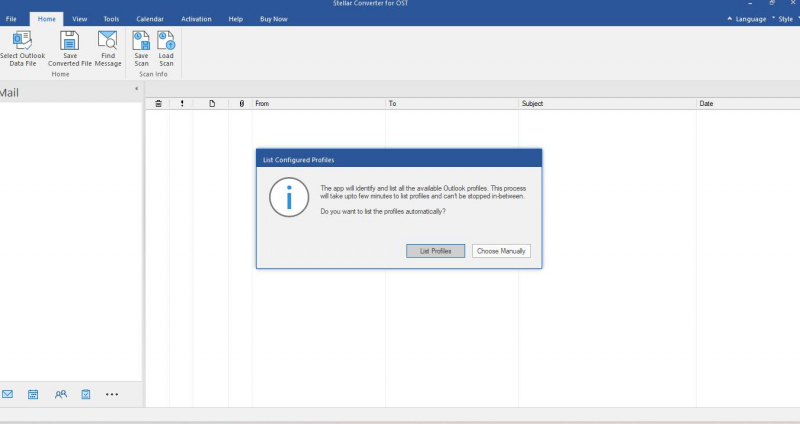
- After file selection, click Convert to start the process.
- Click OK after the conversion process is finished.
- Now, you’ll see all your OST mail items in a preview window.
- Click Save Converted File from the main menu.
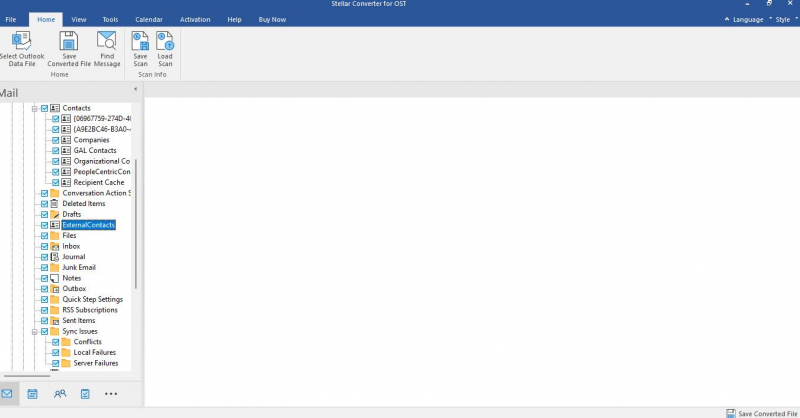
- Choose PST as the output format and then click Next.
- Click Browse to choose where you want to save the PST file.
- Click OK
The OST file will be converted into PST format. After this, you can import it into any Outlook profile to access your mailbox items. Here’s how:
- Launch Outlook application.
- Go to File > Open & Export and click on Import/Export.
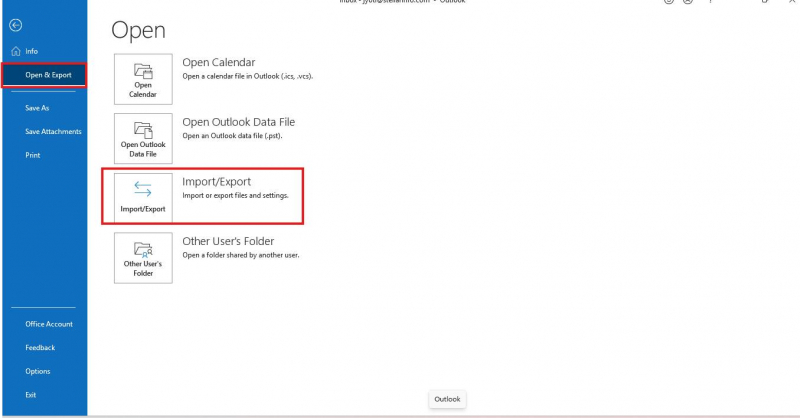
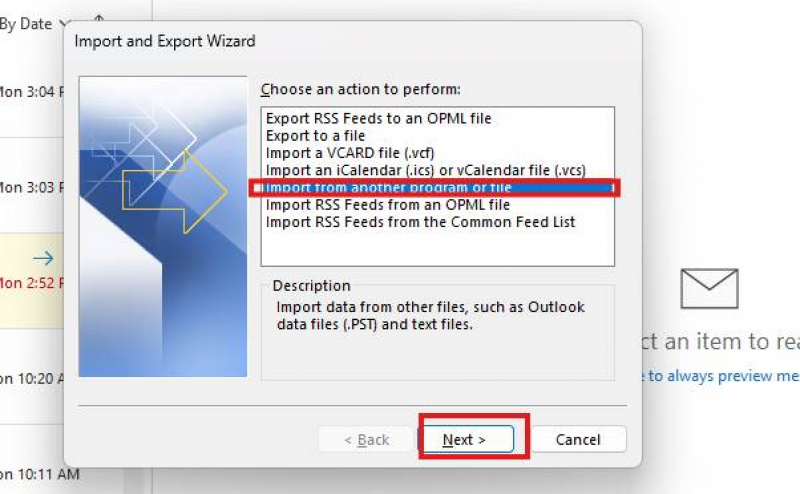
- Choose the option - Import from another program.
- Click on Next.
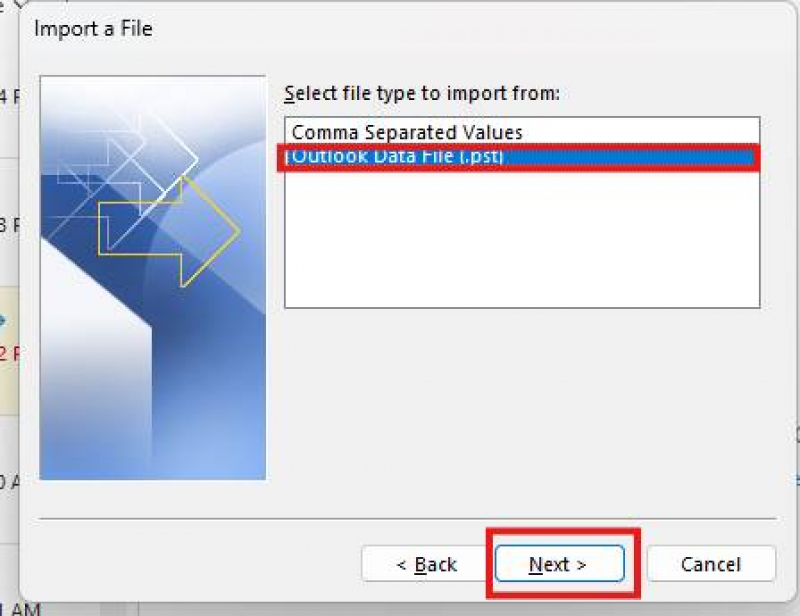
- Select Outlook Data File (.pst)
- Click Next.
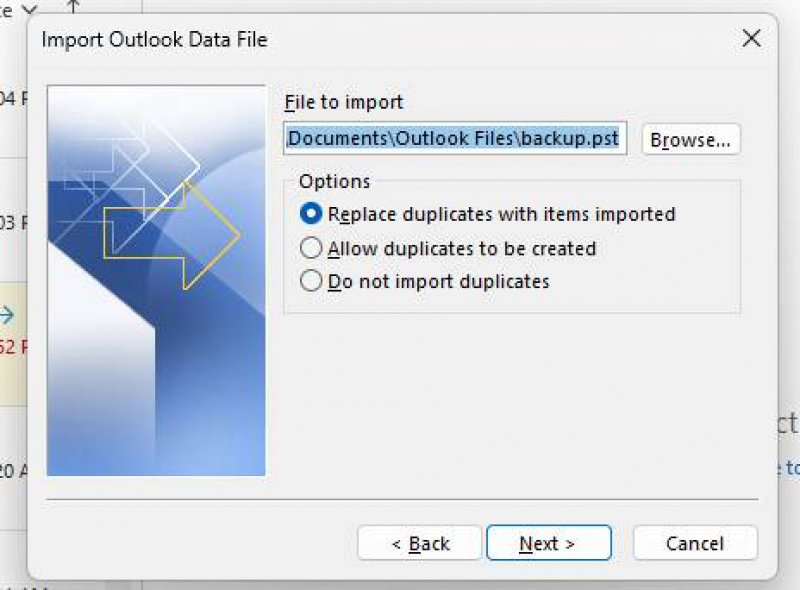
- Click Browse, choose the location of your file, and click Next.
- Select the folder to import from and select the Include subfolders checkbox.
- Choose the destination folder and then click Finish.
Conclusion
In this article, we have explained how to restore OST file if the server is down or decommissioned. For this, you have to take the help of a professional OST to PST converter tool - Stellar Converter for OST. This tool that can restore all the data from orphaned or inaccessible OST file to a PST file. You can then import this converted file into any Outlook account and restore your mailbox data.
Post Comment
Be the first to post comment!