When I first installed Inkscape, I didn’t approach it as a replacement for anything. I treated it like a blank workspace and asked a simpler question: Can this tool reliably do the vector work I need, day after day, without getting in the way?
This guide is written from that mindset. It’s not about features in isolation, but about how Inkscape fits into actual workflows, from setup to exporting production-ready files.
Getting Started: Setting Inkscape Up the Right Way
The default installation works, but small setup decisions make a big difference later.
Canvas & Document Setup
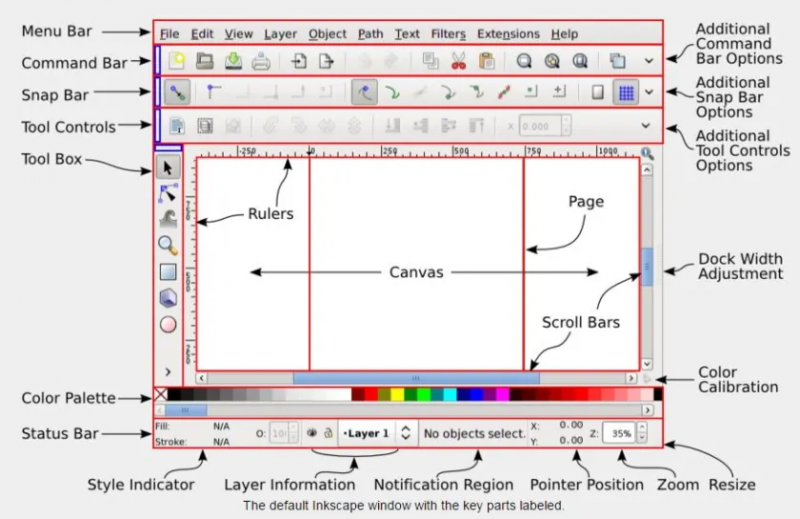
The first thing I adjust is the document size:
- For logos or icons: square canvas (e.g., 1000×1000 px)
- For web SVGs: exact pixel dimensions
- For print: mm/inches with bleed in mind
Inkscape handles all three without switching “modes,” which reduces friction early on.
This setup phase naturally leads to understanding how drawing actually works inside Inkscape, which feels different if you’re coming from Illustrator.
Core Drawing Tools: Where Inkscape Feels Strongest
Most of my time is spent in three tools:
- Bezier (Pen) tool
- Shape tools (rectangles, circles, stars)
- Node editor
Inkscape’s strength is node-level control. Curves feel precise, not abstracted. You see exactly what’s happening.
Snapping is strict by default, which can feel annoying at first, but once tuned properly, it becomes an asset for alignment-heavy work like logos and UI elements.
Once shapes exist, everything depends on how well you can edit and combine them.
Node Editing & Path Operations
This is where Inkscape quietly earns trust.
Node editing is explicit:
- Nodes are visible
- Handles behave predictably
- Boolean operations are transparent
Recent versions feel noticeably faster with complex paths. On dense illustrations or technical diagrams, operations that once lagged now complete cleanly.
At this stage, the question usually becomes: Can this handle text and typography without frustration?
Working With Text: Functional, Not Fancy
Text handling in Inkscape is serviceable, not magical.
What works well:
- Text on path
- Converting text to paths
- Precise kerning after conversion
What requires patience:
- Live typography adjustments
- Advanced paragraph styles
For logos and headings, it’s solid. For layout-heavy typography, I often treat Inkscape as a vector stage, not a typesetting engine, which naturally leads to exporting and integration.
Importing Files From Other Tools
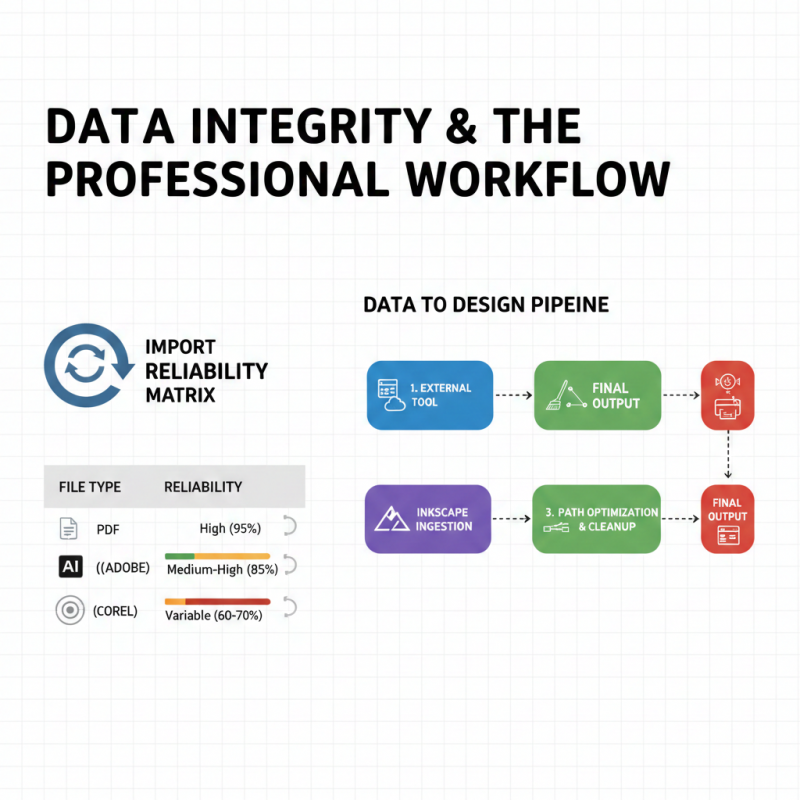
Inkscape is not isolated, and most real projects start somewhere else.
From my experience:
- PDF imports are generally reliable
- .AI files open well if effects are flattened
- CDR support has improved but still varies
The key is expectation management:
Inkscape preserves geometry better than appearance tricks. Once you accept that, imports become workable instead of frustrating.
Eventually, everything points toward output, because vector tools are judged by what they export.
Exporting SVG, PDF, and PNG Correctly
Export is where Inkscape shows its philosophy clearly.
SVG (Where It Shines)
- Clean, standards-compliant
- Minimal hidden metadata
- Excellent for web and UI
PNG
- Precise resolution control
- Selection-based export saves time
- Suitable for print when paths are finalized
- Fonts should be converted to outlines for safety
- This predictability is one reason developers and educators trust it.
Still, no tool is complete without acknowledging its boundaries.
Where Inkscape Feels Limited
Inkscape doesn’t hide its trade-offs:
- No built-in AI generation
- Limited real-time collaboration
- UI workflows can feel manual
- But these limitations come with side effects:
- No cloud lock-in
- No background data usage
- Files remain future-proof
Whether that’s a downside or a benefit depends entirely on what you value.
Who This Tool Actually Works Best For
Based on long-term use, Inkscape fits best when:
- Precision matters more than automation
- File ownership is non-negotiable
- Budget predictability matters
- Offline work is required
It’s less ideal when:
- Speed via AI prompts is the priority
- Teams need live co-editing
- Brand systems are fully cloud-driven
Understanding this makes Inkscape easier to use, and easier to judge fairly.
Final Perspective: Using Inkscape as a Long-Term Tool
Inkscape rewards deliberate users. It doesn’t rush you, assist you, or upsell you. It simply gives you control and expects you to use it responsibly.
Once workflows are established, it fades into the background, which is often the highest compliment you can give a creative tool.
And that’s why, for certain kinds of vector work in 2025, Inkscape doesn’t feel like an alternative at all. It feels like stable infrastructure.
Frequently Asked Questions
1. Is Inkscape suitable for professional client work?
Yes. Files exported from Inkscape (SVG, PDF, PNG) are production-ready as long as fonts are outlined and print settings are handled correctly.
2. Does Inkscape slow down on large or complex designs?
Recent versions handle complex paths much better, but extremely large illustrations can still feel slower than high-end commercial tools on older hardware.
3. Can Inkscape be used completely offline?
Yes. Inkscape is fully offline-capable with no cloud dependency, account login, or background syncing.
4. Is Inkscape safe for long-term file storage?
Yes. SVG is an open standard, which makes files future-proof and readable even outside Inkscape.
Post Comment
Be the first to post comment!