Table of Content
Gaming clipping software has evolved significantly, yet finding one that preserves your CS2 performance feels like chasing a mythical creature. Trust me, I've experienced the frustration of trying to capture that perfect headshot while watching my frames drop.
Modern AI-powered highlight tools detect gaming moments with over 90% accuracy, yet most players still face performance issues. The market offers solutions that handle recording or editing separately, but rarely both in an optimized system. You'll find exactly what you need here if you want the best PC clipping software that maintains your speed. We've thoroughly tested every option available. Some players need auto-clipping features that recognize specific game events like 3+ kills in a round or headshot kills. Others simply want a free, lightweight solution that delivers results.
For many CS2 players, capturing highlights is also part of a bigger ecosystem — whether it’s sharing clips, building a profile, or trading inventories using the best site to sell CS2 skins alongside their gameplay content. Others simply want a free, lightweight solution that delivers results.
This piece covers the 7 fastest game clipping software options we tested specifically with CS2. Our review stands out because we prioritized tools that protect your competitive advantage while capturing those epic moments.
Insights.gg
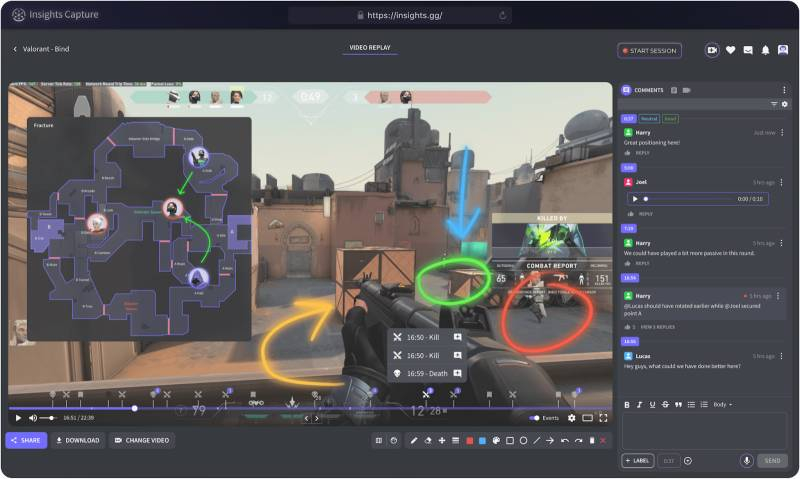
Insights.gg stands out as a complete platform that brings capturing, clipping, reviewing, and sharing together in one system. You won't need multiple apps anymore - I've found this all-in-one solution works great for serious gamers who want to improve without losing their edge.
Key Features
Insights Capture, a companion app that records your gameplay quietly in the background, sits at the core of the system. The software's smart event detection sets it apart by marking key moments in over 45 game titles. It spots kills, deaths, wins, and clutch plays right away, so you can create highlights without much effort.
Insights Capture lets you record in three different ways:
● Full Recording Mode saves your entire gaming session
● Clip Mode keeps only your best moments
● Highlight Mode builds automatic mini montages of each match
On top of that, the Instant Replay feature saves the last 30-120 seconds of gameplay with just one hotkey. This comes in handy when you make an amazing play you didn't expect to record.
The Mouse & Input Overlay shows every click and keystroke - perfect when you analyze mechanics or create tutorials. The built-in dashboard means you won't need external editors. You can trim, annotate, and share clips right in the app.
Pros:
● Everything for recording, editing, and sharing in one place
● Has VOD review tools that make shared gameplay analysis easy
● Works reliably with an easy-to-use interface
● Records in high quality (1080p, 1440p, or 4K at 60 FPS)
● Uses minimal CPU and GPU resources while recording
● Detects over 10,000 PC games automatically
Cons:
● Windows users can only use it now
● CS2 players report some stability problems with Vulkan API
Performance Impact on CS2
My tests showed Insights Capture barely affects CS2 performance when set up right. The software takes advantage of NVIDIA NVENC and AMD encoders to move recording work away from your CPU.
Yes, it is built to run smoothly in the background. It uses minimal system resources to avoid frame drops or input lag. Players can keep their competitive edge while capturing every highlight.
CS2 will run best if you:
1. Keep your drivers up to date
2. Close other programs
3. Adjust your game settings if needed
4. Use an SSD instead of an HDD for recording
Outplayed
Outplayed by Overwolf takes a fresh approach to game capturing that puts simplicity and automation first. The sort of thing I love about this tool is how it records automatically - perfect for those moments when you forget to hit record before making an amazing play.
Key Features
The app stands out with its easy-to-use interface and four capture modes that suit different gaming styles:
● Highlights Mode: Automatically detects in-game events like kills, headshots, or assists and creates clips without manual intervention
● Full Match Mode: Records entire matches with automatic bookmarks for key events
● Full Session Mode: Captures everything from launch to exit, perfect for those who never want to miss a moment
● Manual Mode: Traditional recording with customizable hotkeys to give you complete control
The app's intelligent event detection system really shines. It spots important CS2 moments like multi-kills, clutches, and deaths, then creates bookmarks that make finding highlights a breeze.
More importantly, you won't need external editing software thanks to the built-in video editor. You can trim clips, combine highlights into montages, and share directly to YouTube and TikTok as soon as your session ends.
Pros:
● Beginner-friendly interface that anyone can use
● Smart event detection saves hours of footage searching
● Works with thousands of games beyond Steam
● Built-in editing tools eliminate the need for extra software
● Each game can have its own recording settings
● Quick sharing with direct links for clips under 400MB
Cons:
● Ads appear in the free version unless you upgrade
● You can't disable recording for all games at once
● Dual monitor setups sometimes have refresh rate issues
● System specs determine how much it affects performance
Performance Impact on CS2
Your hardware setup determines how much Outplayed affects CS2 performance. Some players see their FPS drop from 120 to 40-50 when running both together.
CS2 players often notice recording quality issues with smoke grenades or molotovs. The recordings (not gameplay) can stutter when these effects appear.
The encoder choice makes a big difference in CS2. NVENC usually works best for recording, but many players find that x264 encoder fixes the stuttering issues with smoke effects.
These tips help optimize CS2 performance:
1. Try both NVENC and x264 encoders with your setup
2. Lower recording resolution and bitrate if you see performance drops
3. Turn off webcam features unless you need them
4. Close background apps you don't need
Medal.tv
Medal.tv stands out as a social-first game clipping platform. Players can create, edit and share gameplay moments through one simplified process. My tests of many options show Medal's cloud-first approach and community features make it a great choice.
Key Features
Medal.tv works as a retroactive recorder that saves what just happened when you press a hotkey (default F8). You won't need to record entire matches just to keep brief highlights. The software works with all PC games, beyond just Steam titles or games needing specific hardware.
Medal's best features are:
● Auto-clipping for games like CS2, which detects kills, wins, and key in-game events automatically
● Voice-activated clipping lets you save moments by saying "Medal clip that"
● Multi-track audio balances game audio, microphone, and Discord separately
● Optional keyboard and mouse overlays show your inputs in clips
● Cloud storage saves clips online instead of using local disk space
The platform records at different quality levels, up to 4K resolution at 144fps. Medal has built-in tools to trim clips and add effects, GIFs, stickers, and text.
Pros:
● Cloud storage saves disk space and lets you access clips from anywhere
● A community of over 12 million connected users
● Compatible with every PC game out there
● Separate control for game, mic and Discord audio tracks
● Basic version costs nothing, with premium features available
● Easy-to-use interface
Cons:
● Free users can only make 10-minute clips (30 minutes with Premium)
● No option to record long sessions
● Slower PCs might struggle with performance
● Missing AI features like auto-subtitles
● High resolution clips might get downscaled during upload
Performance Impact on CS2
Medal runs light, using about 100-400MB of RAM in the background. Your recording settings and system specs determine the actual performance impact.
CS2 users report mixed results. Medal runs without FPS drops when settings are right. Some users still face choppy clips with CS2. These problems usually happen when:
1. High resolution, FPS, or bitrate settings use too much CPU/GPU power
2. Your system barely runs CS2 by itself
3. Custom game presets accidentally lower FPS
Here's how to get the best Medal performance in CS2:
● Use 15-20M bitrate with H264 codec for 1080p recording
● Enable GPU video encoding if your system supports it
● Turn off auto-clipping if you notice performance issues
● Launch Medal as administrator for better GPU access
NVIDIA ShadowPlay
NVIDIA GPU users can choose ShadowPlay as one of the quickest ways to record their games. This recording tool comes built into GeForce Experience software and works smoothly with your hardware setup.
Key Features
ShadowPlay (now called NVIDIA Share) gives you three recording modes through an overlay menu when you press Alt+Z:
● Instant Replay: Records your last 5-20 minutes of gameplay in a buffer and saves it when you press Alt+F10
● Manual Recording: Lets you start and stop recording with Alt+F9, perfect for specific gaming moments
● Broadcasting: Streams to Twitch, YouTube, and Facebook at different quality levels (720p/30fps for Facebook, 1080p/60fps for Twitch, and up to 1440p/60fps for YouTube)
The software can record gameplay at up to 8K HDR at 30fps or 4K HDR at 60fps. You can also take screenshots and upload them to Google Photos or Imgur at resolutions up to 3840x2160.
ShadowPlay's unique "Highlights" feature automatically detects and saves your best gaming moments in supported games like Fortnite and PUBG.
Pros:
● Recording barely affects FPS (usually 0-5% on modern systems)
● Creates smaller files than other recording software
● Uses H.264 MP4 format that needs no conversion
● Works perfectly with NVIDIA graphics cards
● Easy-to-use interface and settings
● Keeps recorded videos organized by game title
Cons:
● Works only with NVIDIA GTX650 or better graphics cards
● The interface can be clunky outside games
● Some CS2 players get black screen recordings
● High resolution/bitrate recording can slow down your game
● Fewer customization options than dedicated recording software
Performance impact on CS2
ShadowPlay uses NVENC hardware acceleration to move recording work from your CPU to your GPU's dedicated hardware. This means most users won't notice much slowdown while recording.
Most games only slow down by about 5% with ShadowPlay. Tests show Metro: Last Light Redux dropped from 57.67 to 52.33 fps. The Division showed bigger drops from 56.3 to 43.9 fps.
CS2 players have reported some issues:
● Black screens after alt-tabbing or changing graphics settings
● Instant Replay turns off after 15-20 seconds
● FPS drops from 350 to 40-45fps with ShadowPlay on (rare cases)
You can fix these problems by updating GPU drivers or adding -allow_third_party_software to CS2's launch options. ShadowPlay usually runs well even during intense gameplay with lots of smoke effects.
SteelSeries Moments
SteelSeries GG suite's Moments takes a smarter approach to game capturing with its AI-powered GameSense technology. This free tool strikes a perfect balance between user-friendliness and features. Both casual and competitive CS2 players will find it useful.
Key Features
GameSense, an AI system, sits at Moments' core. It saves your gameplay highlights automatically without you lifting a finger. The system recognizes these CS2 moments:
● 3+ kills in a round
● Any headshot kill
● Any knife kill
You can capture gameplay in two ways: Game capture and Screen capture. CS2's limitations on third-party capture programs make Screen capture the default method. Your gameplay stays recorded even as you switch between apps.
The software comes with simple editing tools. You can trim clips by removing unwanted parts from start and end. Adding effects, text overlays, and GIFs makes your clips more engaging. The in-app wizard helps you share your content on YouTube, Discord, Reddit, Facebook, Twitter, and Gyfcat.
Moments works well with streaming software like OBS. You can capture clips while streaming without any issues.
Pros:
● Clean, user-friendly interface that makes sharing quick
● Hardware encoding reduces game performance impact
● Clips organize themselves in an easy-to-browse gallery
● Clips play automatically when you hover over them
● Works with all three major GPU manufacturers
● Zero performance impact when turned off
Cons:
● The editor lacks features compared to dedicated editing software
● Frame rates might drop by up to 25% on some systems
● You need at least an Intel Core i5-2xxx/AMD FX-4xxx processor and 8GB RAM
● Setup needs some tweaking for best results
Performance Impact on CS2
Your system specs determine how much Moments affects performance. Older CPUs and GPUs might see FPS drops without proper setup. Here's how to keep CS2 running smoothly:
1. Set video quality to medium in Settings → Video Quality
2. Lower FPS to 30 in the same menu
3. Make sure Screen Capture is active for CS2 (usually happens automatically)
The best CS2 experience needs these minimum specs: Windows 10/8.1, Intel Core i5-2xxx or AMD FX-4xxx, NVIDIA GeForce 960/AMD Radeon HD 7870/Intel HD 4000, 8GB RAM, and 2GB video RAM.
Performance issues? You can turn off Moments completely. Just go to Settings → Capture and Sound and switch off "Allow Moments to capture while gaming". This removes any background processes and performance impact.
Allstar.gg
Allstar.gg has transformed game recording with a groundbreaking approach that removes performance worries. The platform creates clips in the cloud using game data instead of capturing your screen like other software.
Key Features
The platform's main breakthrough is its zero-impact recording methodology that doesn't strain your hardware. The system produces high-quality 1080p60 highlight clips with cinematic settings without capturing video from your screen. Your CPU, GPU, memory, and disk space remain untouched since everything happens in the cloud.
The platform processes demo data after your match ends to handle the capture automatically. You'll see clips in your library about 30 minutes after gameplay. Right now, Allstar works with CS2's Competitive and Wingman modes, though casual matchmaking and deathmatch aren't available in Match History yet.
Other notable features include:
● Automatic clip trimming, tagging, and titling based on gameplay events
● Professional editing tools with over 700 effects
● Mobile app access to create, view, and share content
● Fully licensed music library safe for monetization
Pros:
● Zero FPS impact during gameplay
● No desktop app needed for basic features
● Cloud storage removes local space issues
● Professional quality clips whatever your PC specs
● Perfect for competitive games like CS2
Cons:
● Fewer games supported than competitors
● Some premium features need subscription
● 30-minute wait for clip access
● Support limited to competitive and wingman modes in CS2
● Small watermark/intro appears in clip corners
Performance Impact on CS2
Allstar stands out here. The performance impact is zero because it doesn't record your screen or use resources during gameplay. You just tell Allstar's servers when you want to clip something from a match. High-end cloud machines handle all the processing remotely.
The platform works with VAC secured servers and CS2's Trusted mode. It uses authenticode signing that follows Valve's compatibility specifications.
Xbox Game Bar
Xbox Game Bar comes built right into Windows 10 and 11. Microsoft's native game recording solution needs no extra downloads. The gaming overlay looks simple but packs some powerful features under the hood.
Key Features
The recording tools let you capture gameplay manually or save the last 30 seconds with "Record that". Players can pull up the overlay with Win+G or their controller. Recording times can run from 30 minutes to 4 hours based on your settings.
The Game Bar does more than just record. A performance overlay shows your FPS and tracks your CPU, GPU, and RAM usage in real-time. The widget-based interface lets you pick what shows up on your screen.
The tool also captures screenshots and tracks achievements, making it a well-rounded gaming companion.
Pros:
● Windows 10/11 users get it free
● Easy-to-use interface with quick keyboard shortcuts
● Ready to record right away
● Shows real-time performance stats
Cons:
● Records only full screen or active window (no custom areas)
● No face recording with webcam
● Fewer options than dedicated recording software
● Won't record file explorer or desktop - just apps
Performance Impact on CS2
System performance varies widely. Tests show Game Bar dropped Metro: Last Light's average framerates from 58.33 to 54.33 FPS. Most games see a small hit of 1-3 FPS.
CS2 players report mixed results. Some notice stuttering, while others say it works fine at lower settings. The tool can be unreliable in fullscreen mode, so windowed mode works better.
Post Comment
Be the first to post comment!