Table of Content
Creating a custom calendar design is a great way to showcase your creativity. You can add personal touches, like photos, motivational quotes, or branded elements.
Many people assume that creating their own calendars requires complex software or professional design skills. The truth is, modern tools make it simple to design a professional calendar in no time.
You can create layouts, select color schemes, and add images that align with your brand following a step-by-step process.
In this guide, I will walk you through the process of creating a custom calendar design effectively. You don’t need prior design experience, and you can achieve professional results without complicated software.
Step-by-Step Guide to Create Your Custom Calendar Design
With today’s AI-powered tools and no-code editors, creating your own custom calendar design is way easier. Here’s a step-by-step process you can follow to design a calendar that matches your brand and your workflow.
Step 1: Select Your Calendar Design Tool
Before you can create a custom calendar design, you need to choose a tool that can make the process beginner friendly. This step matters because the tool you choose can influence how smooth your custom calendar design experience will be.
If you prefer to design from scratch, PhotoShop and its alternatives offer full creative control to build every element exactly as you want.
If you are new to calendar design, start with tools that provide templates. With pre-designed templates, you can plug in your brand elements without trying to build layouts from scratch.
Some of the best and easiest tools to create custom calendar design include Adobe Express, Canva, Fotor, VistaCreate, and others. They come with preset calendar layouts for monthly, weekly, and yearly formats. You only need to select a template that matches your taste and then begin personalizing it.
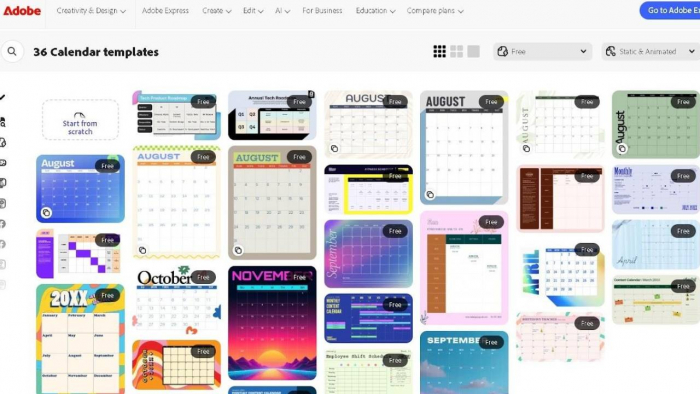
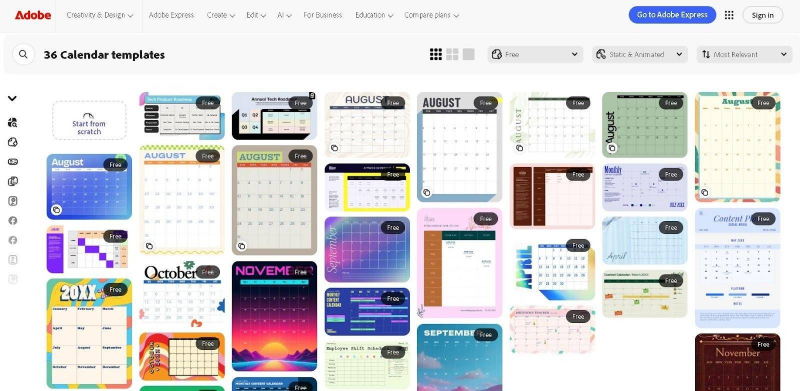
For example, Adobe Express offers a library of free calendar templates that are very easy to customize.You can pick a layout and replace the sample image with your own. Then, edit the colors to match your theme and add important dates.
Step 2: Define Layout, Size, and Orientation
This is where you start aligning your creative idea with practical structure. Your layout choices will shape how your custom calendar design looks.
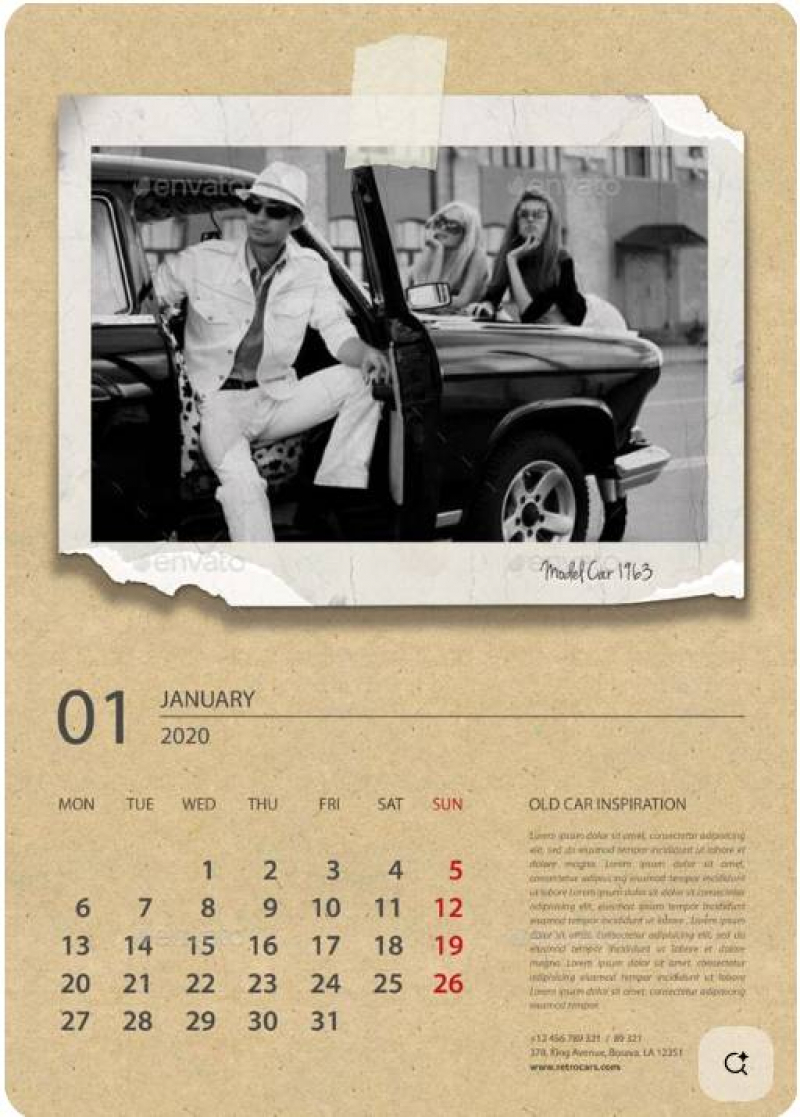
Begin by choosing the layout type. Most popular layouts are monthly or yearly. Monthly layouts give you a full view of an entire month at once. If you want a minimalist wall calendar, monthly is usually ideal.
Here’s an example of a monthly custom calendar design on Pinterest that shows how the layout can look.
Yearly layouts provide a complete view of all 12 months on a single page. They are ideal for planning long-term goals or tracking events throughout the year.
Take a look at this 2024 custom calendar design on Pinterest with several important dates marked throughout the year.

Next, choose the size. If you want a printed wall calendar, A4 or Letter size is common because it is simple to print and easy to frame.
If you are creating a digital custom calendar for screens, choose a more horizontal size. Horizontal size looks cleaner for desktop wallpapers and home pages. The closer your size and orientation match your end use case, the fewer edits you will need later.
Step 3: Pick a Color Scheme and Fonts
Another important step is to choose the colors and fonts for your custom calendar design. Colors and fonts contribute to how clean, readable and professional your calendar will look.
You can use your brand colors to customize your calendar. Limit yourself to two or three main colors to keep the design simple and polished. You can use one color for headers or month names, another for the dates, and a third for special notes.
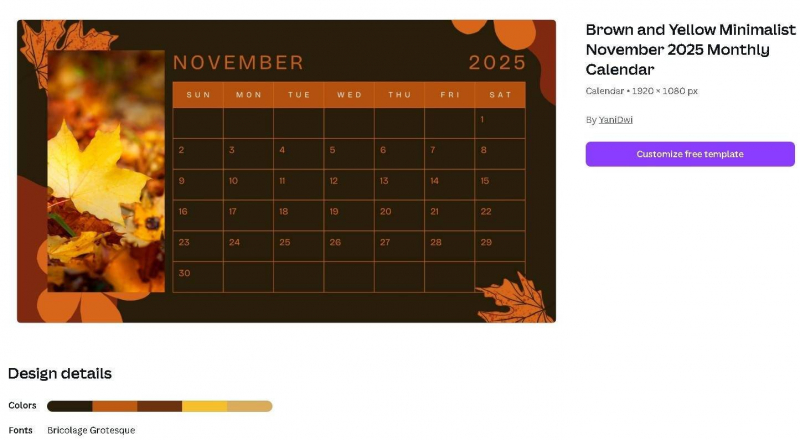
Most no-code visual builders let you pick from pre-made color palettes that match well together. For example, here's a calendar template on Canva that features a palette of five colors, with brown and orange as the main shades.
Also, stick to one or two fonts maximum. You can use a bold font for month names and a simple sans-serif font for dates.
Avoid overly decorative fonts that make your calendar hard to read. Make sure the text contrasts well with your background colors so every date and event is clearly seen.
Step 4: Integrate Personal Photos and Graphics
With photos, illustrations, or icons, you can highlight special dates or events on your custom calendar design. When including graphics, select images that match the theme or purpose of your calendar. For example, use product images or branded graphics if you’re creating business calendars.
Most calendar design tools allow you to upload your own images. You can also choose from a built-in library of stock photos and icons. Make sure the images are high quality so they look sharp when printed or viewed digitally.
It’s also important to position your photos well to keep your design balanced. Avoid cluttering the grid of your custom calendar design. You can place a large image at the top of each month or add smaller images in the corners.
Step 5: Mark Important Dates on Your Calendar
Now that you have designed your calendar layout, you can mark important dates to customize your calendar. Begin with important holidays, celebrations and national events.
This way, your calendar can serve as a reference throughout the year. You can also mark meetings, project deadlines, or even team events.
With most calendar design tools, you can add text, icons, or graphics beside the calendar squares. Alternatively, you can also use color-coded markers for different dates to make it easy to identify them.
Step 6: Review and Finalize Your Design
Once you have added all your elements, you can review and finalize your custom calendar design. First of all, check the calendar layout. Ensure that all the months, images and texts are placed in a proper way.
Look at the spacing between the dates, headers, and any graphics. You can adjust the margins, font sizes, or image placement if needed. Also, double-check that fonts are easy to read and consistent throughout.
Then, proofread all texts. Check the month names, dates, and any notes you added to ensure they are written correctly. You can view the calendar at different zoom levels or print a sample page to see how it looks in real size.
Finally, save and export your calendar in the appropriate format. If you plan to print, use high-resolution files and standard formats like PDF. For digital calendars, you can use PNG or JPEG files.
FAQ
1. Do I need to have design experience to make a custom calendar design?
No. Several tools including Canva, Adobe Express, and others provide templates and drag-and-drop features that make it easy to design a calendar, even for beginners.
2. Are there free tools available to create a custom calendar design?
Yes, there are. Common options include:
● Canva
● Adobe Express
● Fotor
● VistaCreate
These tools offer free templates and customization options. You can create professional-looking calendars without paying for premium features.
3. What types of images should I use in a calendar?
You can use personal photos, branded graphics, illustrations, or icons. Ensure that the images are high quality and relevant to the theme of your calendar.
Final Thoughts
The key lesson here is straightforward. You do not need advanced design skills or complicated software to create a custom calendar design. You can create professional designs with ease by following the step-by-step process explained in this post.
Plus, you can customize the design to fit your brand or any particular occasion. So go ahead and apply the steps. Select a design tool, explore the templates, and create a unique custom calendar design today.
Post Comment
Be the first to post comment!